
In this article 6 sections
Until recently you could refresh a materialized lake view (MLV) in Microsoft Fabric from code or from the lakehouse. If you wanted the refresh as a step in a pipeline, you had to write a notebook for it. Microsoft has now added a third way: a pipeline activity that refreshes the views right after your ingestion has finished.
I’ll go through all three, and the new one comes last. If you want to know what MLVs are and how you create them, start with Materialized Lake Views in Microsoft Fabric Lakehouse.
Option 1: refresh from code
My notebook is connected to a lakehouse called SchemaEnabledLakehouse, which holds a materialized lake view called vw.mlv_refresh_example. Refreshing it from code is quite simple. You run the Spark SQL command refresh materialized lake view, followed by the name of the view. In a Spark SQL cell that looks like this:
%%sql
refresh materialized lake view vw.mlv_refresh_example
Or you run the same statement from Python with spark.sql:
df_results = spark.sql("refresh materialized lake view vw.mlv_refresh_example")
display(df_results)
Either way the view gets refreshed, and you get a result set back with metadata on the refresh: the namespace, the name and ID of the view, the refresh policy, the refresh date and timestamp, a message and the total number of rows processed. My refresh policy came back as NoRefresh. Apparently there were no new records in the source table that needed processing.
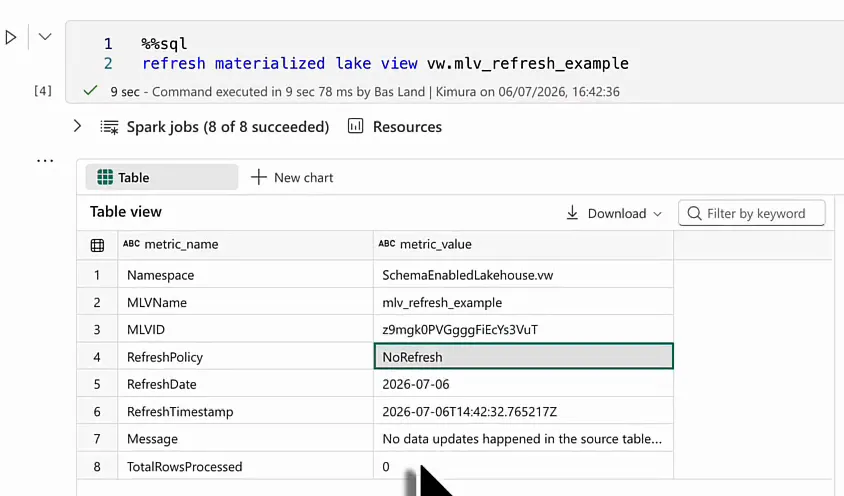
I covered this option in more detail, including why it fits a metadata-driven process so well, in How to Refresh Materialized Lake Views in Microsoft Fabric.
Option 2: refresh from the lakehouse
The second way runs from the lakehouse itself. In the explorer my MLVs sit under the vw schema. Open the Materialized lake views tab and click Manage to see the lineage of the views in the lakehouse. In my case raw.taxizonelookup feeds vw.countbyborough, and dbo.mlv_example feeds vw.mlv_refresh_example. Click a view to see when it was last refreshed, which lakehouse it lives in and a bit more metadata.
Run an on-demand refresh
Click Run in the toolbar. The pane that opens asks for a name for the run (I used “MLV Demo”) and lets you choose between Refresh all materialized lake views and Refresh selected materialized lake view(s). I went for all of them, which in my lakehouse means both views.
Under Advanced settings you find Optimal refresh. With optimal refresh on, Fabric decides per view whether it needs a full load, an incremental load or no load at all. I explained how that works in Incremental Refresh for Materialized Lake Views in Microsoft Fabric. For this demo I switched it off and just refreshed everything, and I left the environment on the workspace default.
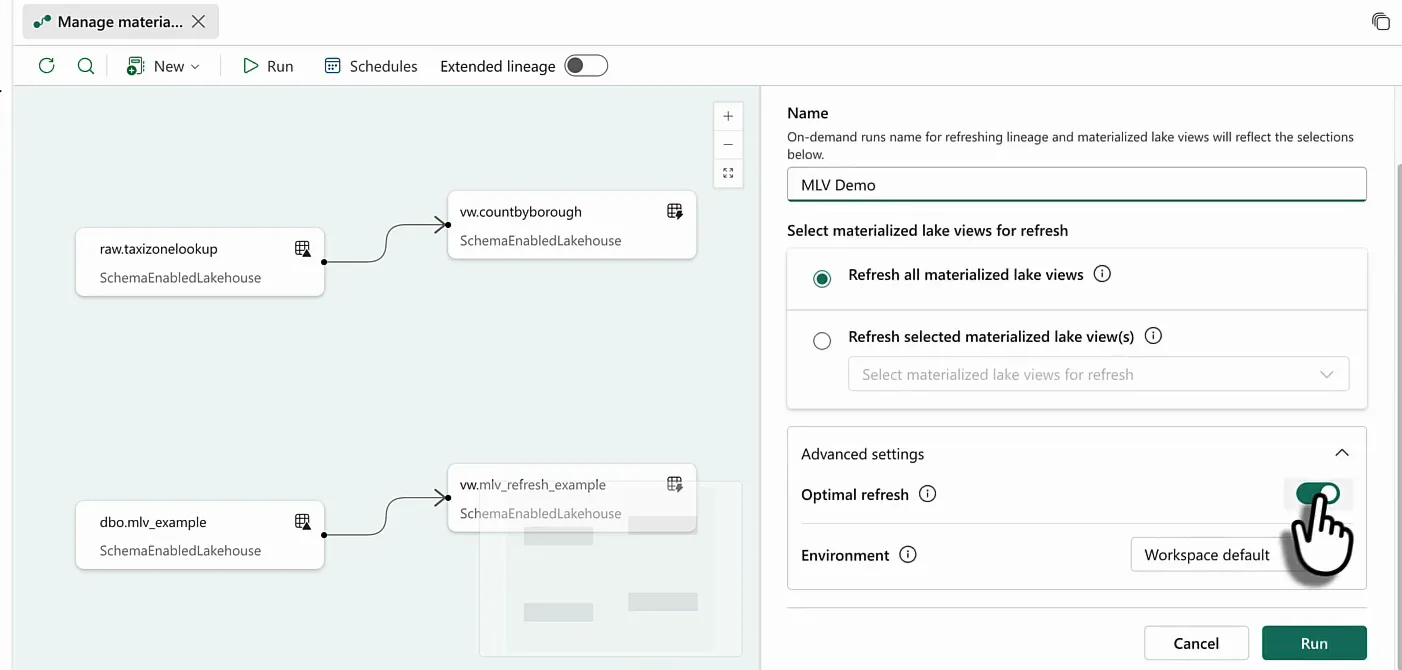
Click Run and the refresh starts. You can follow it under Recent run(s). Click the run ID for the run details (start time, refresh mode, run name, run type and status) and the status of every view in the run.
When the run does not start
My first run stayed in progress while both views said “Not started”. I think it had to do with starting the session. I run my demos on an F2 capacity because anything bigger gets a bit too expensive, and two CUs is too little to run multiple Spark sessions at the same time. The notebook from option 1 still had a session of its own running.
So I stopped the notebook, cancelled the stuck run in Monitor, refreshed the page and started a new run. This time both views went to “In progress”, and within a minute they were refreshed.
Put it on a schedule
Next to Run you find Schedules. Click New schedule to have the refresh run at a set time.
Refreshing after a pipeline has finished
A schedule works well if you want to refresh, say, every Monday at 4:00 in the morning. If you wanted to refresh every time a certain pipeline had finished processing, there was no way to do that. You had to schedule the MLV refresh on its own, outside the rest of your orchestration.
You could have used code, of course, with a notebook in the pipeline that runs the Spark SQL refresh. For people who would rather not write code and just want to kick off all the materialized lake views in a lakehouse, there is now an activity for that.
Option 3: the Refresh materialized lake view activity
In the pipeline editor, go to Activities, open the list of other activities and search for “materialized lake view”. There you find the Refresh materialized lake view activity, which is still in preview. Before you can configure it, you need a connection.
Create the connection
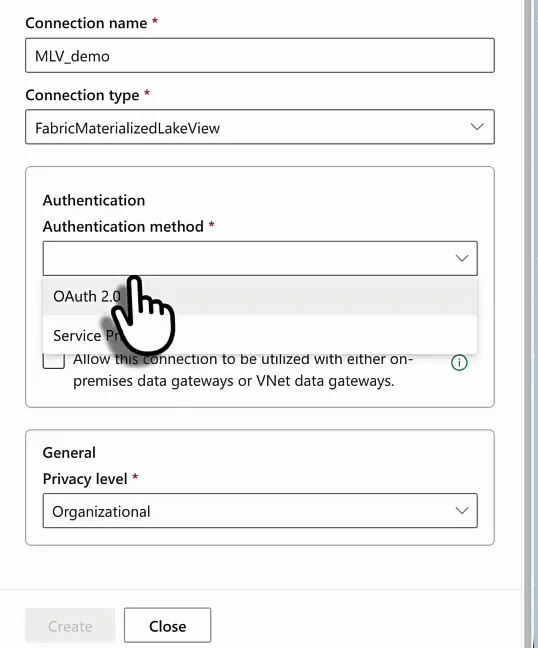
- Open the settings in Fabric and go to Manage connections and gateways.
- Click New and pick Cloud.
- Give the connection a name. Mine is
MLV_demo. - Search for the connection type “materialized lake view”. It is called
FabricMaterializedLakeView. - Pick an authentication method. You can use OAuth 2.0 or a service principal, that’s up to you. I used a service principal.
- Click Create.
Configure the activity
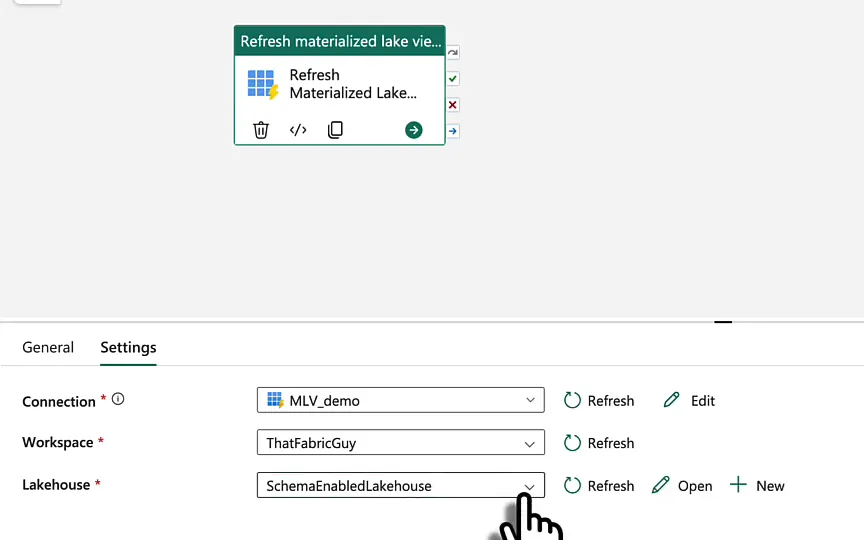
Back in the pipeline, select the activity and open its Settings tab. There is very little to configure:
- Connection: the connection you just created. If it is not in the list yet, click Refresh next to the dropdown. I also had one I made while preparing, and either works.
- Workspace: the workspace of your lakehouse,
ThatFabricGuyin my case. - Lakehouse:
SchemaEnabledLakehouse.
That’s it. The activity refreshes all the MLVs in that lakehouse.
Run the pipeline
Save the pipeline and run it. Because I’m on an F2, I first checked in the monitor that no other sessions were still running.
Every time you ingest data through a copy job, a notebook or a copy activity, and then do whatever else your orchestration does, you can now refresh your MLVs in that same pipeline. I really like that.
While the pipeline ran, the session for the refresh had not started yet. I think the activity starts a Spark session under the hood and then probably runs the Spark SQL refresh command for the views. Once the session was up, the activity finished soon after, in under three minutes in total.
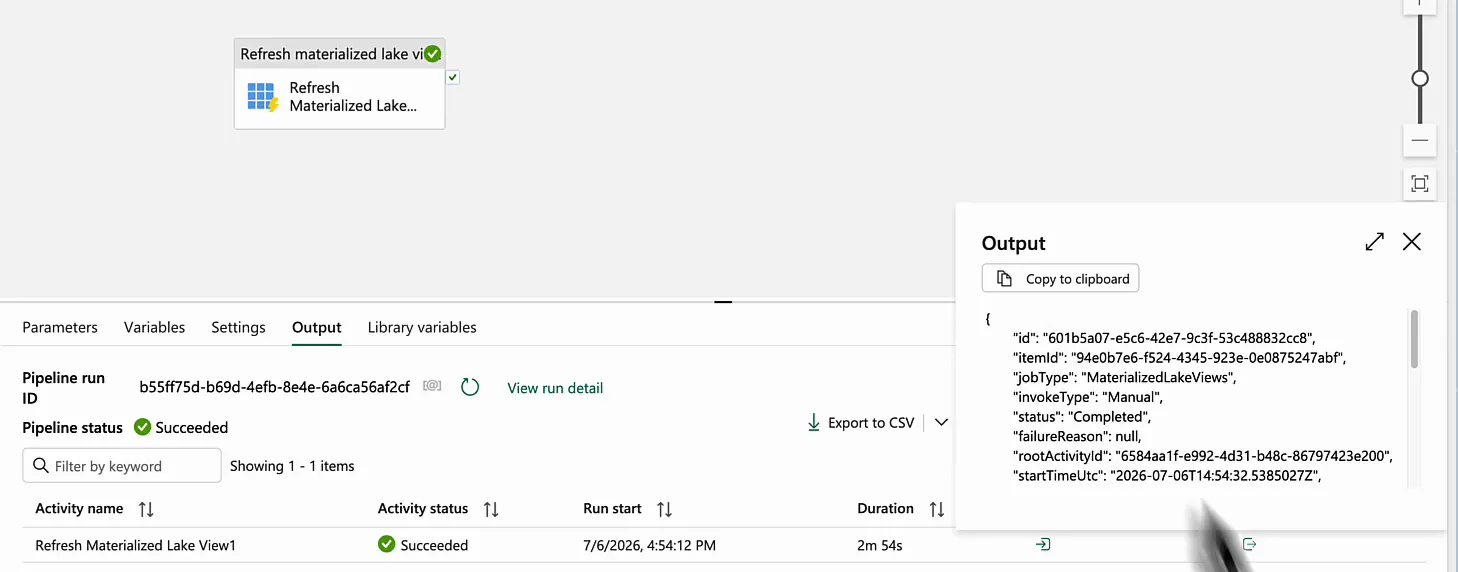
The output of the activity doesn’t tell you much. invokeType is Manual, because I started the pipeline myself and not through a schedule. status is Completed, and executionDuration says the refresh took 155 seconds.
Where materialized lake views fit
I still don’t see that many use cases for MLVs. Gold layer aggregations, maybe, or very simple transformations. For everything else I prefer notebooks to transform and orchestrate my data, even in the gold layer.
For a very small data platform with easy gold layer transformations, though, MLVs can be the right choice. They’re very low code, and the setup is very easy to maintain.
Which option to use
| Refresh from code | Refresh from the lakehouse | Pipeline activity | |
|---|---|---|---|
| How | refresh materialized lake view in Spark SQL or spark.sql | Run or Schedules under Manage materialized lake views | Refresh materialized lake view activity (preview) |
| What it refreshes | The view you name | All views, or the ones you select | All views in the lakehouse |
| When it runs | Whenever your code runs | On demand, or on a schedule | As a step in your pipeline |
If you orchestrate your work in pipelines, refresh your materialized lake views in that same pipeline.
In that case I’d go for the new activity. It needs a connection and three settings, and your views refresh as soon as the data underneath them has landed.
