
In this article 6 sections
Plenty of data lives in Excel and CSV files on SharePoint. With a SharePoint connection and a OneLake shortcut you can work with those files from a Fabric notebook, and the data never lands in OneLake. It’s super simple to set up. The one catch is that Spark can’t read Excel, so the notebook takes a detour through pandas.
In Shortcuts in Microsoft Fabric for Azure Blob Storage I showed how shortcuts work in the first place. This one is specifically about SharePoint, because people have been asking (and bugging) me about it for months.
The Excel file on SharePoint
My test file is Book.xlsx, in the Documents library of a SharePoint site called LinkedIn automation. I have no clue why it’s called that. It’s one of the SharePoint sites I was told I could use freely, so it’s probably something old that nobody uses anymore. The file holds some super important data: an ID and a Name column with six rows (Bas, TFG, Jane, John, Marie and Satya) on a sheet called Sheet1.
On the Fabric side you need a lakehouse, and it doesn’t matter which one. I use the Bronze lakehouse in my ThatFabricGuy workspace.
Create the SharePoint connection
I like to create my connections up front and pick them when I make the shortcut. In Fabric, open Settings > Manage connections and gateways, click New and choose Cloud:
- Give the connection a name. Mine is SharePoint_Demo.
- Set the connection type to SharePoint.
- Fill in the SharePoint site URL. Copy it from the browser’s address bar, up to and including the site name:
https://{tenant-name}.sharepoint.com/sites/{site-name}.
Pick an authentication method
The Authentication method dropdown offers Anonymous, OAuth 2.0, Service Principal and Workspace identity. Pick workspace identity and Fabric tells you that you can’t use it for this connection: workspace identity is currently only supported for Dataflows Gen2 with CI/CD, data pipelines, OneLake shortcuts, notebooks and semantic models.
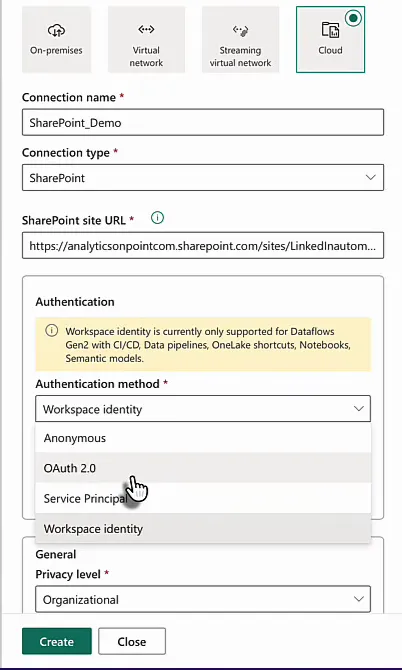
Microsoft, if you’re reading this: remove workspace identity from the dropdown if it isn’t supported for SharePoint connections. Do not show it if you cannot use it.
And that goes for a lot of other connections as well. That leaves three options. Anonymous won’t work. OAuth 2.0 authenticates your current user against SharePoint. Service Principal is what you should probably be using when you run this in production, and until workspace identity becomes available here, it’s the safest way.
I don’t think creating a service principal, giving it access to SharePoint and logging in with it through Fabric is very interesting to watch, so I went with OAuth 2.0 and my own credentials. That’s the same account I’m logged into Fabric and SharePoint with, so it should always work. Click Edit credentials, then Sign in in the pop-up. I was already signed in, so that was enough. Click Create and the connection is there.
Create the SharePoint shortcut
Back in the Bronze lakehouse, I created a subfolder under Files called Shortcuts. That’s probably not necessary, but I did it anyway. On the Shortcuts folder, click New shortcut.
You can shortcut to other OneLake items, Azure Data Lake Storage, Blob Storage, even Google and Amazon storage. Here, pick SharePoint Folder. You can create a new connection in this step or use an existing one; choose Existing connection and select SharePoint_Demo. The dialog also lists the URL formats it accepts for a default site, a site or a team.
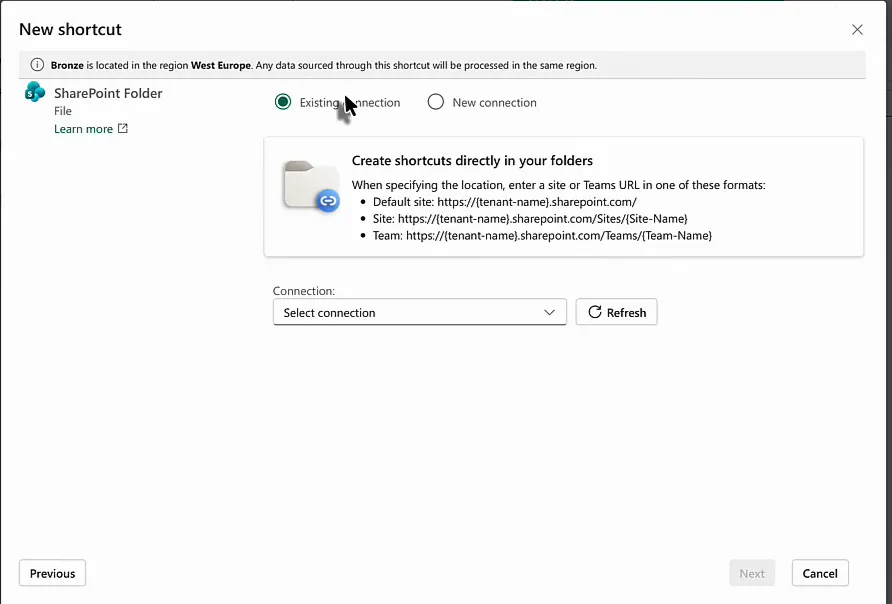
I linked the whole Shared Documents library, clicked Next, skipped the transform step and clicked Create. The summary shows target type OneDriveSharePoint, shortcut location Bronze > Files/Shortcuts, and one shortcut, Shared Documents, pointing at LinkedInautomation > Shared Documents.
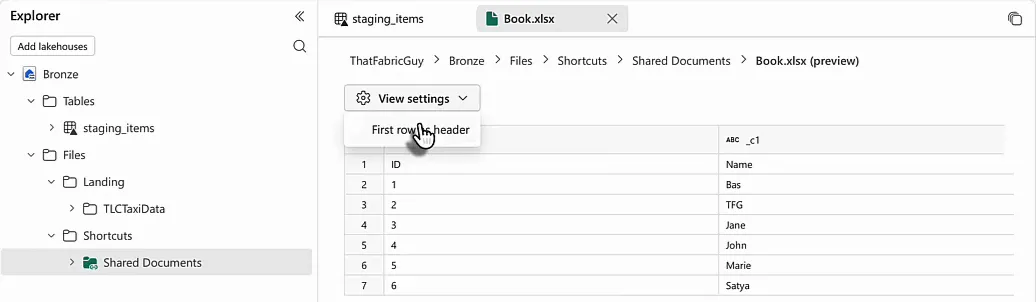
Open Shared Documents in the lakehouse explorer and Book.xlsx is right there. Click it and Fabric shows a preview of the sheet. The columns come through as _c0 and _c1, with ID and Name in the first row; View settings > First row as header fixes that for the preview. You can do the same from code.
Load data doesn’t work for Excel
Next I wanted to work with the file in a notebook. I created a new one, NB_SharePoint, and added the Bronze lakehouse as a data item (it was at the top of the list because I’d used it recently). Click Skip on all the annoying pop-ups that follow. In the explorer, under Files > Shortcuts > Shared Documents, you find Book.xlsx.
The obvious next step is Load data > Spark on the file. Fabric drops a cell into the notebook that says # Not supported. Load data > Pandas gives you the same. I find it really unfriendly that the option shows up at all when it isn’t supported. Either way, you can’t load this Excel file into the notebook from the menu.
Read the Excel file with pandas, then hand it to Spark
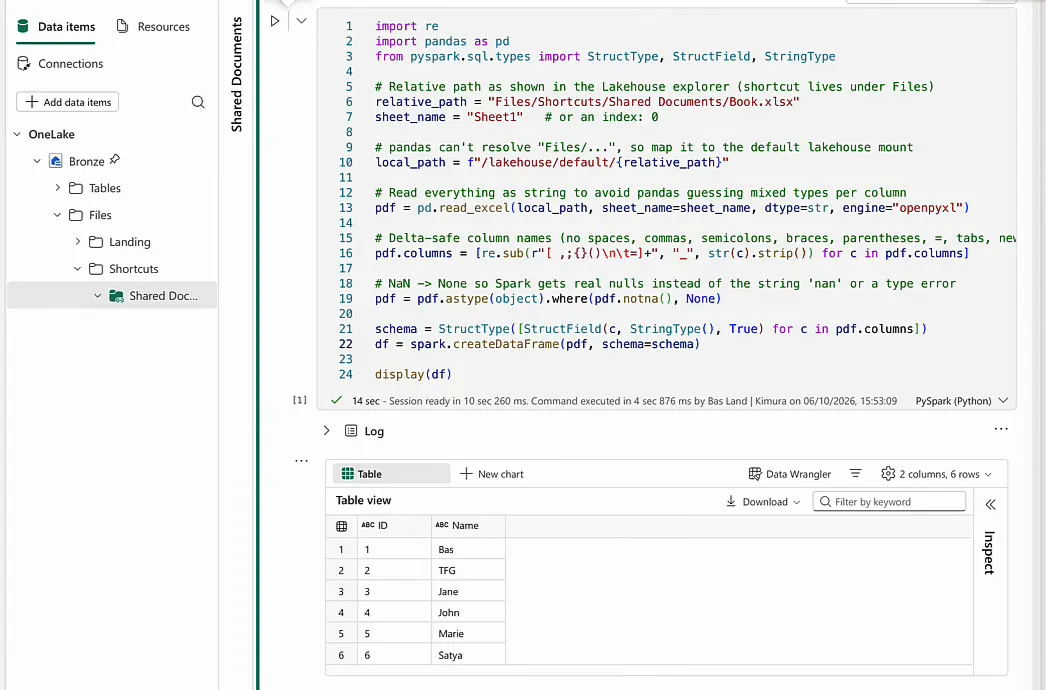
Spark can’t natively read an Excel file into a Spark dataframe. If you want one, you need to go through pandas. I had my French friend Claude write the code for this and pasted it into a cell:
import re
import pandas as pd
from pyspark.sql.types import StructType, StructField, StringType

# Relative path as shown in the Lakehouse explorer (shortcut lives under Files)
relative_path = "Files/Shortcuts/Shared Documents/Book.xlsx"
sheet_name = "Sheet1"   # or an index: 0

# pandas can't resolve "Files/...", so map it to the default lakehouse mount
local_path = f"/lakehouse/default/{relative_path}"

# Read everything as string to avoid pandas guessing mixed types per column
pdf = pd.read_excel(local_path, sheet_name=sheet_name, dtype=str, engine="openpyxl")

# Delta-safe column names (no spaces, commas, semicolons, braces, parentheses, =, tabs, newlines)
pdf.columns = [re.sub(r"[ ,;{}()\n\t=]+", "_", str(c).strip()) for c in pdf.columns]

# NaN -> None so Spark gets real nulls instead of the string 'nan' or a type error
pdf = pdf.astype(object).where(pdf.notna(), None)

schema = StructType([StructField(c, StringType(), True) for c in pdf.columns])
df = spark.createDataFrame(pdf, schema=schema)

display(df)
Here’s what it does:
relative_pathis the path to the file in the lakehouse, andsheet_namepicks the sheet. You can also pass an index, which is zero-based: 0 for the first sheet, 1 for the second and so on. I kept Sheet1, after checking that the tab in Excel is indeed called that.- pandas can’t resolve a
Files/...path, solocal_pathmaps it onto the default lakehouse mount: an easy concatenation of/lakehouse/default/and the relative path. pd.read_excelreads the sheet with the openpyxl engine, everything as strings, so pandas doesn’t guess mixed types per column.- The column names are made safe for Delta: spaces, commas, semicolons, braces, parentheses, equals signs, tabs and newlines become underscores.
- Missing values become None, so Spark gets real nulls instead of the string ‘nan’ or a type error.
- Finally it builds a schema from the pandas dataframe, with every column a nullable string, creates the Spark dataframe from it and displays it.
To get the right path, open the … menu on Book.xlsx in the explorer and choose Copy relative path for Spark. That gave me Files/Shortcuts/Shared Documents/Book.xlsx, which goes into relative_path.
As I’m a lazy bones, I just copy-pasted the code and hit run to see if it worked. It did. The run took 14 seconds, most of it starting the session, and the result is a Spark dataframe with two columns, ID and Name, and the six rows from the sheet.
In a real project this code wouldn’t sit in a notebook cell. We usually put it in a Python library that our notebooks load, in our case the Kimura Data Framework. To show how it works, a cell is fine.
No data landed in OneLake
To recap: Book.xlsx sits on a random SharePoint site. The shortcut to it is authenticated with my user account, which has access to both SharePoint and Fabric. Usually we’d do this with a service principal, and we’d really like a workspace identity, Mr Microsoft.
The notebook reads the Excel file through that shortcut. I develop a lot with notebooks and lakehouses, so Spark is usually my friend. But Spark can’t read Excel files, so the file goes into a pandas dataframe first, and that pandas dataframe moves into a Spark dataframe for further downstream processing. At no point did the data land in OneLake: everything went through the shortcut.
