
In this article 9 sections
One notebook per table is fine when you have three tables. In practice you’re more likely to have 300 tables that need copying on a regular basis, and then you really don’t want 300 notebooks. With metadata-driven processing, one generic child notebook does the loading and a metadata table decides what gets loaded. If you want to add a table, switch one off or change where it goes, you edit a row in the metadata and leave the code alone.
I’ve already demoed how runMultiple works in Notebook Orchestration in Microsoft Fabric, and I built metadata-driven ingestion with pipelines in Metadata Driven Ingestion into Fabric with Pipelines. This time it’s Spark notebooks all the way: a setup notebook, an orchestrator and a child.
Three notebooks and a lakehouse
The demo lives in a folder called MetadataDrivenNotebooks with three notebooks, all connected to a lakehouse called MetadataDriven. The lakehouse starts out empty.
| Notebook | What it does |
|---|---|
01_setup | Creates three small source tables and the metadata table |
02_orchestrator | Reads the metadata, builds a DAG of load activities and runs it with runMultiple |
child_load_table | Copies one source table to one target table |
The source tables
The first cell of 01_setup creates three source tables: customers, products and orders. The customers are three very nice companies, Microsoft, Apple and Dell. The products are a MacBook Pro at 1,889.95 and a Surface Laptop at 1,290.00 (of course the Apple is more expensive), and each of the three orders links a customer ID to a product ID.
spark.createDataFrame(
    [(1, "Microsoft"), (2, "Apple"), (3, "Dell")],
    "customer_id int, customer_name string",
).write.mode("overwrite").saveAsTable("src_customers")

spark.createDataFrame(
    [(101, "MacBook Pro", 1889.95), (102, "Surface Laptop", 1290.00)],
    "product_id int, product_name string, price double",
).write.mode("overwrite").saveAsTable("src_products")

spark.createDataFrame(
    [(1001, 1, 101), (1002, 2, 102), (1003, 3, 101)],
    "order_id int, customer_id int, product_id int",
).write.mode("overwrite").saveAsTable("src_orders")
After 36 seconds of me yapping, the cell had run, and after a refresh src_customers, src_orders and src_products showed up in the lakehouse.
The metadata table
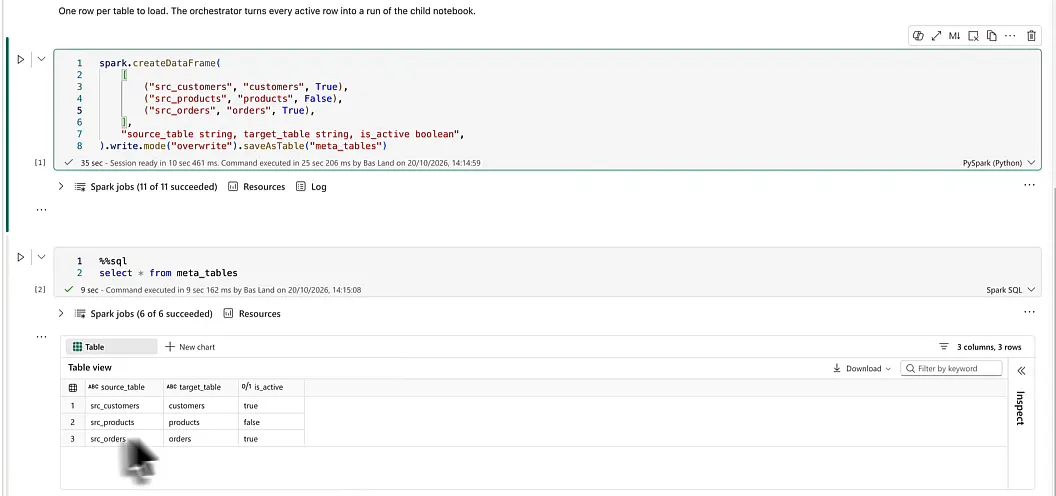
The second cell is a very simple manual description of the data. It has one row per table to load, with the source table name, the target table name and whether the table is active, as an is_active Boolean.
spark.createDataFrame(
    [
        ("src_customers", "customers", True),
        ("src_products", "products", True),
        ("src_orders", "orders", True),
    ],
    "source_table string, target_table string, is_active boolean",
).write.mode("overwrite").saveAsTable("meta_tables")
It’s super meta to have a table describing tables, and that’s why we call it metadata. A quick select * from meta_tables in a Spark SQL cell shows all three tables as active, so the orchestrator will pick them all up. What happens to each table is a simple copy from source table to target table, and that’s about it.
The orchestrator: from metadata to a DAG
The orchestrator is quite straightforward, I would say. If you’ve never worked with directed acyclic graphs (DAGs) before it might look a bit complicated, so I’ll keep the explanation as easy as I can.
rows = spark.table("meta_tables").where("is_active = true").collect()

dag = {
    "activities": [
        {
            "name": f"load_{row.target_table}",
            "path": "child_load_table",
            "args": {"source_table": row.source_table, "target_table": row.target_table},
        }
        for row in rows
    ],
    "concurrency": 3,
}
The first line reads meta_tables with spark.table, keeps the rows where is_active is true and collects them into rows. That filter is very important, because it gives you a flag you can switch on and off. You steer which data you load without removing the metadata for inactive tables.
Then the DAG gets built, with one activity for every row. An activity always needs a name, and I use load_ followed by the target table name from the metadata. The path is the notebook to run, child_load_table in this case, and the args are the two arguments passed into that notebook: the source table and the target table, both from the metadata.
Concurrency is set to 3, so all three activities should be able to run at the same time.
To see what came out, I print the DAG as JSON. I would normally not do this in production, but it shows the structure you just built:
# Visualise DAG output
import json
print(json.dumps(dag, indent=2)){
"activities": [
{
"name": "load_customers",
"path": "child_load_table",
"args": {
"source_table": "src_customers",
"target_table": "customers"
}
},
{
"name": "load_products",
"path": "child_load_table",
"args": {
"source_table": "src_products",
"target_table": "products"
}
},
{
"name": "load_orders",
"path": "child_load_table",
"args": {
"source_table": "src_orders",
"target_table": "orders"
}
}
],
"concurrency": 3
}You could type those activities in by hand, but here they come straight from the metadata.
The child notebook and its parameters
The child notebook starts with a parameters cell. It looks like a regular PySpark cell, but through the three dots on the cell you can toggle it as a parameter cell, and the cell then shows Parameters in its bottom right corner.
The values in it are fixed and hardcoded, which lets you test the child notebook on its own. When another notebook or a pipeline runs it, the values passed in replace them. Here the orchestrator passes source_table and target_table, and schema keeps its default.
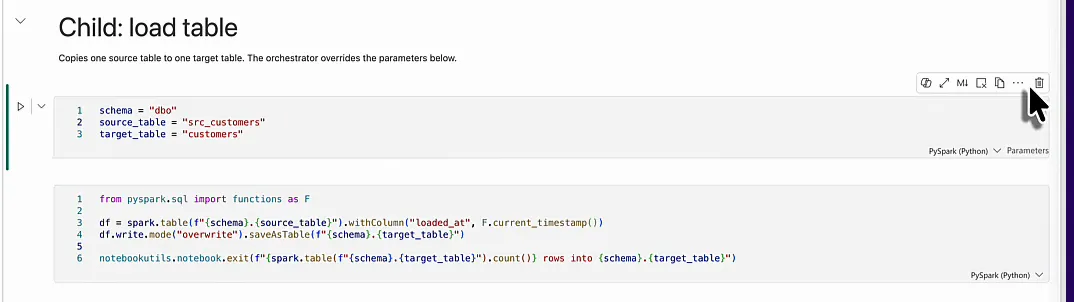
The second cell does a very simple thing. It reads the source table into a DataFrame called df with spark.table, adds a loaded_at column with the current timestamp, and writes df to the target table in overwrite mode, so all existing data gets thrown away. Then it exits with notebookutils.notebook.exit and a message that says how many rows it loaded into which table. That message is the exit value the orchestrator receives once the DAG has finished.
My first version, as it is on screen above, put the schema in front of every table name:
from pyspark.sql import functions as F

df = spark.table(f"{schema}.{source_table}").withColumn("loaded_at", F.current_timestamp())
df.write.mode("overwrite").saveAsTable(f"{schema}.{target_table}")

notebookutils.notebook.exit(f"{spark.table(f"{schema}.{target_table}").count()} rows into {schema}.{target_table}")
Running the DAG
One line in the orchestrator runs the whole thing:
results = notebookutils.notebook.runMultiple(dag)The three runs got queued to run in parallel. They should all be quite fast: three activities, a concurrency of three, and a Spark session that should be able to run three operations at the same time. Instead, all three failed. I mean, this is amazing.
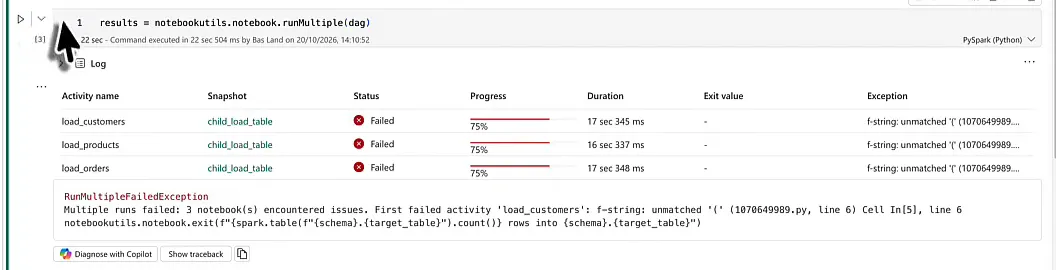
Every activity threw the same exception, f-string: unmatched '(', on line 6 of the child notebook. That’s the exit message, with an f-string inside an f-string. I think I just made some typos in the f-strings around the table names, so I fixed it live by dropping the schema prefix. It probably isn’t needed here:
from pyspark.sql import functions as F

df = spark.table(source_table).withColumn("loaded_at", F.current_timestamp())
df.write.mode("overwrite").saveAsTable(target_table)

notebookutils.notebook.exit(f"{spark.table(target_table).count()} rows into {target_table}")
The second run gave three success messages, and once the runs had finished the exit values came in as well: three rows loaded into customers, two into products and three into orders.
Checking the results per activity
runMultiple returns an object with the results per activity, and you can loop over results.items() to see what happened to each one:
for activity, result in results.items():
    print(activity, "->", result["exitVal"])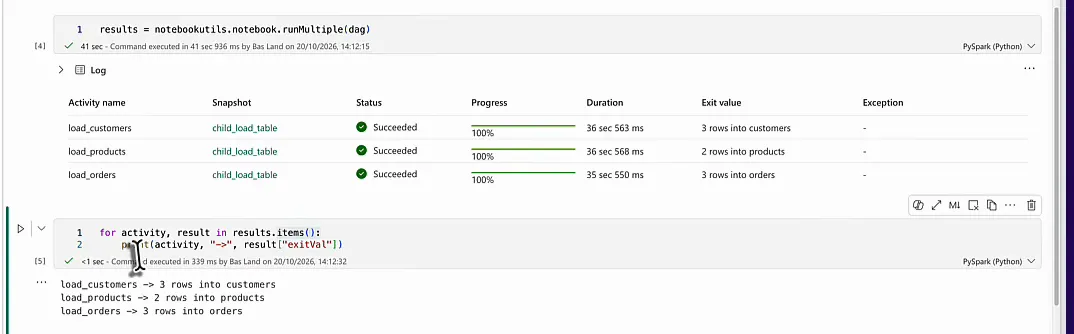
I don’t use this a lot in production. You could wire it into some custom logging, which would be cool, but I usually let the child notebook do its own logging.
Changing behaviour through metadata
This is one of the biggest reasons to do metadata-driven processing: you change the metadata, and with it the behaviour of your automated loads, without changing code.
There’s already a time profit in the demo. I didn’t have to program three different notebooks for three different tables. In practice you’ll have maybe 300 tables that you need to copy on a regular basis. That saves a lot of time and a lot of code, and you shouldn’t be duplicating code anyway (more on that in Implementing the DRY Principle in Microsoft Fabric).
Change your metadata, and you change the behaviour of your loads without changing code.
Now say that out of those 300 tables you want to disable one or two for a while, for whatever reason. In the setup notebook I set products to False and ran the metadata cell again. Selecting from meta_tables confirms that the record for src_products is no longer active.
In the orchestrator I also set concurrency to 1. Maybe you’re constrained for capacity and want to load on a very small Spark node, with maybe only four cores. I commented out the cell that prints the DAG, since I didn’t need it for now, and ran everything.
Now two things should happen: only the two active tables should end up in the DAG, and with a concurrency of one only one of them should run at a time. That’s exactly what happened, with customers in progress while orders waited in the queue.

When both child runs had finished, the exit values said three rows into customers and three rows into orders. Products wasn’t loaded at all. After a refresh the lakehouse shows the target tables customers, orders and products (products is still there from the first run), which proves the metadata-driven load worked. I switched a table off in the metadata, and it dropped out of the run without any change to the notebooks.
Next: load groups and dependencies
This is a very simple setup, but one piece of code loads multiple objects, which is really cool. And by changing the metadata you change what the orchestrator does: two tables instead of three.
So far concurrency is one number for the whole DAG, 1 or 3 or 5. You can go further and make parts of the load concurrent and parts of it depend on other objects, so you get load groups. Run notebooks one, two and three in parallel, and only after all three have finished, run notebooks four and five. When four has finished you can start six straight away, without waiting for five. That way you work out the dependencies between your objects and load them in the right order with the right concurrency. It takes a bit more time than I had here, so I’ll show it in a follow-up video.
