
In this article 7 sections
Shortcuts let you work with data that lives outside OneLake without copying it into OneLake. The data never lands in Fabric, so there is nothing to keep in sync. It’s a feature of Microsoft Fabric I use quite a lot. Here I set one up to a CSV file in Azure Blob Storage and read that file from a notebook.
This is the follow-up to mirroring an Azure SQL database into Microsoft Fabric. Mirroring copies the data into OneLake for you. A shortcut doesn’t copy anything at all.
Shortcuts sit at the top of my ingestion list
When I need data from another source, I have a hierarchy of ingestion methods that I go through in order.
Shortcuts are at the top. The data never lands in OneLake, so a shortcut is a very low effort way to work with it. Next is mirroring. Mirroring does copy the data into OneLake for your analytics, but the mirror manages that process for you, so it is very low touch. Last on the list are the actual ingest patterns: data pipelines with copy activities, or notebooks that copy data into your lakehouses.
Which one you can use depends on the source. Some sources leave you no choice but to ingest. Databases can usually be mirrored, and file systems such as Blob Storage or Amazon S3 buckets usually support shortcuts. I explain the reasoning behind this order in more detail in How I ingest data into OneLake.
I want to do as little copying as possible. Every time I copy data, I have to wait for it, it goes out of sync, I have to build a process, and then I have to monitor that process.
The demo setup
In Fabric I have a demo workspace, ThatFabricGuy, with a folder called ShortcutBlob and an empty lakehouse in it called LH_ShortcutDemo. I refreshed it to make sure: it is super empty.
On the Azure side there is a storage account in my demo tenant called tfg01storage. It holds a blob container, tfgshortcutdemo, with one file in it: csvdemo.csv. It’s about as simple as a CSV gets: two columns, id and name, and two rows, 1 Bas and 2 Jane, just two random names.
I could copy that file into the lakehouse to use it in a notebook. I’m going to create a shortcut instead.
Create the Azure Blob Storage connection
The shortcut needs a connection to the storage account. In Fabric, open Settings > Manage connections and gateways, click New and pick Cloud:
- Give the connection a name. I called mine ADLS.
- Set the connection type to Azure Blob Storage.
- Fill in the account name, tfg01storage.
- Fill in the domain. That is blob.core.windows.net, which you can check in the Azure portal under the storage account’s Settings > Endpoints: the blob service there is https://tfg01storage.blob.core.windows.net.
Pick an authentication method
Workspace identity would be awesome here. Fabric shows a warning, though, that workspace identity is currently only supported for Dataflows Gen2 with CI/CD, data pipelines, OneLake shortcuts, notebooks and semantic models. OneLake shortcuts, yes. Blob Storage shortcuts, unfortunately not. So workspace identity is out of the question for this one. If you want to know more about workspace identities, I use one in Using workspace identity for Key Vault.
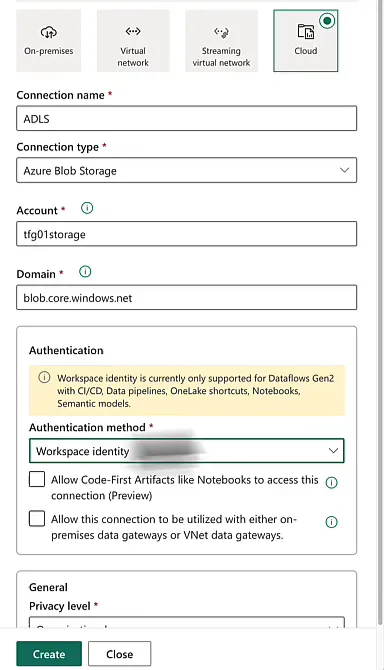
A service principal would work as well, but I went with a shared access signature (SAS) token.
Generate the SAS token
In the Azure portal, open the storage account and go to Security + networking > Shared access signature. These are the settings I used:
- Allowed services: Blob and File.
- Allowed resource types: all three, Service, Container and Object.
- Allowed permissions: only Read and List.
- Blob versioning permissions: no deletion of versions.
- Allowed blob index permissions: Read/Write and Filter.
- Expiry: very far in the future. Mine runs until 2099.
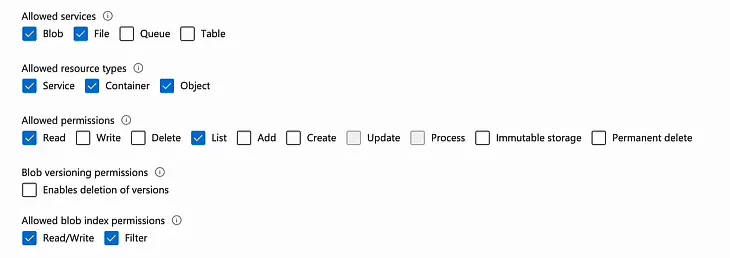
That is fine for a demo. In production I would not rely on a SAS token at all, and would use a more solid form of access control instead.
Click Generate SAS and connection string, copy the SAS token and paste it into the Fabric connection. Also tick Allow Code-First Artifacts like Notebooks to access this connection, then click Create. The ADLS connection now shows up in the list with connection type Azure Blob Storage.
Create the shortcut
Back in the lakehouse, I create the shortcut under Files, because what I’m pointing at is a file in a blob container. Open the menu on Files and click New shortcut.
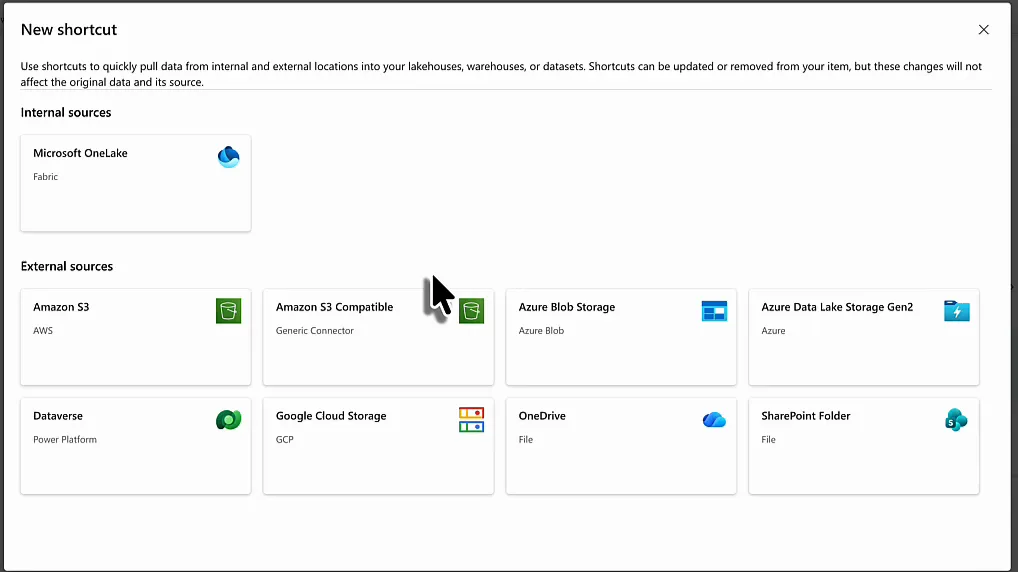
The source picker shows Microsoft OneLake as the internal source and a list of external sources. Pick Azure Blob Storage, choose Existing connection and select the ADLS connection you just created. Click Next.
This step lets you shortcut a whole bucket or directory. I selected the tfgshortcutdemo container, clicked Next and skipped the transform step. I kept the default name, so the shortcut is called tfgshortcutdemo, the same as the container. The summary shows the target type AzureBlobStorage and the shortcut location LH_ShortcutDemo > Files.
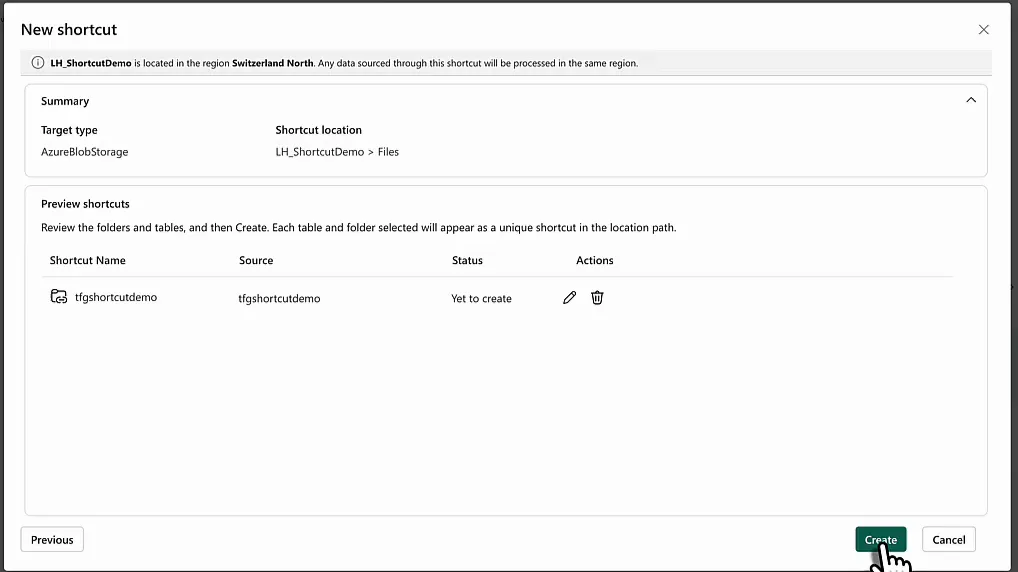
Click Create. The lakehouse now has a tfgshortcutdemo folder under Files: a blob container is more or less a folder, so that’s how it shows up. Inside is csvdemo.csv, and when you open it, you see its contents from within Microsoft Fabric. The shortcut already works, which is really cool.
Read the shortcut from a notebook
Reading a CSV through the shortcut from a notebook is super easy. In the workspace folder, click New item > Notebook. I called mine CSVReader.
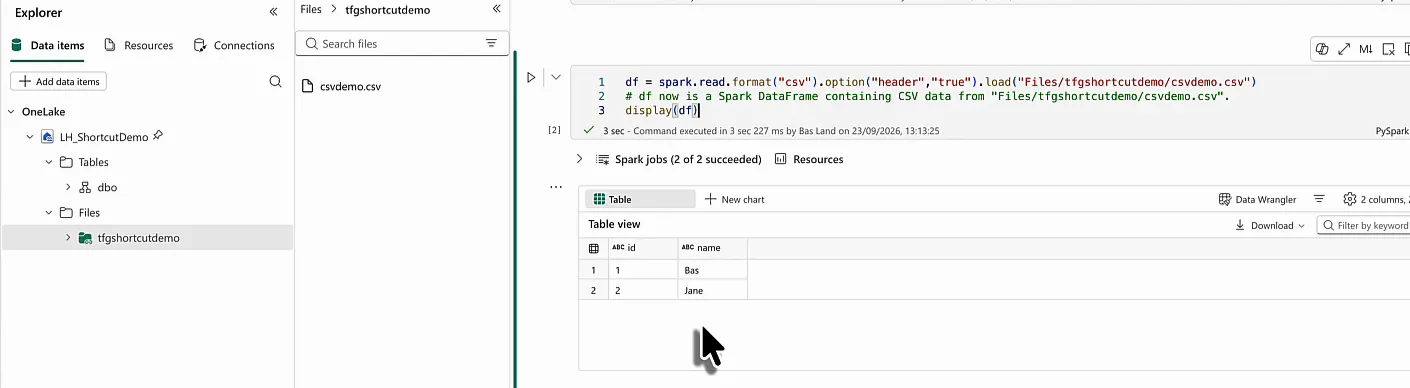
First add the lakehouse as a data item, so the notebook can connect to it. I ran x = 1 to start the session, which took only a couple of seconds. Then, in the explorer, go to Files > tfgshortcutdemo, find csvdemo.csv and choose Load data > Spark. You can also pick Pandas, but I’m already in a Spark session and I don’t want to import Pandas as a library just for this.
Fabric generates the cell for you:
df = spark.read.format("csv").option("header","true").load("Files/tfgshortcutdemo/csvdemo.csv")
# df now is a Spark DataFrame containing CSV data from "Files/tfgshortcutdemo/csvdemo.csv".
display(df)
The path is a regular lakehouse path. Nothing in the code tells you the file sits in Azure Blob Storage.
The data never lands in OneLake
The file is still in a blob storage account on Azure. That is Microsoft’s cloud, but it is outside Fabric and outside OneLake. If you browse the lakehouse storage, for example with a storage explorer, you won’t find a copy of csvdemo.csv in the lakehouse. That is why shortcuts are so lightweight.
The data is not touching Microsoft Fabric, and here we are working with it from a notebook.
Because nothing gets copied, there is no process to schedule or monitor, and nothing can go out of sync.
Other sources you can shortcut to
Azure Blob Storage is one of several sources you can shortcut to. If a process writes files to any of these, you can work with that data without ever copying it:
- Internal: Microsoft OneLake.
- External: Amazon S3, Amazon S3 Compatible, Azure Blob Storage, Azure Data Lake Storage Gen2, Dataverse, Google Cloud Storage, OneDrive and SharePoint Folder.
SharePoint files and folders are a really big one. Maybe someone keeps mapping information, or who knows what else, in an Excel file on SharePoint. As data professionals we don’t want that, but it happens. Instead of copying that file every time it changes, you shortcut to it and use it in your pipelines and notebooks.
Google Cloud Storage and Amazon S3 are on the list too, so it works with third-party vendors as well. Shortcuts are really lightweight and really cheap, so whenever the data sits in one of these places, I check for a shortcut before I build anything that copies.
