In this article 4 sections
Materialized Lake Views in Fabric lakehouses are a very cool option to start introducing data virtualisation patterns within Microsoft Fabric.
In today’s post I will show you how you can create MLVs and how you can manage them.
Views vs Tables
Let’s get this out of the way first. What is the difference between a view and a table? In a traditional SQL database, that would be simple. A table is a collection of data, consisting of rows and columns, physically stored on a computer or server somewhere.
A view, on the other hand, is more like a virtual table. In SQL terms, a view is basically a stored SELECT query that is executed when you query the view. However, the view behaves as if it is a table when you work with it from a client application.
Then, we got materialized views. Those are basically views that materialize their data. In traditional SQL databases that is done using indexes. In Fabric lakehouses, it is done by the Spark engine. It allows you to create an object that behaves as a virtual table, but still stores its data physically in order to serve the user more quickly.
How To Create Materialized Lake Views in Microsoft Fabric
Time needed: 10 minutes
So, how do we create a materialized lake view (MLV) in Fabric, then? It’s simple if you follow these steps.
-
Start with a schema-enabled lakehouse
MLVs only work in schema-enabled lakehouses. If you lakehouse doesn’t support schemas, you will need to create a new one. Now mind you, as of July 2025, schemas in lakehouses are still in preview, so be warned!
-
Make sure the schema in which you want to create the MLV exists
Before you can create your MLV, you have to create the schema first (unless you use ‘dbo’).
Simply run the following code in a separate cell to create the view in your default lakehouse:
%%sql
create schema vwOr instead of ‘vw’ any other schema name you’d like to use.
-
Create the MLV using SparkSQL
Currently, only SparkSQL can be used to create and define Materialized Lake Views. For those of you that can still speak SQL, the view definition is very simple:
%%sql
create view vw.ThisIsAView as
select columnA, columnB
from dbo.SomeTable
where columnC = ‘somevalue’
Actual Example of MLVs in Fabric
I have a real example here of creating and working with Materialized Lake Views in Microsoft Fabric. I have been using my NYC Taxi Data lakehouse I use for demos.
First, I created a lakehouse that has schemas enabled. Then, because my Taxi lakehouse didn’t have schema’s, I copied a table to the new lakehouse:
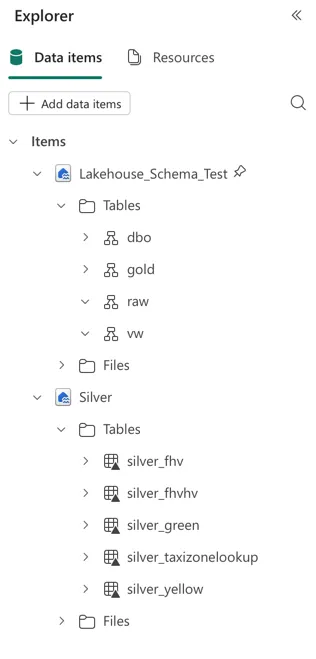
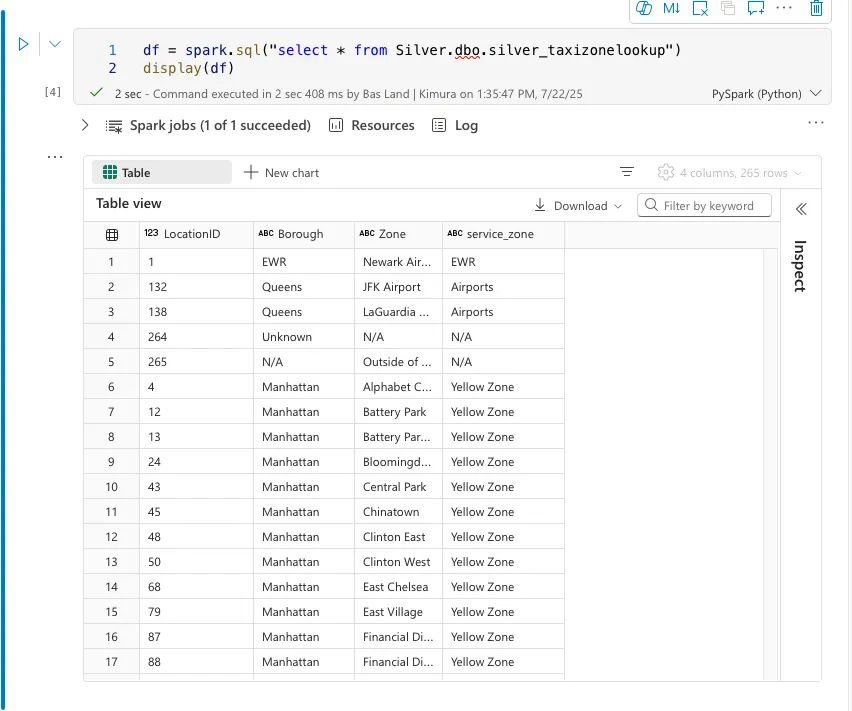
Then, I had to copy the table to my schema-enabled lakehouse. That is fairly easy. If you executed the code in the screenshot above, copying the dataframe to a lakehouse delta table is as simple as copying the following code:
new_table = "Tables/raw/TaxiZoneLookup"
df.write.format("delta").mode("overwrite").save(new_table)
Now if you query the table in the new lakehouse, you can see that the data was in fact copied over successfully.
Now I am going to create the MLV. I do so with the following code (note the %%sql magic command to turn this cell into a SparkSQL cell):
%%sql
create materialized lake view vw.CountByBorough as
select Borough, count(*) as RowCount
from raw.TaxiZoneLookup
group by Borough
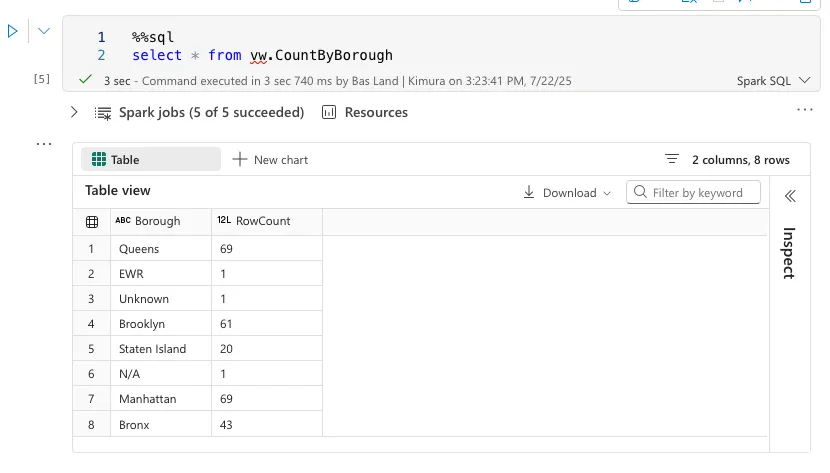
This created a view that can be queried just as a table:
Refreshing the Materialized Lake View in Microsoft Fabric
Unlike a proper SQL view in a database, the changes to underlying data are not reflected immediately in an MLV. Instead, you have to wait for the refresh schedule to be completed, or manually update the view yourself.
If you want to wait for the schedule, you can check that by going to your lakehouse.
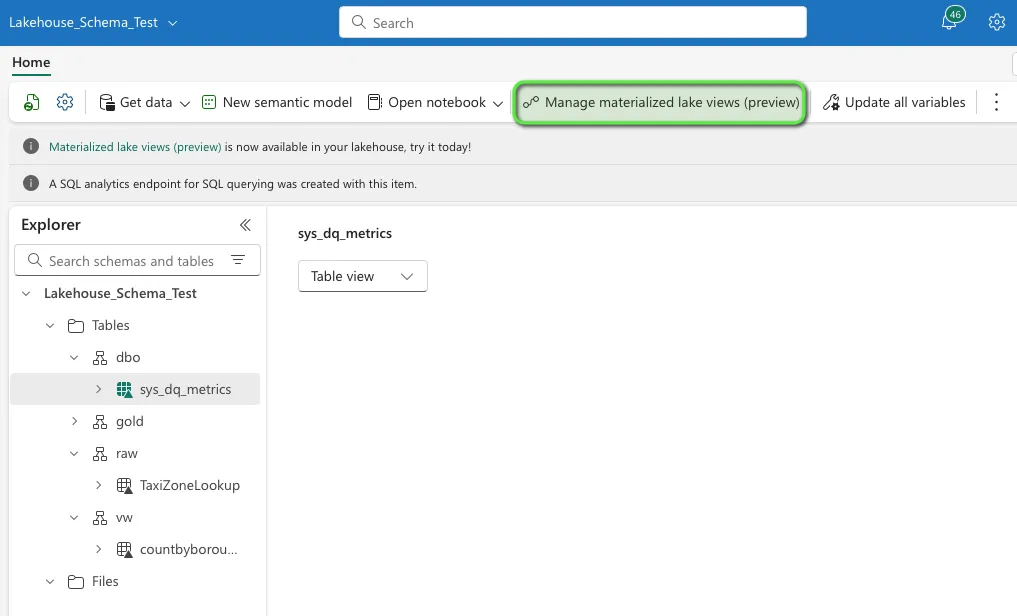
There you will find the materialized views you have created and their lineage (the underlying tables). Also, you can find here the setting to schedule refreshes, for example daily or hourly:
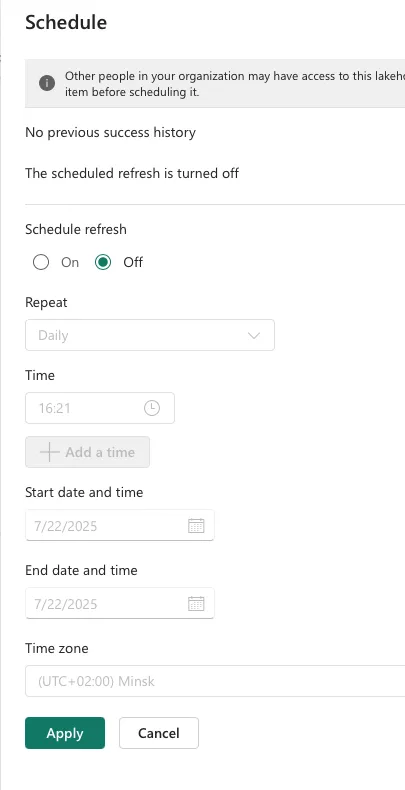
Mind you, everytime the views are refreshed, you will use up some of your capacity allowance. If you want to learn more about capacity and usage, check out the blog post on CU(s), costs, and capacity management.
It’s also possible to manually refresh an MLV. I will demonstrate this by first adding a record to the underlying table with the folllowing code:
%%sql
insert into raw.TaxiZoneLookup
values(9999,"Netherlands","Utrecht","Woudenberg")
This adds a record to the TaxiZoneLookup table. It adds the city in The Netherlands were our office is located. That has nothing to do with NYC taxi data, but I will just use it to demo the MLV refresh 🙂
Now I added this data, and when I query the view (select * from view) I don’t see any record with The Netherlands as its borough.
However, when I run the following SparkSQL command and then query the view, I do see the newly added record.
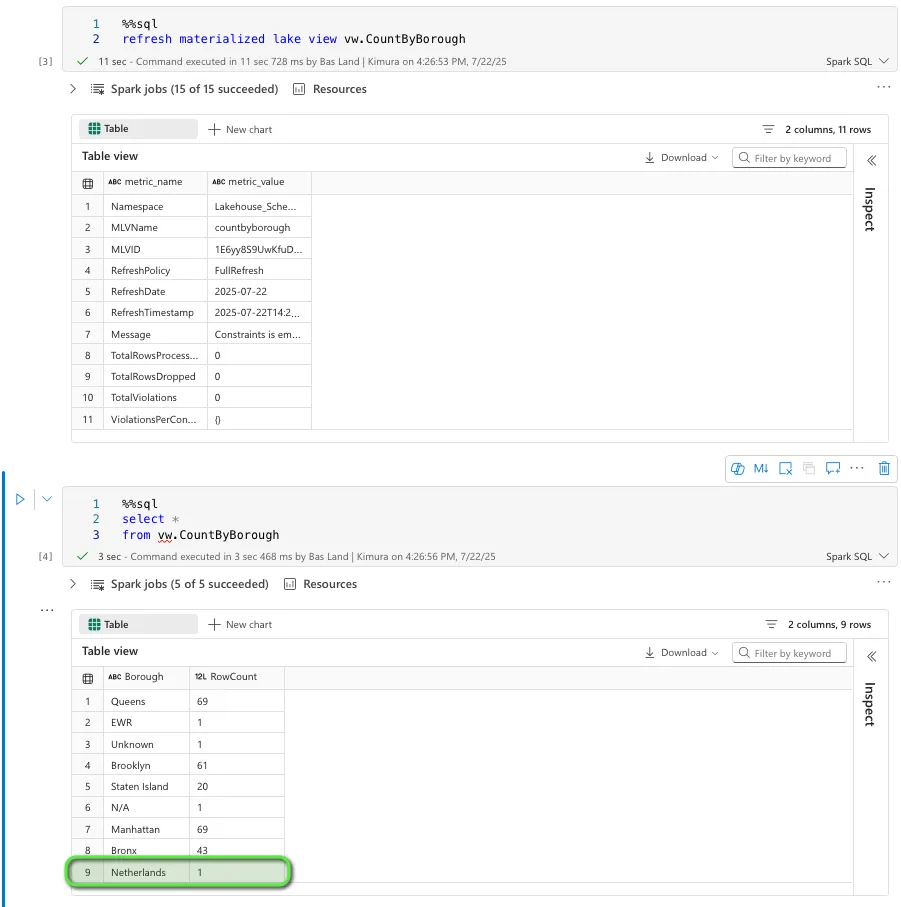
Now you know how to work with Microsoft Fabric Materialized Lake Views!
What are your use cases? Let me know in the comments below!