
In this article 7 sections
A materialized lake view (MLV) in Microsoft Fabric often does a full refresh: it reads everything in the tables underneath and rebuilds the view, even when only one row came in since the last refresh. Be careful with how you configure those underlying tables, though, and Fabric does an incremental refresh instead that only processes the new rows. That is optimal refresh, and it saves you a lot of time and a lot of money.
It comes down to two conditions: the source table has change data feed enabled, and you only ever append to it. Below I build a small example in a notebook and watch the refresh go from full to incremental. Then I break it again with a single delete.
A quick recap on materialized lake views
I covered the basics in Materialized Lake Views in Microsoft Fabric Lakehouse and the two ways to keep them up to date in How to Refresh Materialized Lake Views in Microsoft Fabric. The short version: an MLV is a view definition you create in your Fabric lakehouse. You write create materialized lake view, give it a name and a Spark SQL query, and that is it.
Under the hood it creates a Delta table, but it acts as a view. You never write code to update the data in it: when new data comes in, you refresh the view and Fabric works out the rest. This post is about how much work Fabric does during that refresh.
An append-only source table
For the demo I made a very simple data set with the current date and time and a value. A PySpark cell builds a one-row dataframe and writes it to a table called dbo.mlv_example.
from pyspark.sql.types import *
from pyspark.sql.functions import *
from datetime import datetimeschema = StructType([
StructField('current_datetime', TimestampType(), nullable=False),
StructField('value', StringType(), nullable=False),
])data = [
{
"current_datetime": datetime.now(),
"value": "and more still!"
}
]
df = spark.createDataFrame(data=data, schema=schema)
df.write.format("delta").mode("append").option("overwriteSchema", "true").saveAsTable("dbo.mlv_example")Every time I run that last cell with a different value, one record lands in the table. Note the append mode: every record is added to the table and nothing is overwritten. There are also no deletes and no updates, and that is very important. If you delete or update rows in your underlying tables, incremental refresh on your MLV will not work.
I ran the cell twice, so the table logs two rows. A quick check:
%%sql
select * from dbo.mlv_example order by current_datetime desc
Create the view and refresh it
Now for the materialized lake view itself, which selects both columns from the table:
%%sql
create materialized lake view vw.mlv_refresh_example as
select current_datetime, value
from dbo.mlv_example
When the view is created, Fabric outputs a set of metrics. One of them is the refresh policy, which says FullRefresh (we will change that later). Selecting from the view gives the two rows that are in the table.
%%sql
select
    *
from vw.mlv_refresh_example
Next I appended a third row (“row number 3”) to the table and selected from the view again. Nothing changed, because nothing had refreshed the view yet. So I refreshed it:
%%sql
refresh materialized lake view vw.mlv_refresh_example
The refresh returns the same kind of metrics as the create statement: three rows processed in total, with refresh policy FullRefresh.
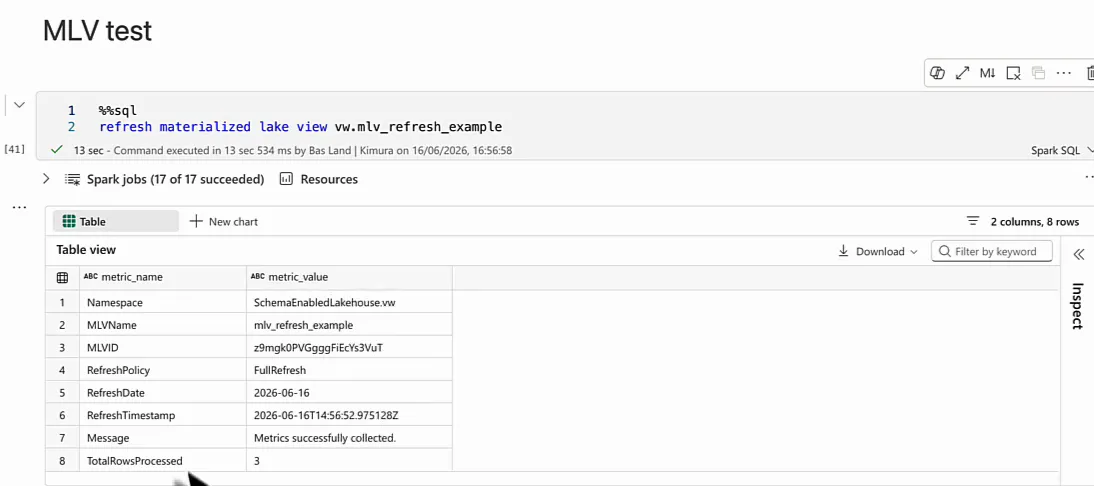
That is a bit disappointing. I appended one record, so why couldn’t the view just append that one record as well? It has to do with the way the underlying table is configured.
Turn on change data feed on the source table
Look at the table properties of the source table:
%%sql
show tblproperties dbo.mlv_example
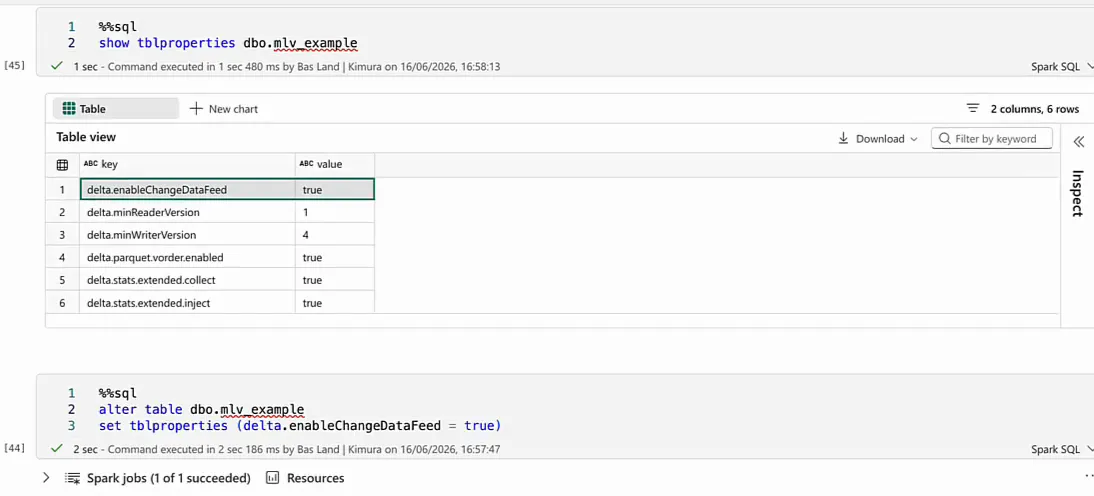
My table came back with five properties: delta.minReaderVersion, delta.minWriterVersion, delta.parquet.vorder.enabled, delta.stats.extended.collect and delta.stats.extended.inject. The one we are looking for is delta.enableChangeDataFeed, and it is not there. Luckily it is easy to switch on:
%%sql
alter table dbo.mlv_example
set tblproperties (delta.enableChangeDataFeed = true)
This adds a change data feed to the Delta table, so the table can tell other applications what has changed. For a materialized lake view on an append-only table, that means the view knows it should only take the newly appended data.
Run show tblproperties again to check: delta.enableChangeDataFeed is now in the list, set to true.
The incremental refresh in action
Same routine as before: I appended “row number 4” to the table and selected from the view. Still three rows, which is what you expect without a refresh. Then I ran the refresh command again.
This time the refresh policy says IncrementalRefresh, and the total number of rows processed is 1.
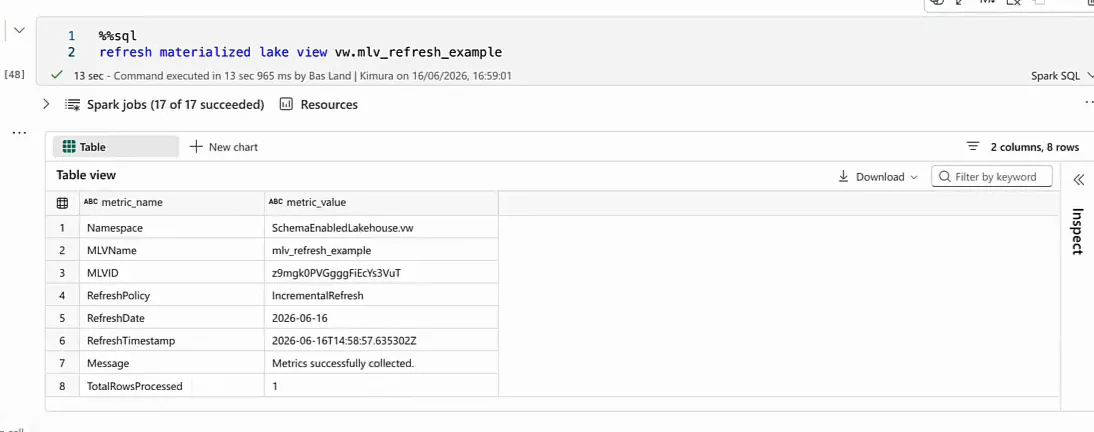
Selecting from the view now gives all four records, with row number 4 as the latest. So even though the view holds four records, the refresh only processed one, and that is where you save time and money.
What a delete does to the refresh
To show what happens when you delete data from the source table, I removed one of the earlier rows:
%%sql
delete from dbo.mlv_example where value = 'test this'
Then I appended “row number 5”. That should leave four rows in the view: we had four, deleted one and added one. After the refresh the view does hold four rows, but look at the metrics: refresh policy FullRefresh, and four rows processed. Every row in the table went through the refresh again.
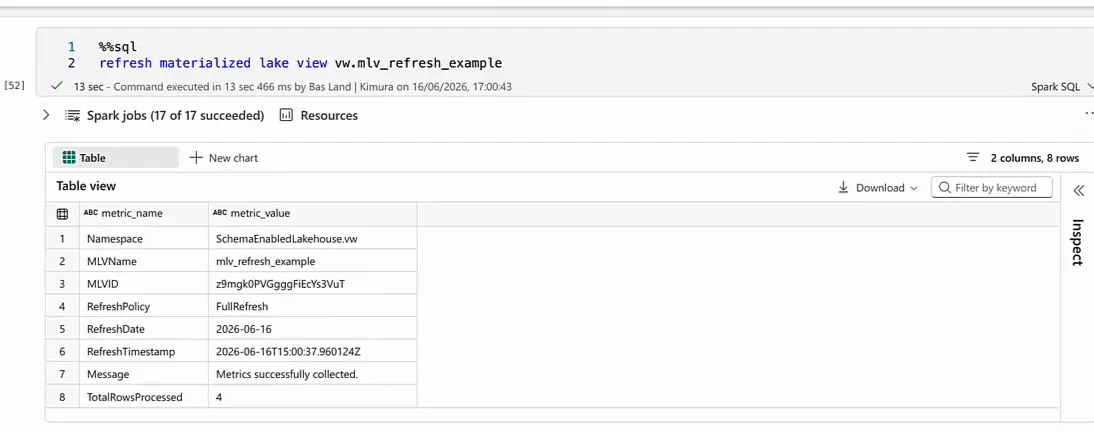
You do not need to do anything to get back to incremental. I appended one more row (the value was a very creative “blablabla”), ran the refresh and selected from the view. The refresh policy was back to IncrementalRefresh with one row processed, and the view showed all five rows correctly.
The rules for optimal refresh
The four refreshes from the demo, in order:
| Change to the source table since the last refresh | Refresh policy | Rows processed |
|---|---|---|
| One row appended, change data feed off | FullRefresh | 3 of 3 |
| One row appended, change data feed on | IncrementalRefresh | 1 of 4 |
| One row deleted and one appended, change data feed on | FullRefresh | 4 of 4 |
| One row appended, change data feed on | IncrementalRefresh | 1 of 5 |
It is a small concept and an easy one to understand. If your materialized lake views keep doing full refreshes, check two things on the tables underneath: is delta.enableChangeDataFeed set to true, and do you only append to them? With both in place, every refresh after an append-only load processes only the new rows.
