
In this article 4 sections
A materialized lake view (MLV) in Microsoft Fabric stores its data physically on the lakehouse. When new data lands in its source tables, the view does not pick that up by itself, so you have to refresh it. Fabric gives you two ways to do that. You can refresh from code, as part of the process that loads your data, or you can put the view on a schedule. Which one you want depends on whether you know when new data comes in.
For the examples I use the view I built when I showed how to create materialized lake views: vw.CountByBorough, which counts the rows per borough in the taxi zone lookup table.
Why a materialized lake view needs a refresh
The definition of the view sits in a Spark SQL cell in the notebook where I created it:
%%sql
create materialized lake view vw.CountByBorough as
select Borough, count(*) as RowCount
from raw.TaxiZoneLookup
group by Borough
It reads raw.TaxiZoneLookup and counts the rows for each borough, and the result shows up as a table on the lakehouse.
What is very important to remember is that the view contains physical data on the lakehouse. That makes it quite different from a view in SQL Server. The result of the query is stored, and it only changes when you refresh it, which is something you have to do yourself.
Option 1: refresh from code
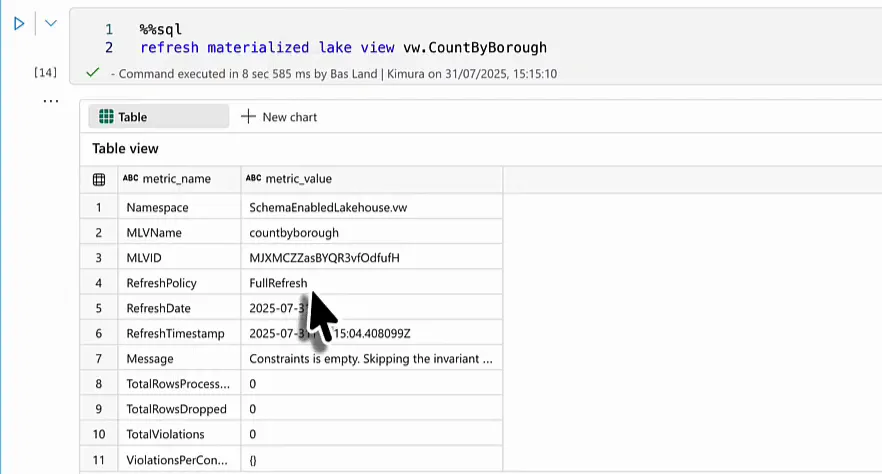
The first way is to run a Spark SQL command: refresh materialized lake view, followed by the schema and the name of the view.
%%sql
refresh materialized lake view vw.CountByBorough
What you get back is a metadata overview of the refresh, with one metric per row. Mine says Fabric did a full refresh on 31 July 2025 and dropped no rows.
Why I like this option
To me this is one of the better solutions, because you can put it into a metadata-driven processing framework. You load data into your tables through metadata, and the same ETL process then refreshes the materialized lake views on top of those tables at the point where new data has actually come in.
In practice that means a notebook that goes through a list of the available materialized lake views (or some other configuration metadata) and refreshes them one by one. If you are new to metadata-driven processing, I explained the idea in Metadata Driven Ingestion into Fabric with Pipelines.
Option 2: refresh on a schedule
Sometimes you do not control when data comes in. It just trickles in whenever, outside of your process, and there is no load step to hang a refresh command on. In that case you want the view refreshed on a set interval so it is kept up to date anyway.
Open the materialized lake view settings
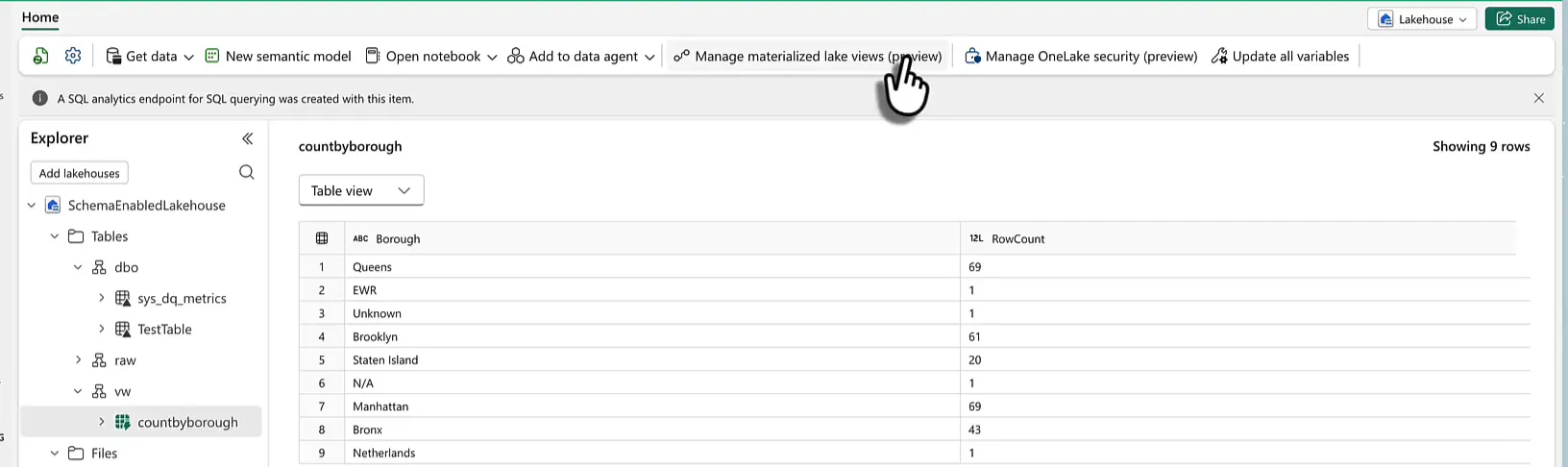
Go to your lakehouse and find the view in the explorer. Mine lives in the vw schema. Then click Manage materialized lake views (preview) in the ribbon.
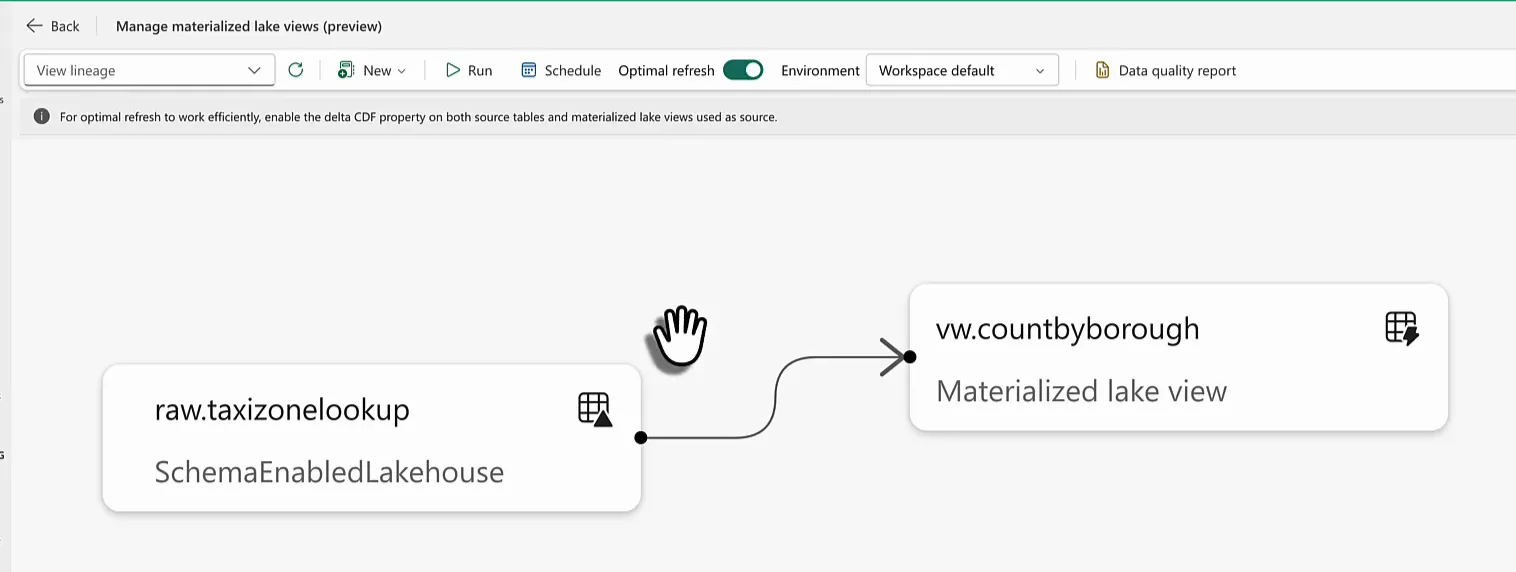
This opens the lineage of your materialized lake views, which shows you where the data comes from. In my case vw.countbyborough reads from one single table, raw.taxizonelookup. The dropdown in the top left is brilliant, by the way, because the only option in it is View lineage. A bit odd. I would not have guessed that.
Set the schedule
Click Schedule in the toolbar and set Schedule refresh to On. Under Repeat you choose how often it runs: by the minute, hourly, daily, weekly or monthly. I picked daily at 15:00. Below that you set a start date and time (today, in my case), an end date a couple of years out, and the time zone.
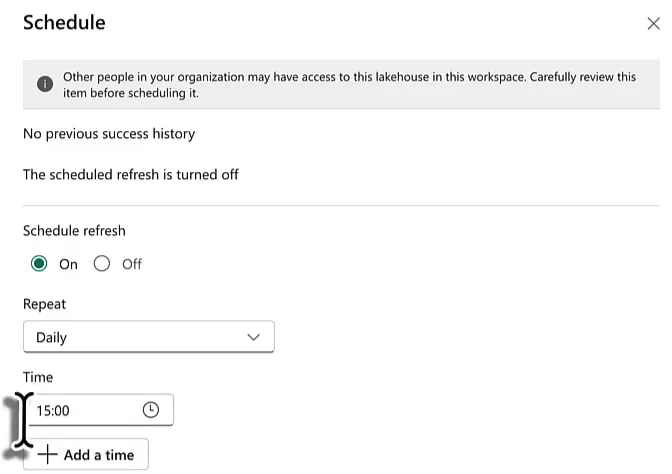
When you click Apply, the view gets its refresh schedule. From then on the schedule refreshes it whether there is new data in the source tables or not.
Which one to use
| Refresh from code | Refresh on a schedule | |
|---|---|---|
| Use it when | Your own ETL process loads the source tables | Data comes in outside of your control |
| How | refresh materialized lake view in Spark SQL, for example in a notebook | Schedule under Manage materialized lake views |
| When it refreshes | Right after new data has landed | On a fixed interval, with or without new data |
If you load the source tables yourself, refresh from code and let your metadata decide which views to refresh. If you do not know when data arrives, put the view on a schedule.
