
In this article 10 sections
- Before you start: capacity and DTUs
- Create the target lakehouse
- Create the Azure SQL connection
- Create the workspace identity and make it an admin
- Allow Azure services through the firewall
- Create the mirror
- What the mirror gives you
- Shortcut the mirrored schemas into the lakehouse
- Query the mirrored data from a notebook
- Sources you can mirror
Mirroring gets the data from an Azure SQL database into OneLake without a pipeline, a notebook or any other ingestion pattern for you to build and maintain. You set it up once and the copy in Fabric keeps itself up to date. Getting there has a few gotchas, mostly on the Azure side, so I walk through the whole setup here, including the troubleshooting I had to do along the way.
No AI this time, I know. The past few weeks were all vibe coding and Fabric apps, but you asked me to cover mirroring and shortcuts, and this is the mirroring one. For where mirroring fits next to shortcuts and copying data, see How I ingest data into OneLake.
Before you start: capacity and DTUs
You need a Fabric workspace on an active capacity. Mine is an empty workspace on an F2, which is fine for this.
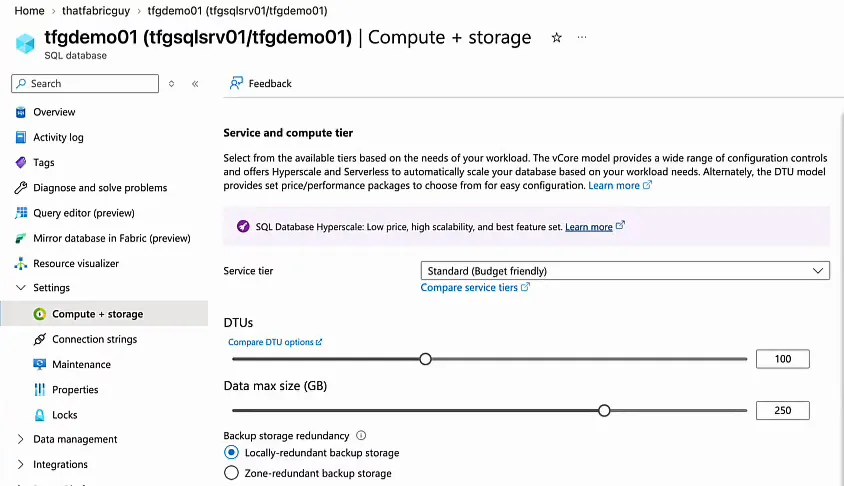
The source is an Azure SQL database, tfgdemo01 on the logical server tfgsqlsrv01, in my thatfabricguy resource group. I usually run it at 10 DTUs. Mirroring an Azure SQL database needs at least 100 DTUs, so I bumped it up to Standard S3 with 100 DTUs before I started. Other mirroring sources may have different prerequisites.
Create the target lakehouse
I like to work with lakehouses in Fabric, so the first thing I create is a lakehouse called MirrorTarget, with lakehouse schemas enabled. In the end this is where I work with the mirrored data: it’s where I build my Delta tables, my dimensional model and so on. Mind you, the lakehouse and the mirror are two separate items. The mirror comes later.
Create the Azure SQL connection
Under New item, search for “mirror” and you get a whole list of mirroring items. There is a generic Mirrored database, but for this source you want Mirrored Azure SQL Database, the pre-made mirroring connector.
Before clicking through that wizard, I prefer to create the connection myself. Cancel the wizard, open Settings > Manage connections and gateways and click New:
- Pick Cloud.
- Give the connection a name. Mine is ASQLDB.
- For the connection type, searching for Azure SQL didn’t turn up anything obvious, so I picked SQL Server. It pre-fills a database.windows.net example as the server, so that works.
- Copy the server name from the Azure portal (tfgsqlsrv01.database.windows.net for me) and fill in the database name, tfgdemo01.
- As the authentication method, pick Workspace identity. That’s a cool option to have here.
Then click Create.
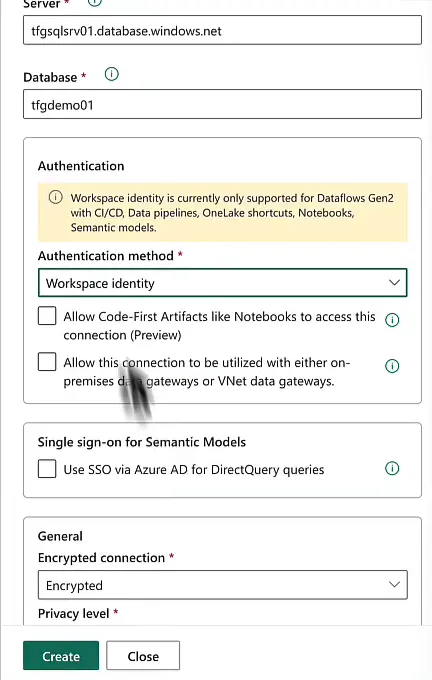
The connection now exists, but the identity it authenticates with doesn’t yet, so that comes next.
Create the workspace identity and make it an admin
In the workspace, open Workspace settings > Workspace identity and click Create workspace identity. Fabric creates a service principal, or an app registration if you will, in Entra ID. Mine is called ThatFabricGuy, after the workspace, and its App ID starts with 41d. That App ID is what you add to other resources. I go deeper into workspace identities in Using workspace identity for Key Vault.
Back in the Azure portal, open the logical SQL server, go to Microsoft Entra ID and click Set admin. Search for the workspace identity by name. The application ID in its details is the same 41d one Fabric showed, so you know you have the right one. Select it and save.
Allow Azure services through the firewall
One more thing to check on the SQL server: Security > Networking. I have a firewall rule for the IP address I connect from, and under Exceptions, Allow Azure services and resources to access this server is ticked.
That setting is really important. Without it, Fabric cannot reach the server and you have to go through a gateway, which is also the route when you want private access. For this demo I use public access to the SQL server.
Create the mirror
With the connection and the workspace identity in place, go back to New item > Mirrored Azure SQL Database. Your connection shows up in the wizard under the OneLake catalog. Pick it and give it a moment to load the tables.
Troubleshooting the identity
My first attempt stopped with a message that I had to turn on the system assigned managed identity of the server and set it as the primary identity. So, in the Azure portal, open the logical SQL server, go to Security > Identity and set System assigned managed identity to On.
The primary identity is where it got odd. The Primary identity drop-down said “no items available”, even after a page refresh. I tried creating the mirror again anyway, and this time the tables loaded without errors. As far as I can tell, once the system assigned managed identity is on, you don’t need to set a primary identity for this setup.
I kept this troubleshooting in the video on purpose. It was a learning experience for me as well, so it should be for you.
Choose the tables
The Choose data step lists the tables in the database. I selected all twelve. The dbo schema holds BuildVersion and ErrorLog, which I don’t really care about, but they can come along. Several SalesLT tables get a warning about unsupported columns. As the banner at the top says, only valid columns are replicated to OneLake, and that’s all right with me. I also left Automatically mirror future tables on, so any new table in the source gets mirrored too.
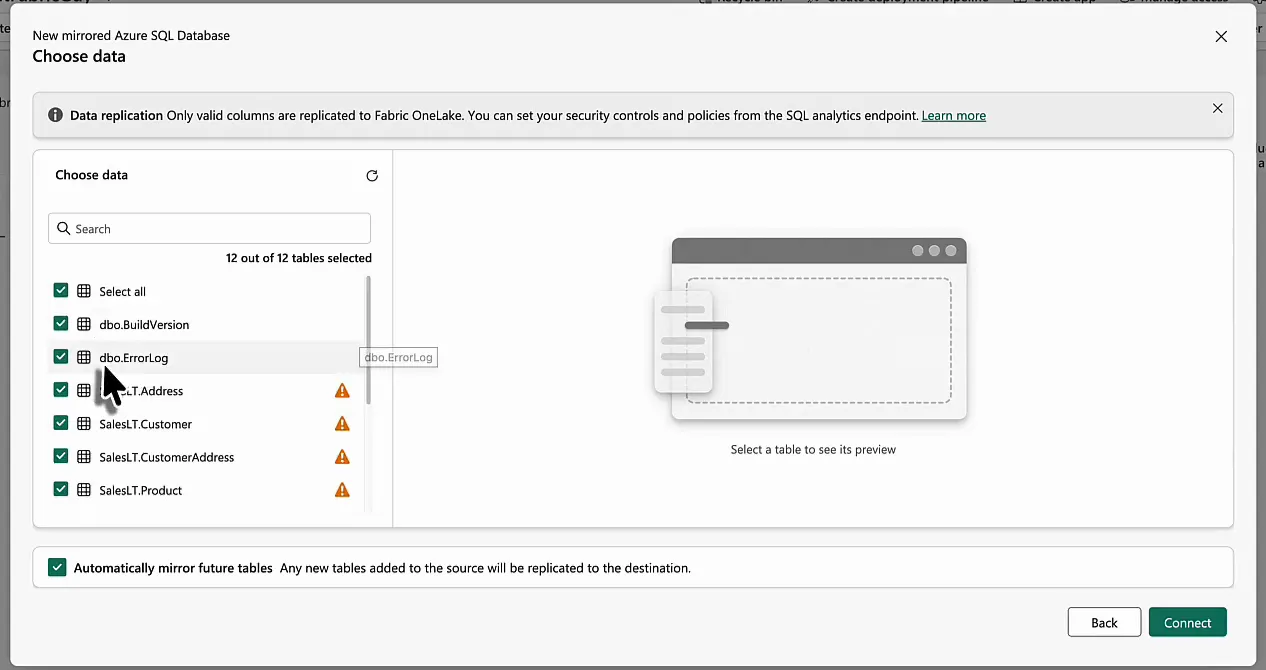
Give the mirror a name (SQLMirror_tfgdemo01 for me) and create the mirrored database.
What the mirror gives you
The mirror opens as soon as it’s created. It shows the mirrored database ID, the source (Azure SQL Database), the source connection and a replication status of Running. Fabric also created a SQL analytics endpoint and a default Power BI semantic model with it. In the explorer, under Tables in OneLake, you find the tables by schema, dbo and SalesLT, with all their fields. The few fields that were invalid have been left out of the replication.
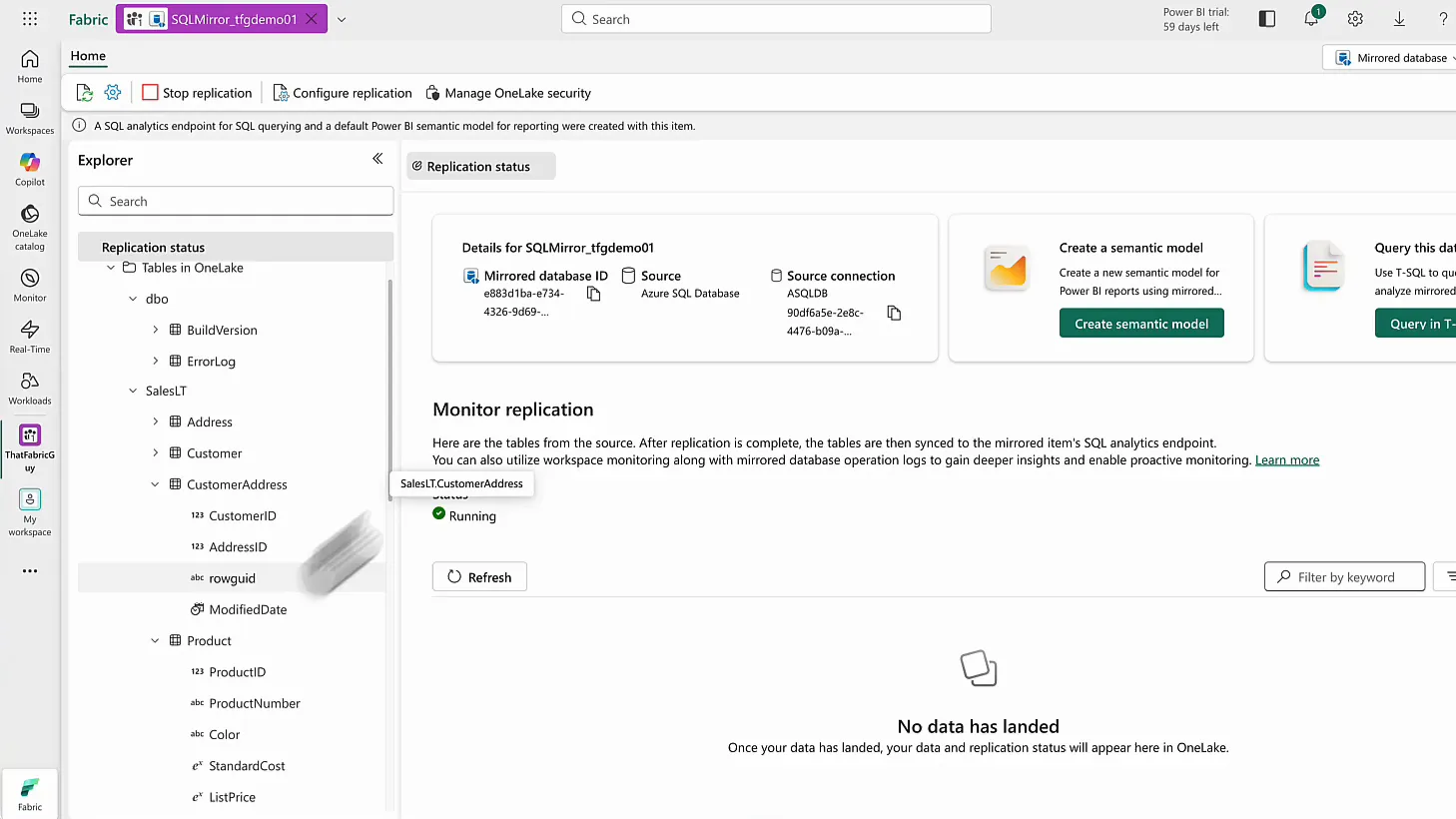
What’s very important to understand is that mirroring physically copies the data into OneLake, unlike a shortcut, which leaves data where it is. You don’t need to touch any of that copy, though. The mirror keeps it up to date, almost live.
Shortcut the mirrored schemas into the lakehouse
To get the mirrored data into the MirrorTarget lakehouse, add schema shortcuts. Shortcuts also work for objects that are already in OneLake, such as a mirrored database.
In the lakehouse, create a new shortcut, choose OneLake and pick SQLMirror_tfgdemo01. Fabric asks for a connection method: Passthrough identity, which uses your own permissions and is the recommended option, or Delegated identity, which uses one shared credential. I went with passthrough identity for now. Delegated identity is for a future video.
Then open Tables and tick both schemas, SalesLT and dbo.
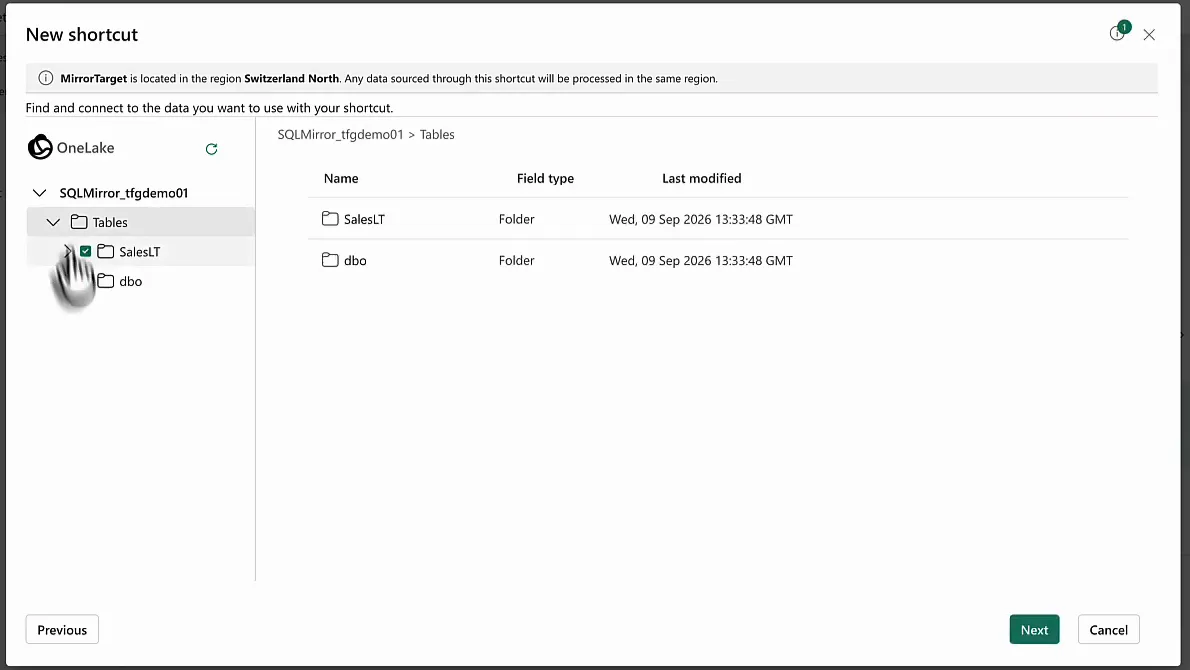
The lakehouse already had a dbo schema, so the dbo shortcut came in as dbo_1. That’s a bit ugly, but I don’t need those tables anyway.
And that’s it: the lakehouse now holds all the data from the external Azure SQL database, and it stays current. The mirror updates at short intervals, minutes at most, so new data in the Azure SQL database trickles into OneLake soon after. From the lakehouse you can write Spark SQL queries, build semantic models on top of the data, anything really, because it is OneLake data now.
Query the mirrored data from a notebook
To prove it, create a notebook (mine is MirrorReading). Under data items, add the MirrorTarget lakehouse as the primary lakehouse, which in this case is also the only one. You add the lakehouse here, not the mirror itself.
From there you can write Spark, PySpark or SQL. I like SQL, and I’m interested in product models:
%%sql
select
    *
from SalesLT.ProductModel
That gives me the product models straight away. The same goes for SalesLT.SalesOrderHeader: all the sales information from the Azure SQL database, right there in the notebook.
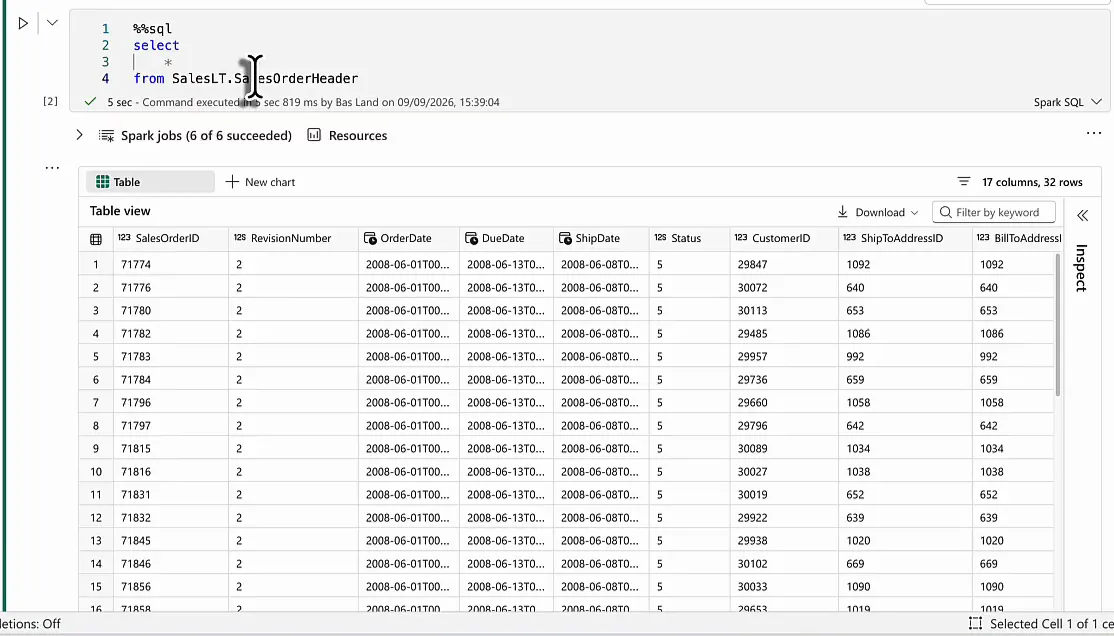
The notebook reads the copy in OneLake and never touches Azure SQL directly. The data gets there in four steps:
- Data comes into the Azure SQL database.
- Mirroring replicates it into OneLake.
- The schema shortcuts make it available in the MirrorTarget lakehouse.
- A notebook connected to that lakehouse reads it.
For ingestion I built no pipelines, no notebooks and no other pattern. I only told Fabric which database I wanted to mirror.
I don’t need to care about extracting that data anymore, and that makes life a little bit easier.
Sources you can mirror
Mirroring is fairly easy to set up yourself, and Azure SQL is far from the only source. Search for “mirror” under New item to see the full list:
- Azure sources: Azure Cosmos DB, Azure Database for MySQL, Azure Database for PostgreSQL, Azure SQL Database, Azure SQL Managed Instance and the Azure Databricks catalog.
- Third-party vendors, who are opening up to mirroring too: Google BigQuery, Oracle, SAP and Snowflake.
- SQL Server on-premises, over an on-premises data gateway.
- SharePoint Online lists.
Azure Database for MySQL, Google BigQuery and SharePoint Online lists were marked as preview when I recorded this.
If your database is on that list, a mirror saves you from building and maintaining the extraction yourself. Shortcuts get their own video soon, as you asked.
