
In this article 7 sections
Some of the data your processes need isn’t captured by any source system: values for grouping, for reporting, maybe some cost rates that the ERP or CRM never stored. For one of my clients, that metadata used to live in Excel files on OneDrive and in SharePoint lists. Now it lives inside Fabric, in an app the business users fill in themselves, and my notebooks query it like any other table.
No games this time (for that, see my Game Boy style RPG in Fabric). This one is a real app, running in production at that client. I’ll walk through what it does and where the data ends up, and then use a OneLake shortcut to bring it into a lakehouse for Spark.
A metadata console inside Fabric
The app is called Metadata Console and runs as a Fabric app, with a PROD badge next to its name because this is the production version. The menu on the left has Lists, Activity, Users, Lists & access and Environment.
I can create multiple users, each with their own lists and access rules. The Users page explains the model: access is per list, and a user with access has full edit rights on that list, including the active toggle. You can set someone up before they ever open the app, and their roles and lists apply on their first sign-in, matched on email. To reach the app at all, they also need the Fabric item permission “Run and interact”, which you grant in Fabric itself rather than in the app.
The Environment page shows the app version, the backend URL, the workspace and app item IDs and the lists the app knows about. It also states a rule I like a lot: schema changes come from code, the database is read-only in the Fabric portal, and the app is the only write path.
There are two lists. One is the real list the client works with. The other is ListDemo, a demo list with two free fields, ValueA and ValueB, for trying the app and the permission model without touching real data. That’s the one I use here. It starts empty, and I add two rows: “This is a list” with “Really cool!”, and “Text” with “Another text”.
Where the data lives
Underneath the app is a Fabric SQL database. In the workspace, it sits under the app item. Open it, go to the dbo schema and you find the tables: some the app uses for itself, like AccessRequests, AppUsers and AuditEntries, and one table per list.
The ListDemo table holds the rows I just typed in the app. Next to ValueA and ValueB, every row gets an id, createdAt and createdByUserId, updatedAt and updatedByUserId, and an isActive flag. The first row says it was created at 14:26. My clock said 16:27, so that’s one minute ago: the timestamps are in UTC and we’re two hours ahead. The createdByUserId is my user ID, apparently, and the row is active.
Soft delete and hard delete
When you delete a row in the app, it asks what you mean. Delete permanently removes the row from the table entirely; the dialog points out that the audit entry survives it. Deactivate instead keeps the row and switches it off.
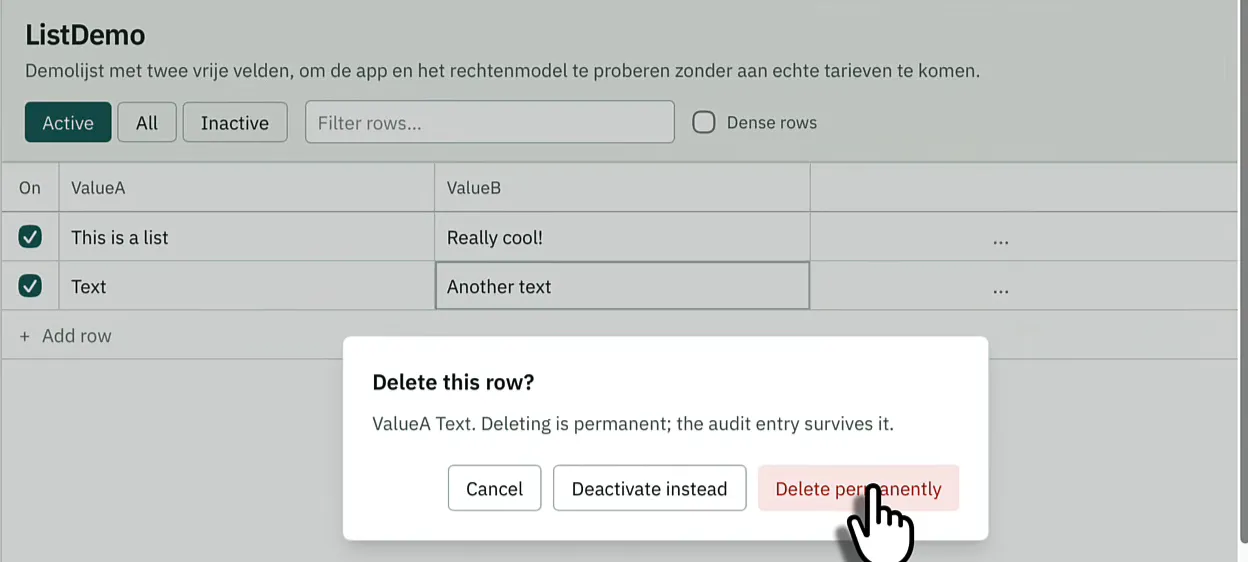
I deleted the Text row permanently. Instead of refreshing the table view, the easiest check is a quick query, and it confirmed the row was gone. Then I deactivated the other row. It disappears from the default view, which shows active rows only, but the Inactive filter still shows it. In the database the row is still there, with isActive set to false.
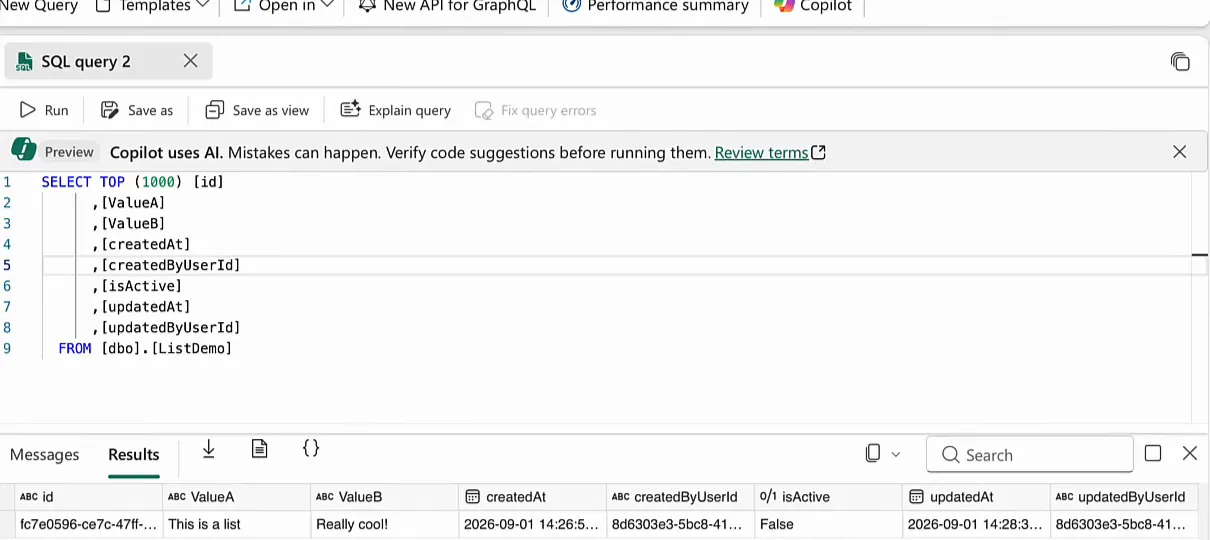
So the app does soft deletes and hard deletes. The buttons at the top show active rows, inactive rows or all rows, and the check mark in the On column activates or deactivates a row. I added one more row, Lorem and Ipsum, which leaves one active and one inactive row, and the database shows true and false in the isActive column.
Built with Rayfin and Claude Code
I created the app and the lists with the Rayfin SDK in Visual Studio Code, and Claude Code helped me build the app itself. If you want the full build process, start with building a Microsoft Fabric app with Rayfin and Claude Code and part two.
Because the lists come from the SDK, you can’t create a new list from the app. Users create the data inside the lists, and the structure stays in code.
Shortcut the list into a lakehouse
At this point the data only lives in a SQL database, and the whole reason I put a metadata app in my data platform is to use that metadata in notebooks, pipelines or anything else. The next step is the lakehouse, in this case KDFLH (the KDF lakehouse).
Create the table shortcut
In the lakehouse explorer, open the menu on the dbo schema under Tables and click New table shortcut. Choose OneLake as the source, because the Fabric SQL database is in OneLake, and pick the app’s SQL database.
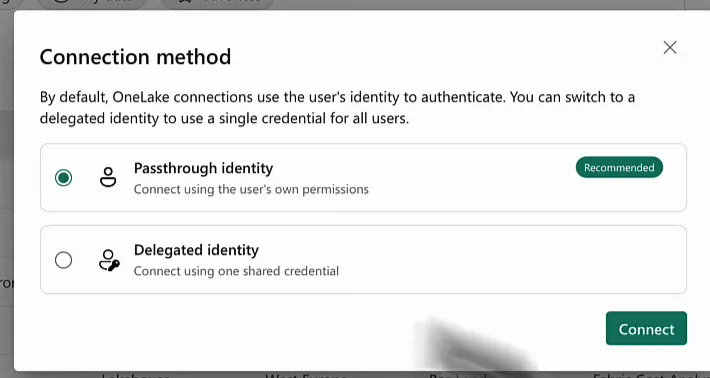
Fabric then asks for a connection method. I chose passthrough identity, which connects with the user’s own permissions. That’s the easiest way to create the connection right now. Delegated identity would use one shared credential for all users.
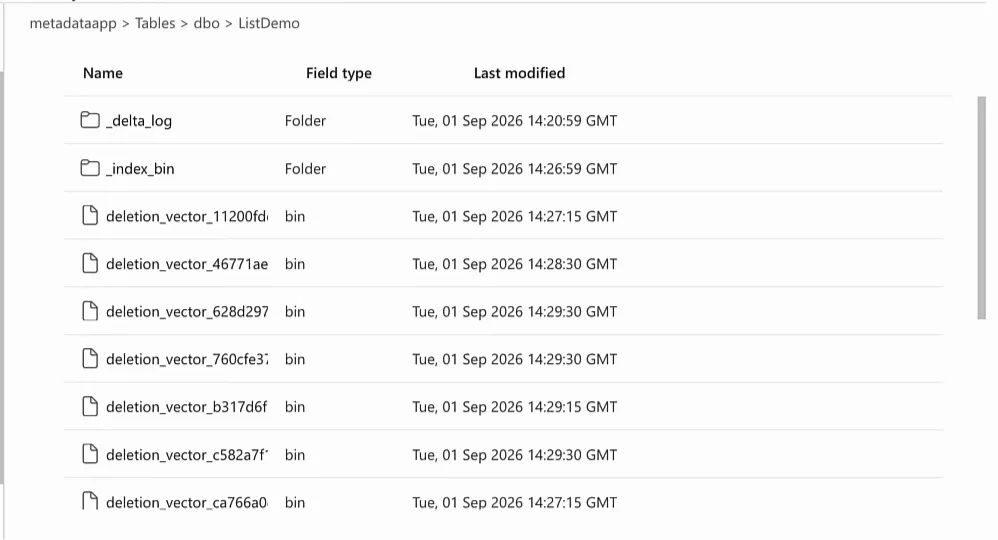
Under Tables and dbo you find the same tables as in the database, ListDemo included. Click it, and you can see that the table inside the Fabric SQL database is just a Delta table in OneLake: a _delta_log folder, an _index_bin folder and a set of deletion vector files.
Select it, click Next, name the shortcut ListDemo and create it. The table now shows up under dbo in the lakehouse.
Query the metadata from a notebook
In my notebook, called SQL playground, the shortcut is just another table:
%%sql
select *
from dbo.ListDemo
The first run had to start a Spark session (31 seconds), and then the query took 16 seconds. Both rows from the app are there, the inactive one included.
The part I care about comes next. Back in the app, without writing any code, I add a new row with “This is really” in ValueA and “Cool” in ValueB. I run the query again and the new row is already there, but ValueB comes back as NULL. This is the demo effect: there should be one thing going wrong or missing in every demo you give. I think I just wasn’t patient enough and it needed a little more time, because on the next run the value is there.
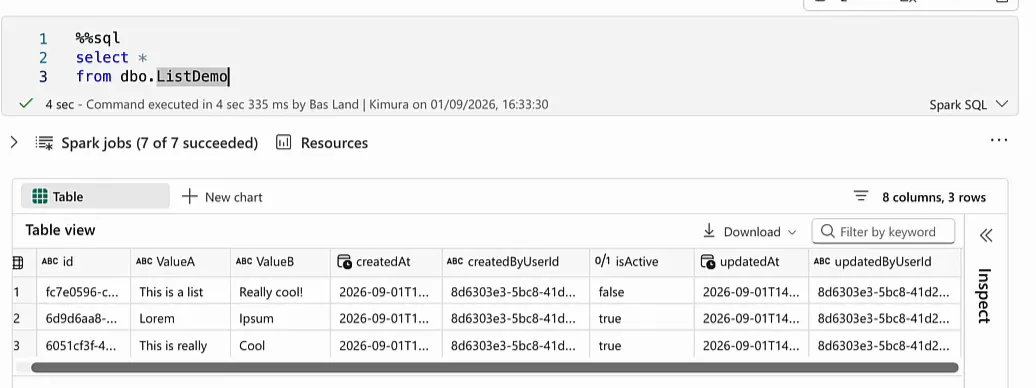
Apart from that, this is really nice. The app’s own columns come along too, so you can filter on them. For real use cases I only want the active rows, and only the columns that carry the information:
%%sql
select ValueA, ValueB
from dbo.ListDemo
where isActive = 1
That gives me a query to build on: my users type data into the app, and the notebook picks it up.
Why I’d use an app for metadata
Your data platform often needs information that the ERP or CRM doesn’t capture: values for reporting or grouping, or maybe some cost rates. You could ask users to maintain JSON or CSV files in the lakehouse, or keep using Excel files and SharePoint lists outside Fabric. I’d rather give them an app.
A Fabric app lets business users enter that data through a friendly UI without writing any code, and I can then use it in code-first items like PySpark notebooks. The people who know the values keep them up to date, and the values sit in OneLake, where the data platform can reach them.
