
In this article 8 sections
When you go from dev to test to prod, you might want to change some values on the way. Which environment am I in? What is the connection to my database? Which semantic model should I refresh? Should this notebook skip a part on dev? Variable libraries in Microsoft Fabric hold those values per environment, so the code you deploy stays exactly the same.
I build a small one from scratch, deploy it with a deployment pipeline and use it in a notebook to branch on the environment. Then a pipeline uses it to swap a SQL Server connection at runtime, which is what you need once your deployments are automated. The last section has two features I would love to see added.
A notebook that needs a variable library
My sample is as small as it gets: a folder called VarLib in my ThatFabricGuy workspace, with one notebook called VarLib examples. The notebook asks notebookutils for a variable library called TFGVarLib, reads the variable test_int from it and prints it:
samplevl = notebookutils.variableLibrary.getLibrary("TFGVarLib")
test_int = samplevl.getVariable("test_int")
print(test_int)
Run it now and it fails, because the workspace has no variable library yet. The error ends with Variable library not found: TFGVarLib.
Creating a variable library
In the VarLib folder, click New item, go to All items and search for “var”. Pick Variable library and call it TFGVarLib.
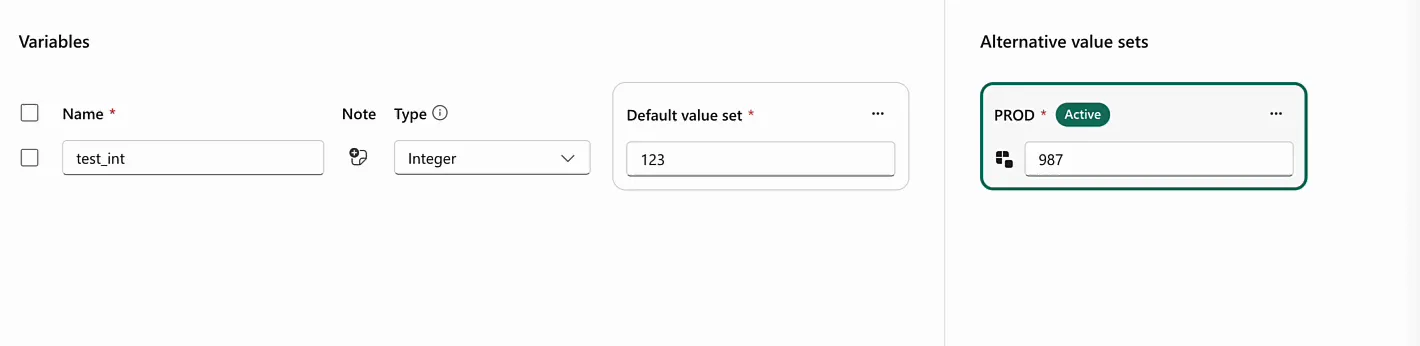
The library starts empty, so click New variable. I named mine test_int, set the type to Integer and gave it the value 123 in the default value set. Then Add value set, on the right, creates an alternative value set. I called it PROD and gave test_int the value 987 there, just another random number. Save, and that is the whole library.
Back in the notebook, the same three lines now print 123. The default value set is the active one, so that is the value you get.
Deploying the library to production
The point of all this is to run the same code in another workspace and get a different value. I use the deployment pipeline between my development and production workspaces for that, which I set up in my post on deployment pipelines.
Open the pipeline, compare the stages and switch to the flat list. There are a lot of items in there, so filter on Only in source and on the types Notebook and Variable library, and search for “var” to narrow it down further. Select the notebook and the library and deploy them.

One step is left. In the production workspace, open the variable library and set PROD as the active value set. Fabric asks you to confirm, because all values change to the new value set. Save, and from then on I do not touch the library in production anymore, because if you do, you might mess up the values in it.
Now open the notebook in the production workspace and run it. The session started in five seconds, which is really nice, and the cell printed 987.
We did not change anything in the code, but we are now looking at our production values.
Branching on an environment variable
In my own variable libraries you will not find a test integer. What I usually put in is a variable called environment, of type String, with the value dev in the default value set and prod in PROD.

With that in place, a notebook can skip code, or run code only, in a certain environment:
# do things
x = 1

if samplevl.getVariable("environment") == 'prod':
    x = 2

print(x)
This is very handy when your loads are scheduled every day, but you want some pieces to load only once a week on a certain environment. Maintenance is a typical example: daily on production, weekly on development.
Picking the right Key Vault secret
Another great use is Key Vault. Say you have secrets for your ERP password or an API key, with separate keys for development, UAT and production. They might live in a separate Key Vault per environment, or as a dev, UAT and production secret in a single Key Vault.
Either way, I want my code to ask for one secret. Put the Key Vault name or the secret name in the variable library, and the notebook passes the right one to notebookutils.credentials.getSecret (more on that in my post on Key Vault in Fabric notebooks). It works exactly like the test_int demo, and so does any other use case you can think of: request the variable library object, get the value of a variable in the active value set, and let that drive the code in your notebook.
Swapping SQL Server connections in a pipeline
Now let’s make things a bit more interesting: a pipeline that reads from a different SQL Server on dev and on prod.
Two connections
Start in Manage connections and gateways with two connections: a SQL Server connection for development, say dev.servername.com, and one for production at prod.servername.com. For the demo I used two existing connections to Azure SQL databases. Every connection has a connection ID, and that ID is what we are going to swap.
A copy data activity
In the VarLib folder I created a pipeline called VarLib Pipeline examples, with a Copy data activity that reads data from SQL Server into the lakehouse. The source is an Azure SQL Database connection with a query:
select * from dbo.usersThe connection failed on me in the demo, I think because I needed to reauthenticate. It does not matter for what comes next.
Library variables in the pipeline
Click outside the copy activity, so you see the settings of the pipeline itself, and open the Library variables tab. Click New and pick the variables from the libraries in your workspace. I added both test_int and environment, which show up as TFGVarLib_test_int and TFGVarLib_environment.
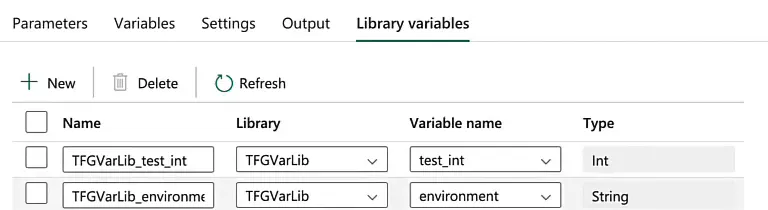
The Select variable dialog warns that the permissions of a variable library might differ from those of the item you are editing, and that your item is affected when variables change. Only use variable libraries you trust.
Dynamic content for the connection
Look up the connection IDs first: Settings, Manage connections and gateways, open the settings of each connection and copy its connection ID.
Back in the pipeline, on the Source tab of the copy activity, clear the Connection with the cross and choose Use dynamic content. Under the logical functions you find if and equals. The question to ask is: is my library variable environment equal to the text dev? If it is, use the connection ID of the dev SQL Server, and in the else branch the production one.
@if(
    equals(
        pipeline().libraryVariables.TFGVarLib_environment,
        'dev'
    ),
    '<connection id of the dev sql server>',
    '<connection id of the prod sql server>'
)
I replaced the two connection IDs from my demo with placeholders, so paste in your own. On development, where environment is dev, the expression resolves to the dev SQL Server. Everywhere else it resolves to production.
Why this matters for automated deployments
You can get the same result by clicking on the connection and swapping it for the other server. That works in the UI, but you cannot do it when your deployments are automated. With a variable library you deploy automatically, and at runtime the pipeline checks which environment it is in and which value it needs.
An alternative is to put the connection IDs themselves in the variable library and refer to that variable directly in the dynamic content of the connection. Then you do not need the if-statement at all.
The pattern is the same for everything that differs between environments: connections to SQL Server, Key Vault, the semantic models and so on. You can probably think of quite a few more, and I am curious how you use variable libraries, if you use them at all.
Two features I would like to see
First, a global variable library that I can refer to from multiple workspaces. That would be incredibly cool, because then you no longer have to deploy your variable library at all.
Second, secret values in the variable library, a bit like the secret variables in Azure DevOps. Then passwords and API keys could go into the variable library and we would not need an external Key Vault anymore. I understand Key Vault is very cheap and easy to work with, and with notebookutils the integration from Fabric is simple. For some data teams, though, it is very difficult to create a Key Vault or to get access to an existing one. Managing secrets natively inside Microsoft Fabric would be awesome, and I think variable libraries would be a good way to support that.
If there is anything else you would like to see in variable libraries, put it in the comments under the video. I do not work for Microsoft, but as a consultant I am always interested in what other people are doing.
