
In this article 6 sections
Copying notebooks and lakehouses from your development workspace into production by hand, or making the same edits twice, is very tricky to get right. Deployment pipelines in Microsoft Fabric move your items from development to test to production for you, so you never have to do that manually again.
I set one up from scratch: a new production workspace, a pipeline with two stages, a first deployment of a lakehouse and a notebook, and then a change to that notebook that I deploy from the pipeline instead of copying it over.
Start with a production workspace
My ThatFabricGuy workspace runs on a Fabric capacity (that is what the diamond next to its name tells you) and I use it for most of my demos, both on YouTube and when I speak at conferences. Think of it as a development workspace: it is where I test and iterate, and it is full of notebook one, notebook two, notebook three and all the other sandbox behaviour that comes with that.
The people using your work are not interested in any of that. They want to see what is definitely going into production, and use only that. So the first thing to do is give them a workspace of their own.
Go to Workspaces and click New workspace at the bottom. I called mine ThatFabricGuy Production. Make sure it is a Fabric workspace running on a capacity, in my case tfgdemocapacity, and click Apply. You now have an empty workspace.
Create the deployment pipeline
Go back to the original workspace, ThatFabricGuy, and click Create deployment pipeline in the bar at the top. I named the pipeline ThatFabricGuy Deployment. The description is optional. Click Next.
Choose the stages
By default Microsoft suggests three stages: Development, Test and Production. In practice you can have more steps in between, or fewer. You need at least two: a source workspace and a target workspace.
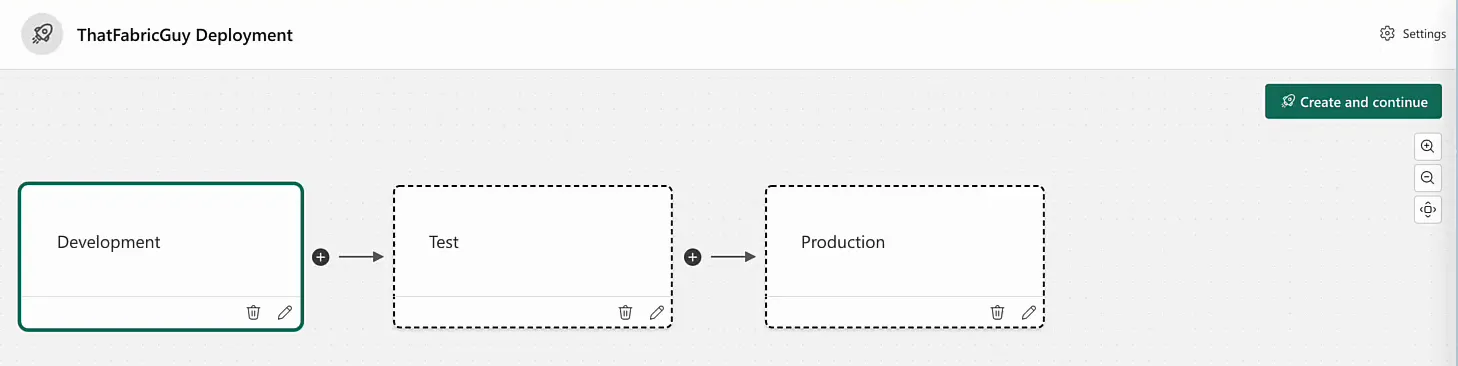
I removed Test, so Development stays Development and Production stays Production. Mind you, these are only the names of the stages. You are not connecting any workspaces yet; that comes next. Click Create and continue.
Assign a workspace to each stage
For the Development stage I picked the ThatFabricGuy workspace. Fabric came back with a warning that the workspace includes unsupported items: it can be assigned, but some items will not be deployed to the next stage.
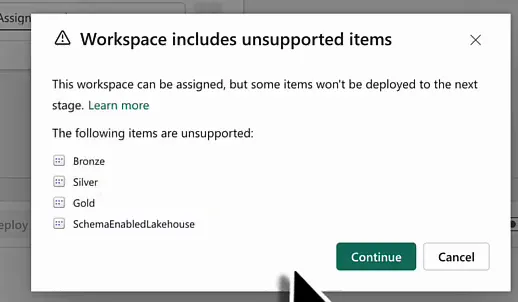
Bronze, Silver, Gold and SchemaEnabledLakehouse in that list are semantic models. They are the default semantic models that used to be created along with every new lakehouse. That feature was deprecated a while ago, and these semantic models are not supported for deployment pipelines. Other semantic models show up in the pipeline like any other item, such as my Taxi Data Demo and SemanticModelDemo models. Click Continue.
For the Production stage I assigned ThatFabricGuy Production, the empty workspace I had just created.
Click a stage and the panel below the stages lists the items in its workspace. Development shows everything in ThatFabricGuy, with the default semantic models marked as unsupported. Production has a Deploy from box. A stage can take its input from different stages, but in this pipeline the only option is Development, so you cannot select anything else. Every item from development is listed there as Only in source: it exists in the development workspace and not in the target.
The development workspace now also shows a Development label next to its name and a View deployment pipeline button.
Deploy your first items
Now pick what to deploy. I wanted my Gold lakehouse and a notebook. The list can be filtered by type and even by keyword, which is quite cool. I filtered on notebooks and selected my VOrder notebook, a notebook with examples of V-Order settings (more on those in Setting V-Order for delta tables in Microsoft Fabric). Then I selected the Gold lakehouse as well.
With two items selected there is a deploy button. Compare is greyed out, because there are not two versions of these items yet. Click Deploy, confirm with Deploy again, and the pipeline starts copying the content to the production workspace. That can take a little while, so sit back, relax and enjoy.
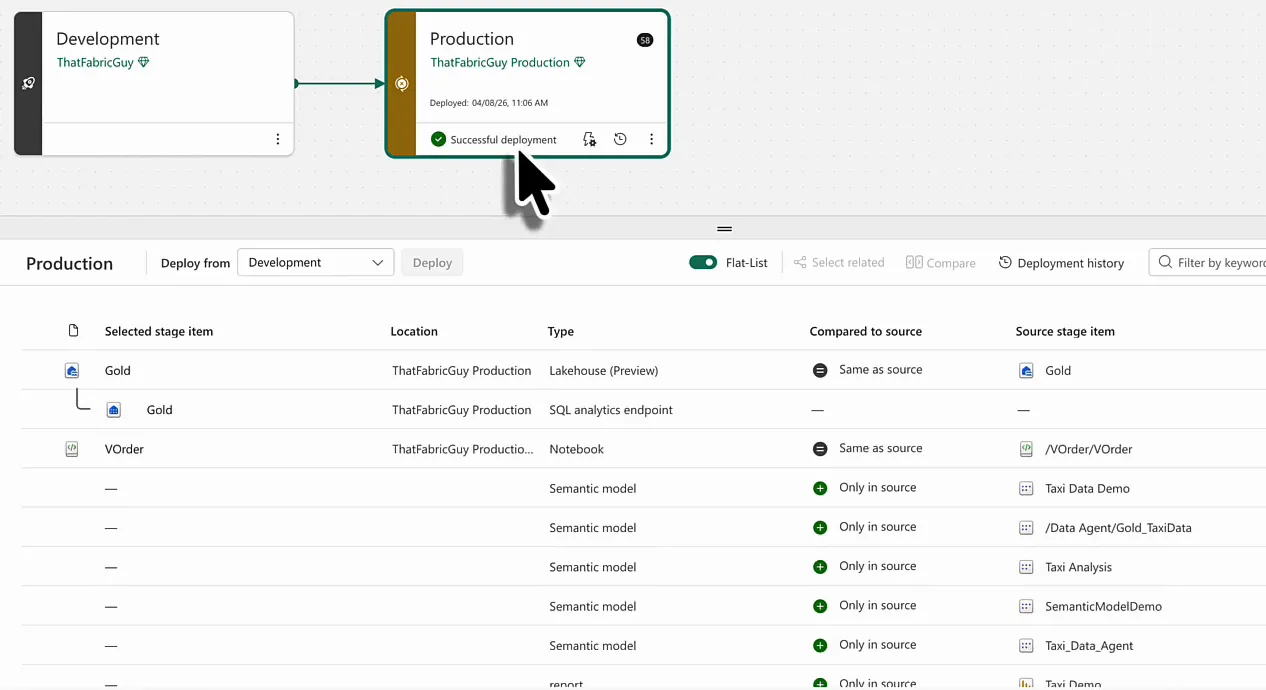
When it finishes, the Production stage shows Successful deployment. The Gold lakehouse and the VOrder notebook are now Same as source: they exist in both workspaces. Everything else is still only in the source.
Check what landed in production
In ThatFabricGuy Production there is now a VOrder folder with the VOrder notebook in it, next to the Gold lakehouse. Open the notebook and look at the lakehouses it is connected to. There are two:
- NewLakehouse_Vorder, still in the ThatFabricGuy workspace. That is the old, development workspace; I did not deploy this lakehouse.
- Gold, which now points at the Gold lakehouse in ThatFabricGuy Production.
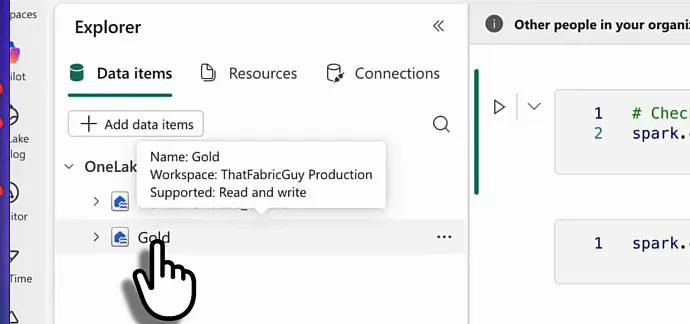
Because I deployed the lakehouse and the notebook together, the notebook’s connection to Gold was deployed with them. I did not have to go into the notebook and swap out that connection, which is really cool.
Deploy an incremental change
Back in the development workspace I opened the VOrder notebook and tidied it up: a markdown header that says “VOrder demo”, a line of markdown that says “Use SQL to change table properties” above the cell that alters the table, and one empty cell removed because it did not make sense. The notebook saves automatically.
The deployment pipeline picks up the difference straight away. The new items are still only in the source, Gold is the same, and the VOrder notebook is now Different from source.
Without a pipeline you would copy and paste the changes, or open the production notebook and make the same edits a second time. That is very, very tricky to get right. Instead, stay in the deployment pipeline, select the VOrder notebook and click Deploy.
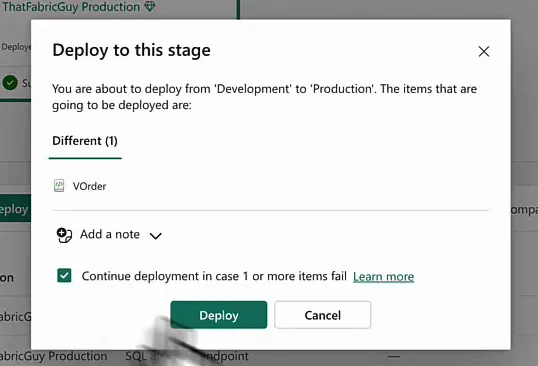
The confirmation shows you are deploying from Development to Production and lists the one item that is different. You can add a note, and there is a checkbox to continue the deployment if one or more items fail. A single notebook takes just a couple of seconds: the content is copied to the target workspace and the deployment is successful.
Trust, but verify
I believe it was successful, but let’s validate. In the production workspace the VOrder notebook has the new markdown, and the empty cell is gone.
Deployment pipelines and source control
I use deployment pipelines a lot for customers with simpler setups, where there is maybe a development, a test and a production workspace. They are a very good way to do change tracking.
Mind you, deployment pipelines do not give you source control. For that you use the Git integration in Microsoft Fabric, which shows you the changes to the code you write line by line. A deployment pipeline is a lightweight way to work with development, test and production environments, and it is what I advise most of my customers to use when they start with Fabric.
