
In this article 6 sections
We do not want passwords or bearer tokens in our notebooks. Type one into a cell and it ends up in your code, in Git and in your logs. Azure Key Vault is the place to put them instead, and with one line of notebookutils a Fabric notebook can fetch a secret and pass it on to an API without the value ever showing up in the output.
Key Vault is literally a vault for passwords and other secrets. Compare it to the password manager you use in daily life, but for machines: instead of you retrieving the password, a tool like Fabric or Power BI retrieves it to do its job. I like it for two reasons. It integrates really smoothly with Fabric notebooks, and the secrets you retrieve are unreadable in the output and logging of your processes, even when you pass them on to another system.
The problem with a readable key
For the demo I extract data from the Moneybird API. Moneybird is Dutch accounting software, but you can forget about that part: I use a demo administration with them, so there is no real data in it.
The notebook, which I created just for this demo, starts with some housekeeping:
#Housekeeping
import requests
import json
Then comes the version with a readable key, which is where we start: the credentials as constants in a cell. In the video these hold the values of my demo administration. Here I have swapped them for placeholders.
#Set constants
MB_ADMINISTRATION = '<administration id>'
MB_TOKEN = '<bearer token>'
MB_URL = 'https://moneybird.com/api/v2'

#Set variables
endpoint = 'contacts'
The next cell builds the URL from the base URL, the administration ID and the endpoint, which here is the contacts table. The bearer token goes into the Authorization header, and the JSON response goes into a Spark DataFrame that I display.
#Get data
url = f"{MB_URL}/{MB_ADMINISTRATION}/{endpoint}"
headers = {
    "Authorization": f"Bearer {MB_TOKEN}",
    "Content-Type": "application/json"
}

response = requests.get(url, headers=headers)
data = response.json()
rdd = spark.sparkContext.parallelize([json.dumps(record) for record in data])
df = spark.read.json(rdd)

display(df)
The contacts from the demo administration show up as a table, so the connection to Moneybird works. The trouble is that the token sits in the notebook in plain text.
A readable key ends up everywhere. It is in your code, it can end up in version control, and once a secret is in your Git history you can never really scrub it out again. It also ends up in your logging. So you have exposed your password to the entire world, or at least to everyone who can see your code and your logs, and from a data security point of view that is exactly what you do not want.
Give yourself the right Key Vault role
The Key Vault version of the notebook is a little easier and a lot safer. It needs two things: the Key Vault URL and the name of the secret. I had not created the secret yet, so we do that first.
I have a Key Vault ready for the demo. In the Azure portal, open it and go to Objects, then Secrets. Instead of a list of secrets, I got a message that role-based access control does not allow me in.
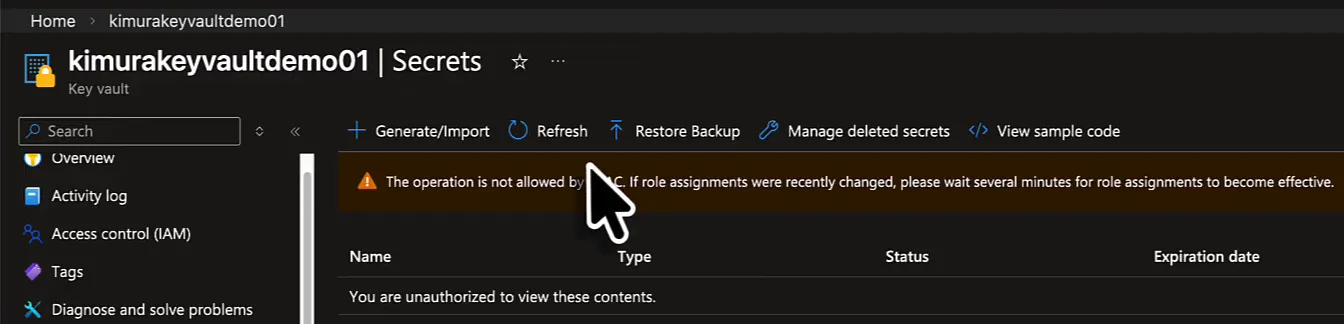
Go to Access control (IAM), choose Add, then Add role assignment, and search for “secrets”. Two roles matter here:
| Role | What the portal says | Who gets it |
|---|---|---|
| Key Vault Secrets Officer | Perform any action on the secrets of a key vault, except manage permissions | The people who put secrets in, change them and rotate keys |
| Key Vault Secrets User | Read secret contents. Only works for key vaults that use the ‘Azure role-based access control’ permission model | The user that runs the notebook |
Secrets User is enough for the user that reads secrets from the notebook. It is not enough for me right now, because I also need to put a secret in, so I give myself Key Vault Secrets Officer. Click Next, select the members, Next again, and Review + assign. Back in Secrets, the error is gone.
If you run this in production, split those two. Keep the people who put secrets in, change them and rotate keys separate from the user that runs the notebook, and only allow that user to read from the vault.
Create the secret
Under Secrets, click Generate/Import. Give the secret a name: I call mine mbsecret, MB for Moneybird. Then paste the actual credential, the bearer token from the notebook, into Secret value. The field masks it as you paste.
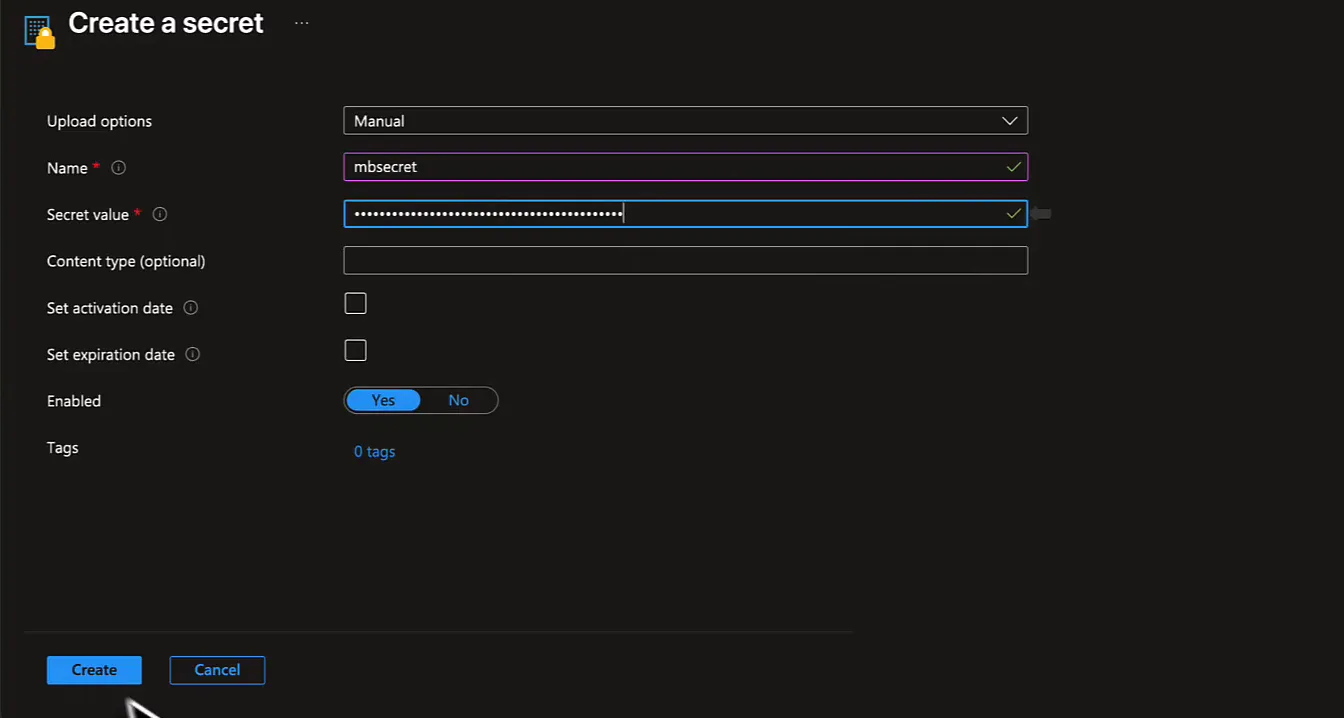
Click Create. My MacBook then offers to save it as a password. No, thank you.
To check you stored the right value, open the secret, go to its current version and click Show Secret Value.
That covers the secret name. The other thing the notebook needs is the vault URL, which you find on the Overview page of the Key Vault as the Vault URI, with a button to copy it. It usually looks like https://<name>.vault.azure.net/, where the name is whatever you called your Key Vault.
Fetch the secret with notebookutils
Back in the notebook, the Key Vault version replaces the token constant with a call to notebookutils.credentials.getSecret, from the same library I use for notebook orchestration. It asks for two things, the Key Vault URL and the secret name, and fetches the secret out of Key Vault. I call the variable token, because that is what it is.
To see what comes back, I ran it in a separate cell and printed it:
keyvault_url = 'https://kimurakeyvaultdemo01.vault.azure.net/'
secret_name = 'mbsecret'

token = notebookutils.credentials.getSecret(keyvault_url, secret_name)

print(token)
You do get a token, but you cannot see it: it is redacted.
![Notebook cell calling notebookutils.credentials.getSecret and printing the token, with [REDACTED] as the output](/_astro/redacted-token.B-pJmaUR_oIvDt.webp)
That output tells you two things. The fetch worked, because asking for a secret that does not exist gives you an error. And the value stays hidden from the client side, where you and I sit, because it is only used internally.
The secret value never shows up in any logging or in any code, but it can still be passed on to the API.
Call the API with the secret
The data cell is the same as before, except that the Authorization header now uses token instead of MB_TOKEN. MB_URL, MB_ADMINISTRATION and endpoint still come from the constants cell.
keyvault_url = 'https://kimurakeyvaultdemo01.vault.azure.net/'
secret_name = 'mbsecret'

token = notebookutils.credentials.getSecret(keyvault_url, secret_name)

#Get data
url = f"{MB_URL}/{MB_ADMINISTRATION}/{endpoint}"
headers = {
    "Authorization": f"Bearer {token}",
    "Content-Type": "application/json"
}

response = requests.get(url, headers=headers)
data = response.json()
rdd = spark.sparkContext.parallelize([json.dumps(record) for record in data])
df = spark.read.json(rdd)

display(df)
Run it and the same table of contacts comes back from the Moneybird API. As humans we see [REDACTED], but the machine gets the real token and the request works.
What to set up
You need a user that is allowed to put secrets into the Key Vault, and being owner of the vault is not enough for that: it takes Key Vault Secrets Officer. The user running the notebook is the identity that reads the secret, so give that user read access only, with Key Vault Secrets User.
After that, one simple line of notebookutils, notebookutils.credentials.getSecret(keyvault_url, secret_name), gets the secret, ready to authenticate against an API. The secret is redacted when you look at it from your client, and it stays out of your logging. That makes Key Vault the preferred way of handling secret values in Microsoft Fabric.
