
In this article 7 sections
As a consultant you often build Fabric items in a customer’s tenant while the code lives in Azure DevOps in your own tenant. Fabric’s Git integration handles that fine: you create a connection to the repository in the other tenant, and any workspace you link through that connection puts its definitions there.
In this post I set up one of those connections, link a workspace with a lakehouse and a notebook to it, and commit a change to the notebook straight from Fabric. It’s super easy once you know where to look.
Two tenants
On my main tenant I have an Azure DevOps project with a repository called TFG_Demo (That Fabric Guy demo). At the start it holds nothing but a README.
Fabric runs elsewhere, on my testing tenant: an external tenant where I can run all kinds of tests like this one. There I created a workspace called TFG_Test with a lakehouse (with schemas) and a notebook connected to that lakehouse. That’s the whole amazing setup, so any workspace you have will do if you want to follow along.
Why a connection instead of your own account
The Git integration in the workspace settings lets you connect with your own Entra account. I don’t want that here. A connection to an external Git environment is something I want to share with my colleagues, with my customers, or with whoever needs it. So instead of signing in with my own account, I create a Fabric connection first and point the workspace at that.
Create the Azure DevOps connection
Open the settings (the gear icon at the top right), go to Manage connections and gateways and click New connection.
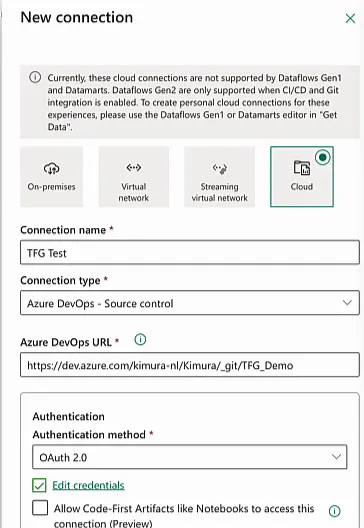
Fill it in like this:
- Cloud as the kind of connection.
- Connection name: I called mine TFG Test.
- Connection type: Azure DevOps - Source control.
- Azure DevOps URL: the base URL dev.azure.com, then the organisation, the project and the repository name. The field shows the pattern as a placeholder:
https://dev.azure.com/{organization}/{project}/_git/{repository}/. - Authentication method: OAuth 2.0. Click Edit credentials, wait for the pop-up and sign in.
Click Create. TFG Test now shows up in the list of connections with the type Azure DevOps - Source control, and it connects to the Azure DevOps in the other tenant.
Connect the workspace to Git
Go back to the workspace, open Workspace settings and pick Git integration. With Azure DevOps as the provider, the accounts list now has TFG Test next to your Entra account. Select it and click Connect.
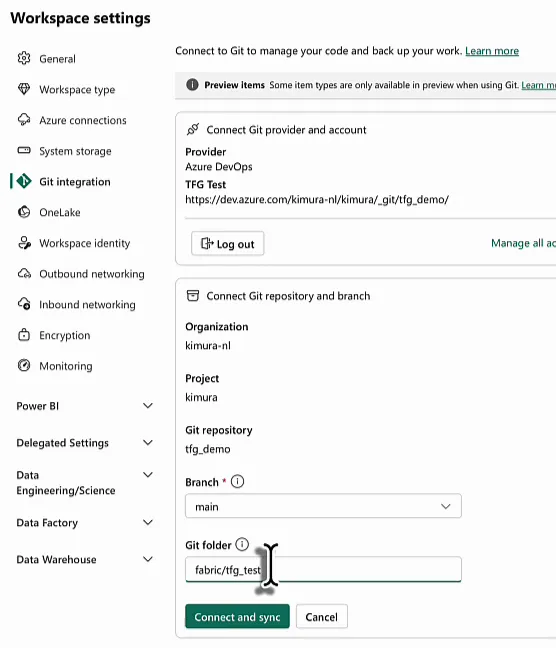
The organisation, project and Git repository come from the connection, so you only choose the branch and the folder. I picked main as the branch and fabric/tfg_test as the Git folder, then clicked Connect and sync. The folder doesn’t exist yet, so Fabric asks whether to create it: Create and sync.
How I organise the repository
I usually put a workspace in fabric/<workspace name> instead of the root of the repository. The repository holds more than Fabric items. I often keep documentation, tooling, an archive and whatever else the project needs next to them, and the fabric folder keeps the Fabric side separate from all that.
Inside that folder I split by workspace, because you might have a bronze workspace, a silver workspace, a gold workspace, an ETL workspace and so on. Each of them gets its own folder.
What ends up in the repository
Fabric now syncs the content of the workspace to Git, so the code and the definitions of your items end up in the other tenant’s repository. You can watch it happen in the workspace: the Git status column says Syncing for the lakehouse and the notebook, and then Synced.
Refresh the repository in Azure DevOps and there is a fabric folder with tfg_test in it. The history has two commits: one creating the directory fabric/tfg_test and one committing the two items from the workspace.
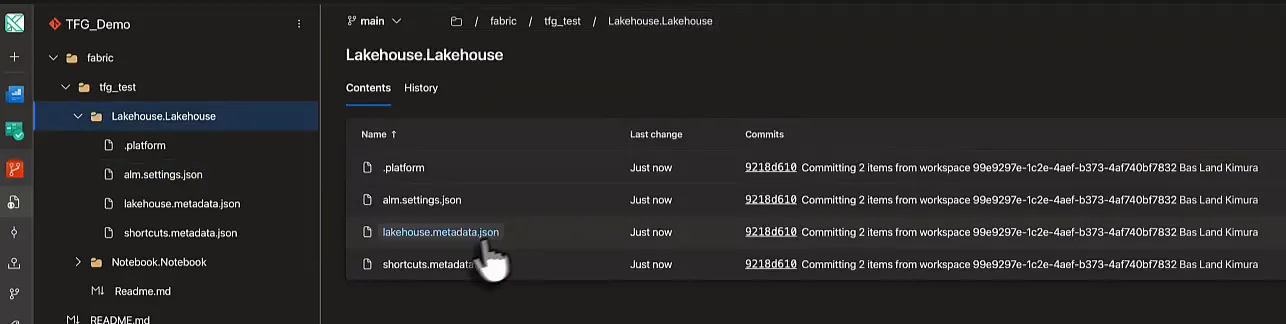
Inside are Lakehouse.Lakehouse and Notebook.Notebook. The part before the dot is the name of the item and the part after it tells you the item type. Each folder holds the files that define the item: .platform, alm.settings.json, lakehouse.metadata.json and shortcuts.metadata.json for the lakehouse, and .platform and notebook-content.py for the notebook.
Commit a change from Fabric
In the notebook I wrote three tiny cells: x = 1, y = x * 2 and print(y). I didn’t even bother running them.
When I first opened Source control it had not picked up the change yet. A moment later it had: the button shows a 1, the Git status of the notebook is Uncommitted, and the notebook is listed under Changes.
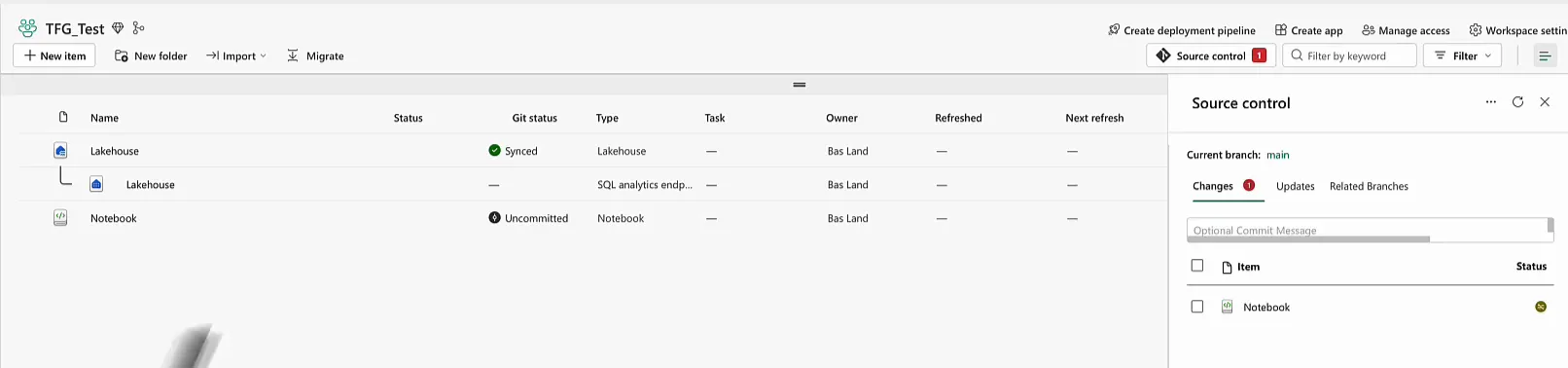
Open the change and Fabric shows a side-by-side comparison: on the left the version in the Git branch, on the right the version currently in the workspace. I removed an empty line and added some code.
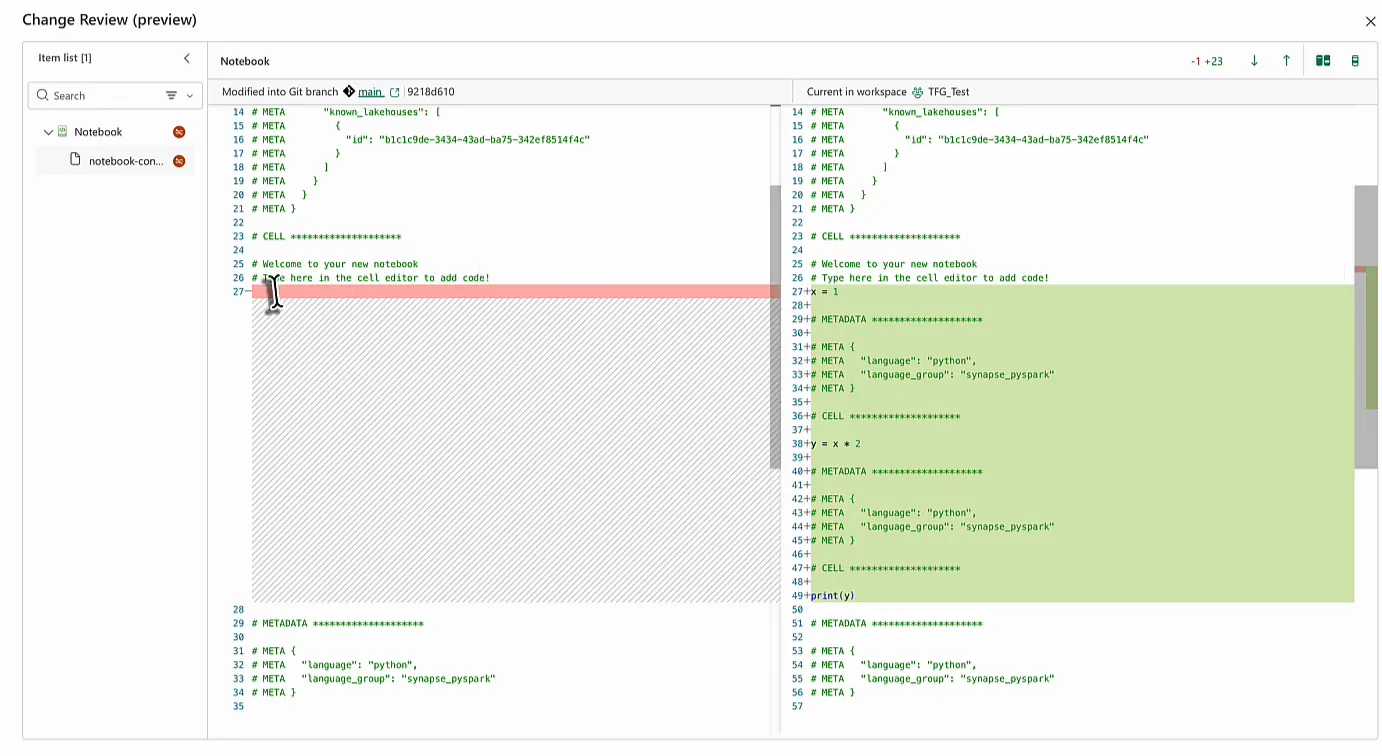
It’s also a nice look at how a notebook is stored in Git. Each cell is plain Python, separated by # CELL markers, with its metadata in # META comments. The part I added looks like this:
x = 1

# METADATA ********************

# META {
# META   "language": "python",
# META   "language_group": "synapse_pyspark"
# META }

# CELL ********************

y = x * 2

# METADATA ********************

# META {
# META   "language": "python",
# META   "language_group": "synapse_pyspark"
# META }

# CELL ********************

print(y)
To put these changes in the repository, select the item in the Source control pane and click Commit. There is a box for a commit message, but you can leave it empty.
Check the commit in Azure DevOps
Back in Azure DevOps, refresh and go to fabric/tfg_test/Notebook.Notebook/notebook-content.py. The content now has the three cells: x = 1, y = x * 2 and print(y). The history of the file shows two commits: the first one that added it and the one I just made. Pick the latest and you get the diff, the same as any standard Git diff.
Your DevOps or the customer’s?
This is very helpful for consultants and for anyone who works with many tenants. In the projects where we manage everything, I like to keep the code in my own Azure DevOps tenant and manage the customer’s tenant from there.
In other projects we put the code in the customer’s Azure DevOps instead, depending on how proficient they are with DevOps, source control and code versioning. When the code does live in your own tenant, a shared connection like TFG Test is how you link the customer’s workspaces to it.
