
In this article 7 sections
Sometimes you want a person to say yes before a pipeline carries on. Fabric Data Pipelines now have an activity for that, in preview. The run stops at the approval, a request goes out by email or in Teams, and the rest of the pipeline only runs once someone approves it.
I’ve been playing with it a little. I put an approval gate in front of a Copy data activity and tried both routes, Outlook and Teams. I have yet to find a proper use case for it myself, but here is what it can do. One warning about the video: I forgot to hook up my microphone, so it’s a screen share with my voice over the top.
Put an approval in front of the copy
I started with a regular pipeline called Approvals (the name doesn’t matter) with a single Copy data activity in it. It copied the data and succeeded in 17 seconds. All very nice, but now I want a human gate in front of it, so somebody has to click approve before the copy starts.
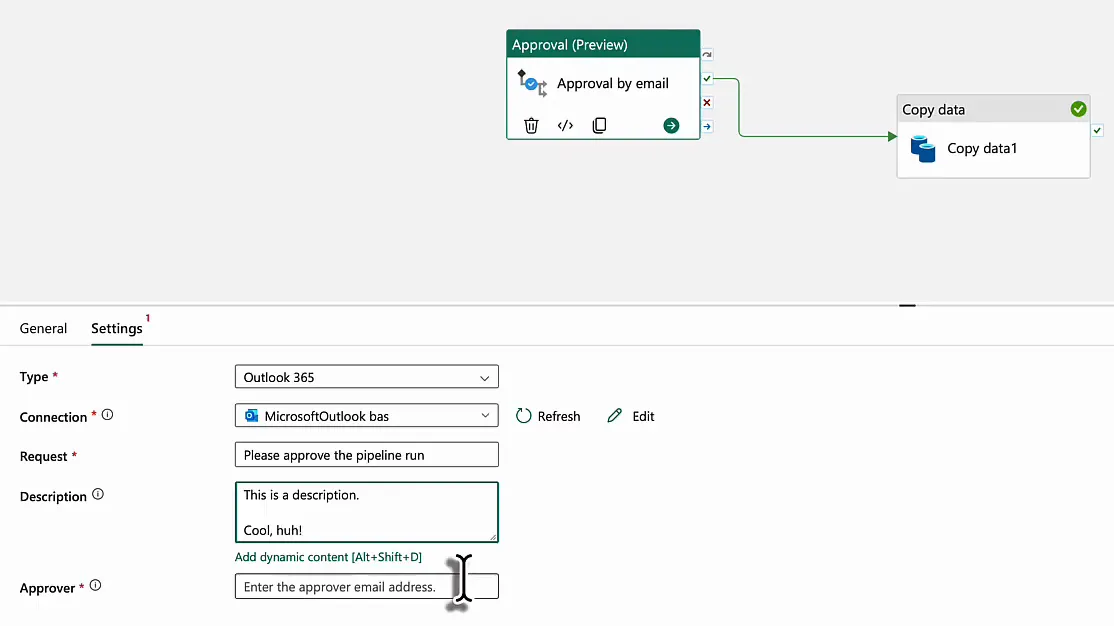
Search the activities for Approval (Preview), add it to the canvas and connect its On success output to the Copy data activity. I renamed mine to Approval by email.
On the Settings tab, Type decides how the request reaches the approver: Outlook 365, Custom or Microsoft Teams. I tried Outlook first and Teams after that. Custom I left alone.
Create the Outlook connection
With Outlook 365 as the type you need a connection, and I didn’t have one yet. The Connection dropdown offers Use dynamic content and Browse all. I clicked dynamic content first, which was a mistake. Pick Browse all and create a new Office 365 Email connection.
The dialog asks for a connection name, a data gateway (none) and the authentication kind, which is Organizational account. Then you sign in with your account. I was already logged into the browser, so that took one click.
Fill in the request
Three fields on the Settings tab matter. Request is the title of the request the approver gets by email; I used Please approve the pipeline run. Description is optional, and according to its tooltip it goes into the email notification sent to the approver. It takes dynamic content as well. Approver is the email address of whoever has to approve. I put in my own.
Make the description actually descriptive. The person who gets the email has to understand what they’re approving and what they need to do, and This is a description. Cool, huh! (my test text) doesn’t tell them much.
What the approver gets
Save the pipeline and run it. The approval activity goes to In progress and stays there while the copy waits. I clicked refresh a lot in the meantime, which is scientifically proven to make your pipeline run faster, of course.
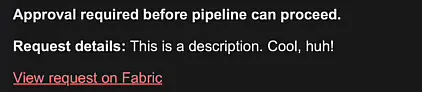
The email arrives with the subject [APPROVAL REQUIRED] Fabric pipeline approval activity - Please approve the pipeline run. The body says Approval required before pipeline can proceed, shows your description as the request details and has a View request on Fabric link. I thought that was kind of cool.
Approve or reject in Fabric
I copied the link into my browser. It opens the pipeline run in the Monitoring hub with a Details panel showing the activity name, approver, request subject, request message and status, plus two buttons: Approve and Reject. Under Activity runs, a Review tab lists the approval activity of the run with an approve and a reject column.
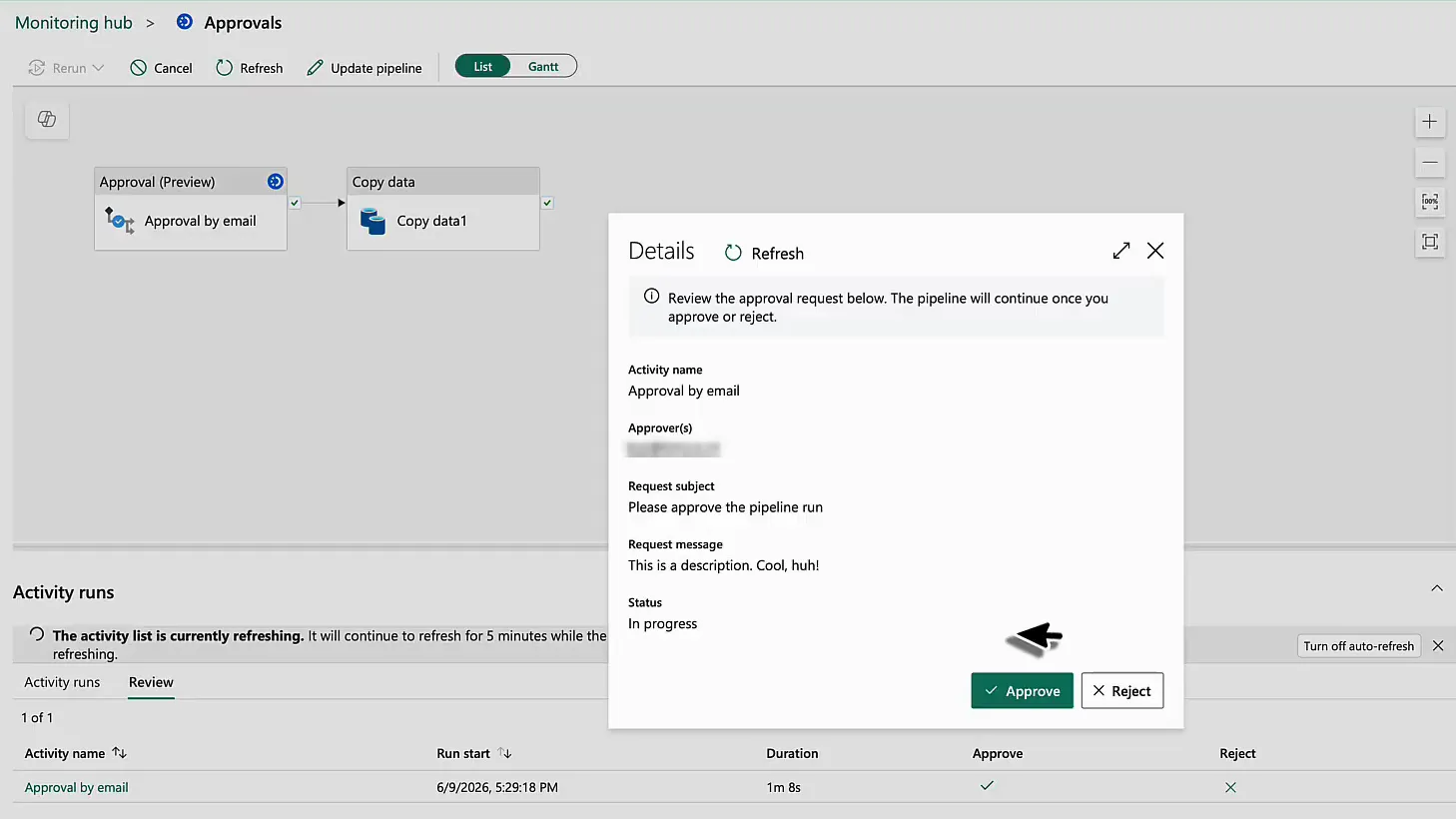
If you reject, the pipeline fails. If you approve, it goes on. Back in the pipeline the approval activity now shows as succeeded, and its output says the request was approved:
{
    "message": "Your request is approved."
}
With that, the rest of the pipeline can continue.
Send the request to Teams instead
For the second test I renamed the activity to Approval and changed the type to Microsoft Teams. That needs a Teams connection, which you create the same way as the Outlook one: browse all, new connection, Organizational account, sign in.
The Teams settings have the same Request, Description and Approver fields, plus Post in, where you choose between a channel and a group chat. With a group chat Fabric loads the list of group chats you’re in. I went with a channel, which means picking a Team and a Channel.
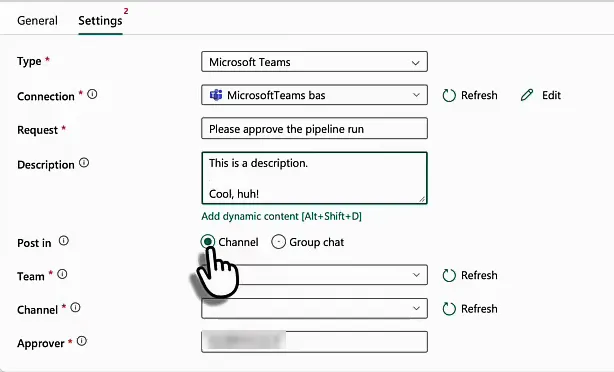
Run the pipeline again and the approval message shows up at the top of that channel. Clicking its link opens Fabric (give it a few seconds to load) on the same approval screen as before. Approve it and the Copy data activity is queued straight after.
Should you use it?
So that’s manual approval as a gate in the middle of a pipeline, by email or in Teams. Personally I’d rather not do this too much, and you’d need a very good use case before you start. Still, it’s nice that Fabric Data Pipelines at least have the option now.
If what you actually want is to hear when a run goes wrong, rather than hold one back, have a look at pipeline failure notifications. Those need no extra activity at all.
