
In this article 6 sections
When a pipeline in Microsoft Fabric fails, you want to hear about it. Until now that meant building something bespoke yourself, or adding the Office 365 email activity to your pipelines. Now you can put an email address on the schedule of a pipeline, and Fabric mails you when a scheduled run fails.
I tried it on a demo pipeline: set it up, forced the pipeline to fail and waited for the email to come in.
Where the setting lives
This is a very new feature. When I recorded the video in March 2026 it had come out only a couple of days earlier, and it was not documented yet. I found it inside the scheduling system of a pipeline, which is also where you set it up: the schedule pane.
Build a pipeline that fails on purpose
To demo a failure you need a pipeline that fails. In my ThatFabricGuy workspace I made a folder for the demo and created a new pipeline called Demo Failure Notification.
The easiest way to force a failure is the Fail activity, one of the control flow activities. It does what the name says: when it runs, the pipeline fails. On its Settings tab it needs two things:
- Fail message: I used
Failure by Default. - Error code: I gave it 500, like an internal server error. The tooltip describes it as a code “such as 500, categorizing error types”.
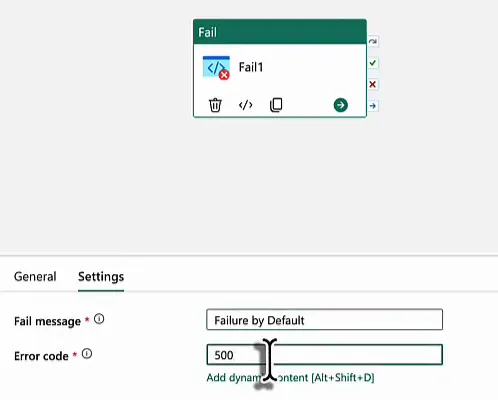
Save the pipeline before you move on.
Add the email address and a schedule
Click Schedule in the ribbon. The pane that opens has a section called Failure notifications, with the text “If there’s an issue with a scheduled run, send an email notification to:”. Fill in the address of whoever should hear about failures. I put in my own.
Then, under Schedules, click Add schedule. Repeat lets you choose by the minute, hourly, daily, weekly or monthly. I picked daily at 16:28, because it was 16:27 at the time and the run would start in less than a minute. The pane also tells you an item can have up to 20 schedules, and that this limit includes schedules created through the API.
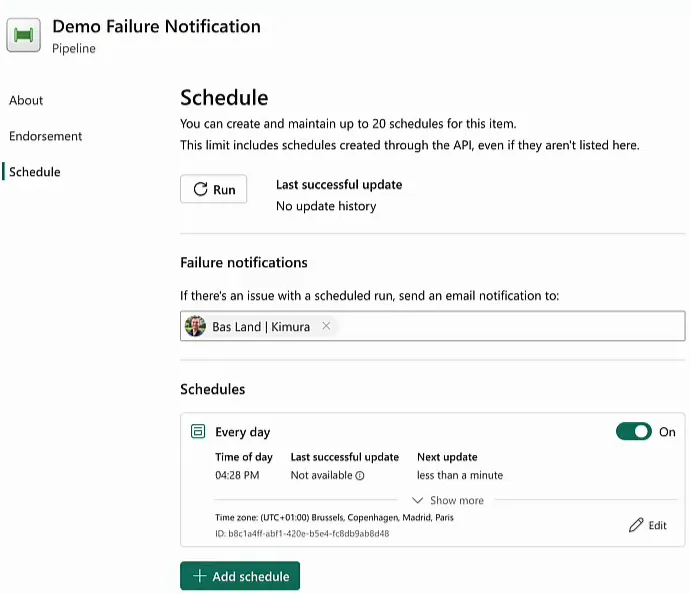
Mind the wording on that label: it talks about scheduled runs, and a scheduled run is what I tested here.
The failed run in Fabric
A minute later the pipeline had run. The run history shows it at 16:28 with the status Failed. It was supposed to fail, so that is good news.
Open the run and check the error details of the failed activity: error code 500, failure type User configuration issue, and Failure by Default as the details. Those are the code and message you typed into the Fail activity, so this is indeed the activity that made the run fail.
What the email tells you
Then the inbox. The email comes from Microsoft (microsoft-noreply@microsoft.com) with the subject Scheduled run failed for Demo Failure Notification. The headline reads Demo Failure Notification did not complete its scheduled run. Demo Failure Notification is the name of the pipeline, so you know straight away which one broke.
Below the headline you get the item name, the item type (DataPipeline), the job type (Execute, since the job was to execute the pipeline), the schedule ID, the submitter (me) and the error: Failed.
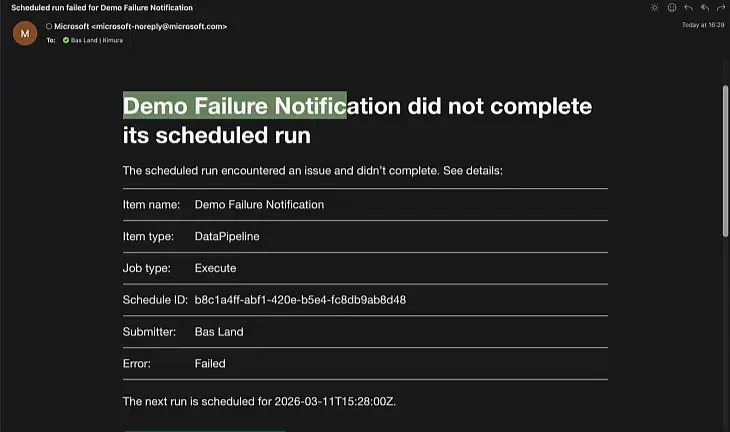
It also tells you when the next run is: tomorrow at the same time, written as 2026-03-11T15:28:00Z. The Z stands for Zulu time, which is UTC. My schedule runs at 16:28 in UTC+01:00, so 15:28 UTC is the same moment. Keep that in mind when you read the times in these emails.
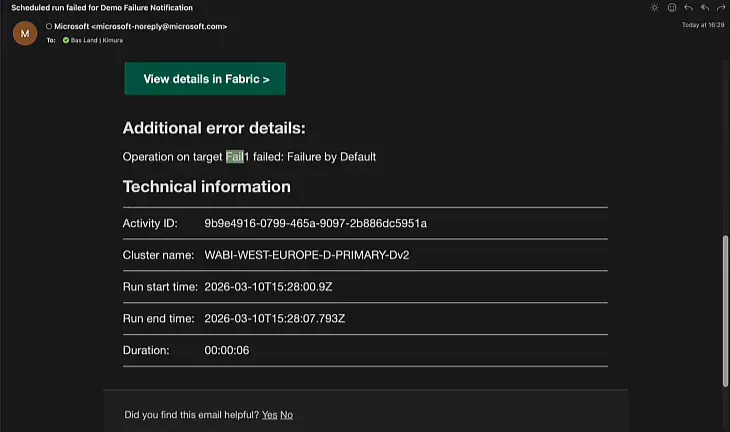
Further down there is a View details in Fabric button and a block of additional error details: Operation on target Fail1 failed: Failure by Default. Fail1 is the activity in the pipeline that failed, so besides the pipeline the email also names the task that went wrong. That is quite cool to see. The technical information at the bottom has the activity ID, the cluster name, the start and end time, and the duration: the run went for six seconds before it failed.
From failed run to help desk ticket
Where you used to add an Office 365 email activity to the pipeline, you now fill in an address on the schedule and you are done. And because the email carries the pipeline name, the failing activity and the error message, it should make it a lot easier to connect your pipeline runs to your help desk. You could probably have every failed run create a ticket automatically.
