
In this article 7 sections
To get data out of a SQL Server on your own network and into Microsoft Fabric, you need three things: the on-premises data gateway on a Windows machine in that network, a connection in Fabric that goes through it, and a pipeline that copies the data across.
I set all three up on a Windows PC with the Wide World Importers sample database and copied the Sales.Invoices table, about 4.1 million rows, into a lakehouse. Installing the gateway is next, next, finish. The connection and how it authenticates are where you need to think a bit.
Where the gateway goes
The gateway has to run on a Windows machine inside your network. You can put it on the database server itself, but it doesn’t need to be there: a separate machine that only runs the gateway works too, and is probably the better choice.
For this demo I used a Windows PC called Workstation01. It is a demo machine anyway, so the gateway and SQL Server sit on the same box. And yes, I am on a MacBook: I worked on Workstation01 through the Windows App.
In practice you will probably use a separate gateway VM in your Windows environment. That machine has to be domain-joined, in the same domain the database server uses. Talk to your sysadmin or network admin and get this figured out before you start.
Install and register the gateway
Download the installer and run it on the gateway machine. The install path is C:\Program Files\On-premises data gateway, and after accepting the terms it really is next, next, finish.
When the installation is done, the installer asks you to sign in. Use an account that can access Microsoft Fabric and is allowed to create connections there. Then register a new gateway on this computer:
- Gateway name: I called mine
ThatFabricGuy-GW01. - Recovery key: at least 8 characters. You need it to restore an existing gateway, and it is the key used to encrypt the data the gateway sends. The installer warns that it can’t be changed, so record it in a safe place.
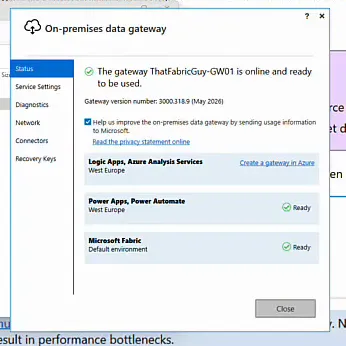
Once registration finishes, the status page says the gateway is online and ready to be used, with Microsoft Fabric marked Ready.
Create the SQL Server connection
Back in Fabric, go to Manage connections and gateways and click New. Pick On-premises, and the gateway you just registered shows up under Gateway cluster name. Then fill in:
- Connection name:
onpremsql - Connection type: SQL Server
- Server:
Workstation01 - Database:
WideWorldImporters
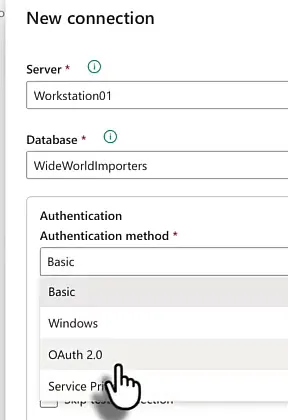
For Authentication method you get four options: Basic, Windows, OAuth 2.0 and Service Principal.
A SQL login for the demo
For the demo I went with Basic, which means a SQL login. I created one in SQL Server Management Studio under Security > Logins > New login: a login called tfg, SQL Server authentication with a password, and the sysadmin role, just for now, to prevent any problems.
Then I put tfg and the password into the connection and clicked Create. The first attempt came back with “Login failed”, so it took a bit of a round trip before the connection was created. Make sure you log in once with the new login yourself, so the password is definitive before Fabric uses it.
Which authentication to use
For a real connection my preference is a service principal or something similar. If you have an older SQL Server version, or you can’t use a service principal for whatever reason, use SQL authentication or Windows authentication.
Build the copy data pipeline
I had already created an empty pipeline called OnPrem_SQL_to_Lakehouse. From the ribbon, choose Copy data > Add copy data activity.
Source
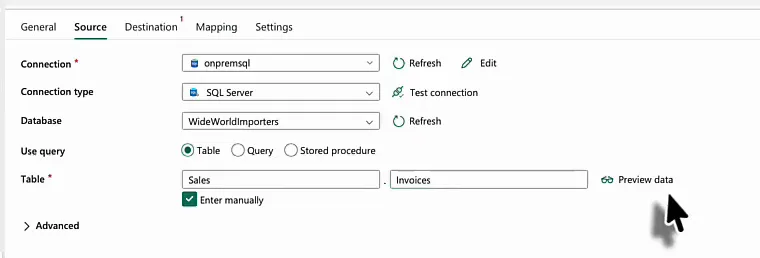
On the Source tab, select the onpremsql connection, with connection type SQL Server and database WideWorldImporters. Leave Use query on Table, because this is a plain table copy.
Wide World Importers has a lot of tables, and loading the list was a bit slow. So I ticked Enter manually and typed the schema and table: Sales and Invoices. The advanced settings, like the timeout, were fine as they were, and I didn’t add any extra columns.
Destination
The data goes into a lakehouse, so the pipeline needs a lakehouse connection. I didn’t have a suitable one yet and created it in Manage connections and gateways: New, this time Cloud, connection name FabricLH, connection type Lakehouse, and OAuth 2.0 with my own account, which was fine for now.
There is also a checkbox Allow this connection to be utilized with either on-premises data gateways or VNet data gateways. I ticked it, because this copy runs through the gateway, as the run details show later.
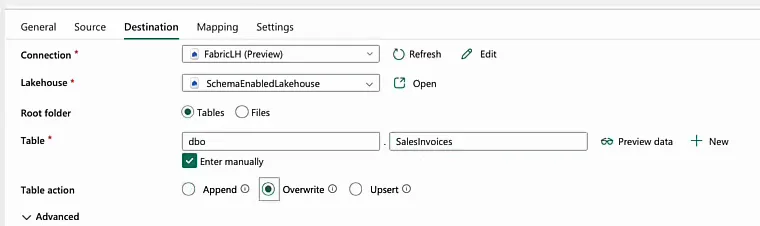
Back in the pipeline, refresh the connections on the Destination tab and select the new one. Then:
- Lakehouse:
SchemaEnabledLakehouse, a lakehouse with schemas enabled. - Root folder: Tables.
- Table: tick Enter manually and use
dboandSalesInvoices, so I renamed the table a bit on the way in. - Table action: Overwrite.
I didn’t set up any mapping, and on the Settings tab I left intelligent throughput optimisation on Auto. Save the pipeline and click Run.
Run it and watch the data move
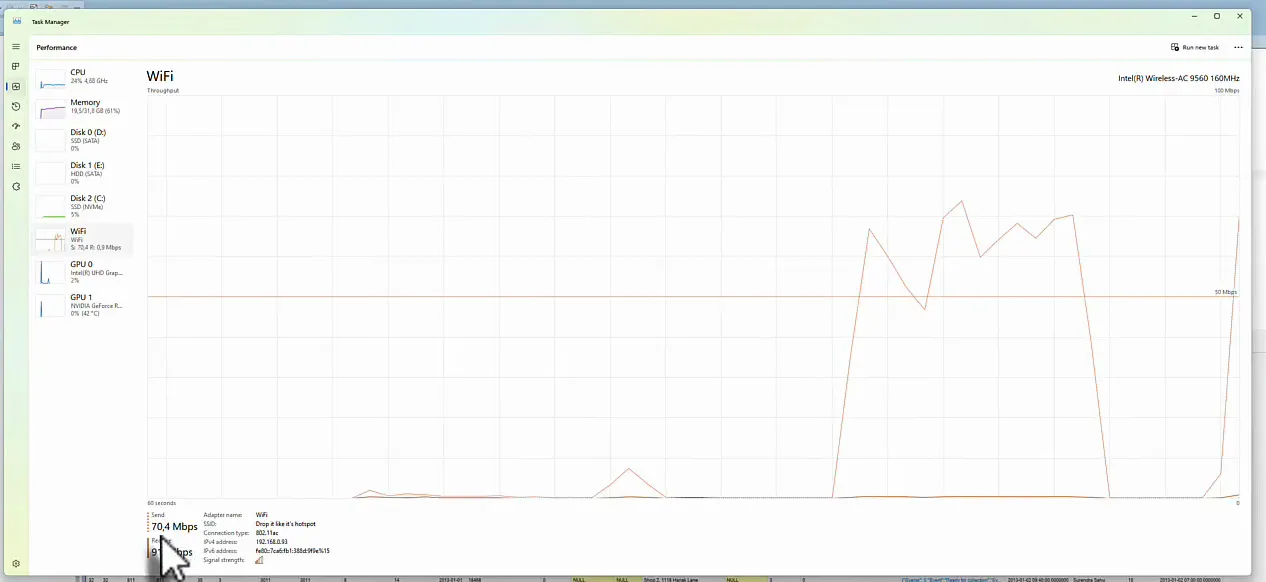
The pipeline shows the copy activity as in progress, but I wanted to see it actually doing something. On the gateway machine, open Task Manager and look at network activity on the Performance tab. At first there wasn’t much going on.
The copy data details in Fabric let you follow along. When I checked, SQL Server had read 1.4 GB of data and the copy had started writing to the lakehouse. From then on it was really sending data over the network, at roughly 70 megabits per second. I’m not sure if that is fast, but it is fast enough for this purpose.
The copy data details also show the route the data takes: from SQL Server, through the on-premises data gateway, into the lakehouse, with the rows read and written ticking up as it goes.
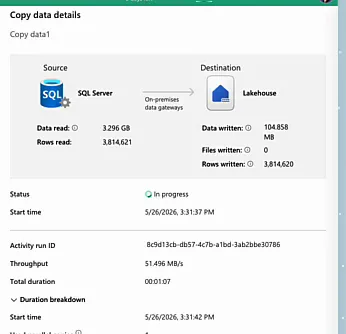
The run succeeded after 1 minute and 35 seconds, with 4.1 million rows copied.
Check the result in the lakehouse
Open the lakehouse to verify. In SchemaEnabledLakehouse, under the dbo schema, there is now a SalesInvoices table, filled with data that came straight from the on-premises SQL Server.
Before you do this in production
The demo cut a few corners. For a real setup:
- Run the gateway on its own VM, domain-joined in the same domain as the database server.
- Sign in to the gateway with an account that can access Fabric and create connections.
- Authenticate the SQL Server connection with a service principal, or SQL or Windows authentication when that isn’t possible.
- Don’t give that login sysadmin.
Once that is in place, copying data from your local SQL Server into Microsoft Fabric is the easy part.
