
In this article 12 sections
- What Claude Code does differently
- Put the Fabric workspace in Git
- Clone the repository into VS Code
- Install the Claude Code extension
- Choose the model and the effort
- Permission modes, and why I run in YOLO mode
- Give Claude context with a CLAUDE.md file
- Keep your local settings out of Git
- Let Claude change the Fabric items
- Review the changes before they reach Fabric
- Sync the changes into Fabric
- AI makes mistakes, and so do we
What if you could give an AI agent the source code of your entire Microsoft Fabric solution? Your notebooks, semantic models, pipelines, reports and technical documentation, instead of a single Python file pasted into a chat window. With Claude Code in Visual Studio Code and a workspace connected to Git, you can.
There is one important concept to understand before you start. Claude Code doesn’t edit the live items in your Fabric workspace. It works on files in a Git repository on your laptop, and you decide what gets pushed and synced into Fabric. I see that as a benefit: you get proper source control, a visible diff, and the chance to review everything the AI changed before it reaches Fabric.
What Claude Code does differently
Claude Code is the coding agent from Anthropic. It works with the Claude models (Haiku, Sonnet and Opus) and it’s built for developing software projects. A Fabric solution is a software project too, so you can use it there as well.
Unlike the chat window in Claude or ChatGPT, Claude Code can inspect your entire repository, search through your files, edit several files in one go and run terminal commands. Give it a bigger task and it writes itself a checklist and keeps working through it. It can even read the commits on your branch, so it picks up the history of your code base as well.
That means you can give it broad instructions, like analyse this Fabric solution, add logging to all notebooks, update the documentation and then verify the changes. Claude then finds all your notebooks and starts making the changes.
I use the Visual Studio Code extension. It gives you a graphical interface with inline diffs, so you can see which files Claude is changing. If you’re not a developer, or you’re not comfortable with the command line, it’s a very nice middle ground.
Put the Fabric workspace in Git
My demo workspace, InternalDWH, is very small. It’s where I’ve started reading our Azure costs through the API, to build a report on top of them. It has a lakehouse, a KDF environment with our Spark configuration and a custom Python library, a set of Azure Cost Extraction notebooks, and pipelines that schedule the extraction daily and monthly. (Those scheduling pipelines only exist because you couldn’t schedule a pipeline with parameters when I built this. That feature arrived a day or two before I recorded the video.) The semantic model has one table and no measures, and the Azure Cost report is connected to it but has no visuals. That’s enough to touch every type of item without building an entire platform, which can take days.
To connect the workspace, go to Workspace settings, then Git integration, and connect it to a repository in Azure DevOps. I put everything in a Git folder called /fabric instead of the root, which leaves room for documentation in /docs and anything else I want in the repository. I connected it to the main branch. In practice you’d work with feature branches once you start developing, but for a demo, main is enough. If you haven’t set up Git integration before, I walk through it in connecting a Fabric workspace to Git.
Clone the repository into VS Code
You need Visual Studio Code and Git installed, on Windows or macOS. If you don’t have them yet, install them first and come back.
In Azure DevOps, open the repository and click Clone. Under IDE, pick Clone in VS Code and let the browser open Visual Studio Code. Choose a destination folder. When VS Code asks for a password, go back to the clone dialog, click Generate Git Credentials, copy the password and paste it in. Then open the repository.
You now have a local folder with the fabric folder in it, holding the lakehouse, notebooks, pipelines, reports and semantic models. Reports are in PBIR format and semantic models in TMDL, so it’s all ready for version control. You didn’t have to do anything for that: Fabric and Power BI took care of it.
Install the Claude Code extension
Go to Extensions, search for Claude Code and pick Claude Code for VS Code by Anthropic. Check the publisher, because several extensions look the same and they aren’t. Log in if it asks you to. You need a Claude Pro account or higher. I think it’s 20 bucks, and to me it’s worth way, way more than that.
I almost never start a session from the Claude menu. I open a file instead, for example the notebook-content.py of the bronze worker notebook, and click the Claude icon at the top right of the editor. That opens Claude Code in a sidebar. You can also go to View, open the chat and choose Claude Code there. I think the regular chat uses GitHub Copilot.
In the panel you type a prompt. You can ask Claude to explain code, to change it directly, or to make a plan that you can adjust before it executes. The plus button attaches files or browses the web. The slash button opens the settings I change most: the model, the effort and the thinking mode. By default Claude looks at the file you have open, and you can point it at other files from the prompt.
Choose the model and the effort
I leave Thinking on. I like my developers to think about the work, and the same goes for my AI developers. The model and the effort matter more.
| Model | What it is | When I use it |
|---|---|---|
| Haiku | The cheapest and most lightweight model | Light jobs, like explaining a query of a few dozen lines |
| Sonnet | The middle one | Nine out of ten times |
| Opus | The heaviest and most capable model | Big jobs, like planning an overhaul of an entire Fabric installation |
You don’t need a very senior developer to explain a small query, and you don’t need the most capable model for it either. Haiku is cheap, so you won’t burn through your Claude usage allowance as fast. (Fable is disabled for me here in the EU, and I don’t use it anyway.)
The effort slider goes from low to medium, high and max. The higher you go, the more effort goes into the work. Opus adds extra high and ultracode (extra high plus workflows), and if you run Opus on the high settings you burn through your allowance really quickly. I usually run Sonnet on medium or high, depending on what I’m doing, and only switch to a higher effort or a heavier model when the job needs it.
Permission modes, and why I run in YOLO mode
Shift+Tab switches between the permission modes.
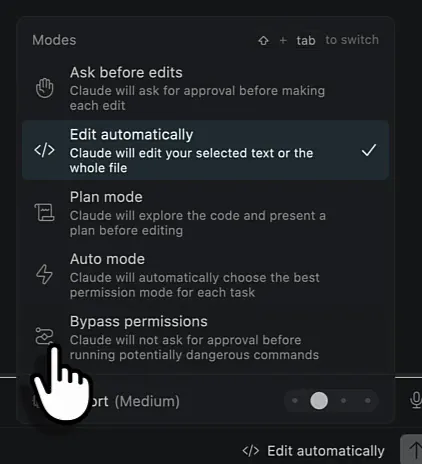
- Plan mode: Claude changes no code. It analyses your code base and the task, then presents the design, the architecture and the step-by-step instructions it intends to follow. You ask for changes or approve the plan, and then it executes.
- Ask before edits: Claude asks before it writes or changes any code.
- Edit automatically: Claude edits straight away, including any code or text you have selected.
- Auto mode: Claude chooses the mode for each task. I never use it.
- Bypass permissions: edit automatically, without any confirmation. Also known as YOLO mode, and the one I use most.
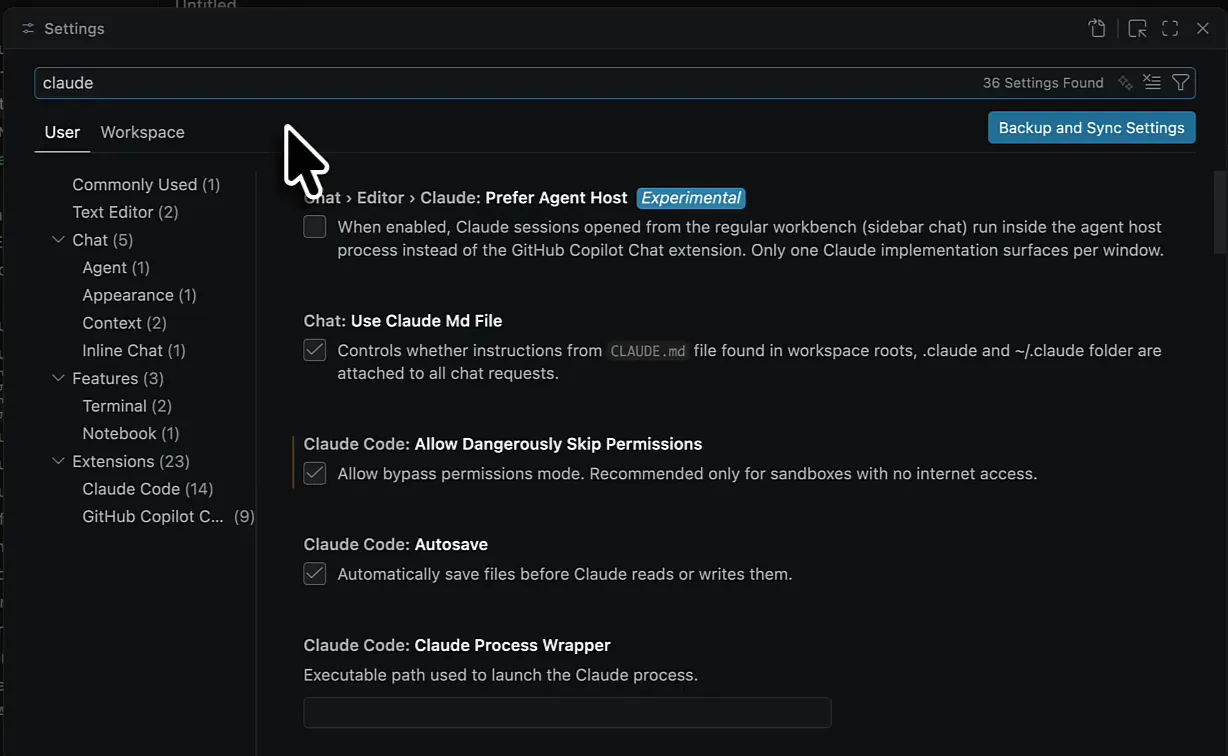
Without it, Claude keeps asking whether it can open this file or run that operation. I always said yes, and I got tired of it. Bypass permissions only appears once you enable it: press Cmd+,, search for claude and check Claude Code: Allow Dangerously Skip Permissions.
Give Claude context with a CLAUDE.md file
Ask Claude for a poem and you get a generic poem. Tell it first which kinds of poems and topics you like, and you get a poem that’s specific to you. Code works the same way. The place for that context is a CLAUDE.md file in the root of the repository. It’s Markdown, so headers, text and links all work.
The funny thing is that Claude can write that file for you. I created an empty CLAUDE.md, checked I was on a not too heavy model in edit automatically mode, and asked:
Analyse my repository, specifically the pipelines, notebooks in the /fabric folder, and then write the CLAUDE.md file to give project contextClaude explored the repository, read the notebooks and pipelines, and wrote the file. That took a while, and I could probably have written it myself, but the result was quite elaborate: 123 lines. It covers what the warehouse is for (Azure cost management data for managed clients, exposed in a Power BI report), the platform, the repository layout, the KDF library, the extraction pipeline from scheduling down to the bronze and silver workers, and the tables and conventions such as the Fabric Git sync format. Quite impressive, so I accepted it.
Keep your local settings out of Git
Source control in VS Code then showed the new CLAUDE.md and a change in the .vscode folder. Those settings are local to my machine. Colleagues have their own, and if you push them into Git you get conflicts. So I added a .gitignore in the root:
.vscodeThen I committed .gitignore and CLAUDE.md with Initialisation of project with .gitignore and used Commit & Push, straight to main. That’s fine for a demo, but you wouldn’t want to do it in production.
Let Claude change the Fabric items
Now for the Fabric stuff, which is what we’re here for. I gave Claude three jobs, all in bypass permissions mode.
A markdown cell in a notebook
I only needed proof that Claude can change a notebook, so I asked for a markdown cell. I deliberately didn’t give the exact notebook name and let Claude figure that out itself.
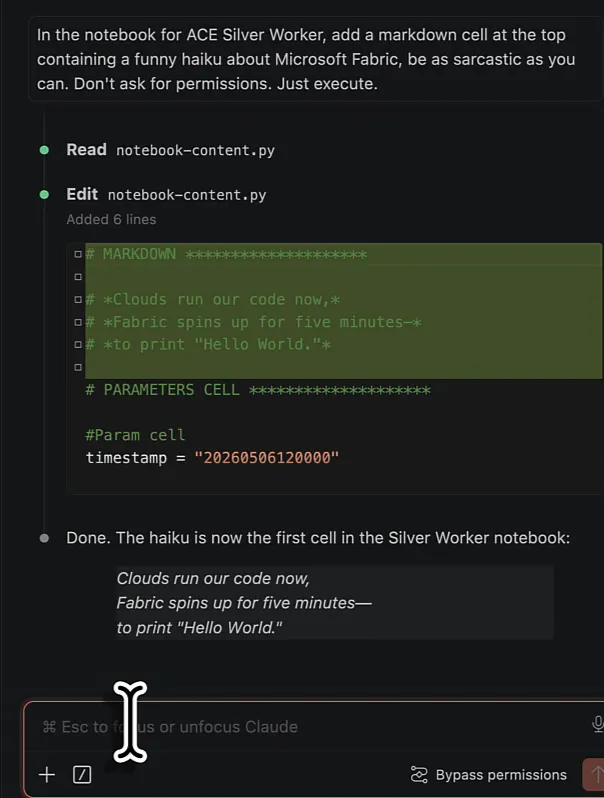
In the notebook for ACE Silver Worker, add a markdown cell at the top containing a funny haiku about Microsoft Fabric, be as sarcastic as you can. Don't ask for permissions. Just execute.Claude found the notebook and added a markdown cell above the parameter cell:
# MARKDOWN ********************

# *Clouds run our code now,*
# *Fabric spins up for five minutes—*
# *to print "Hello World."*
That’s indeed quite sarcastic. In the explorer the notebook turns yellow, because an existing file changed. New files show up in green.
A DAX measure in the semantic model
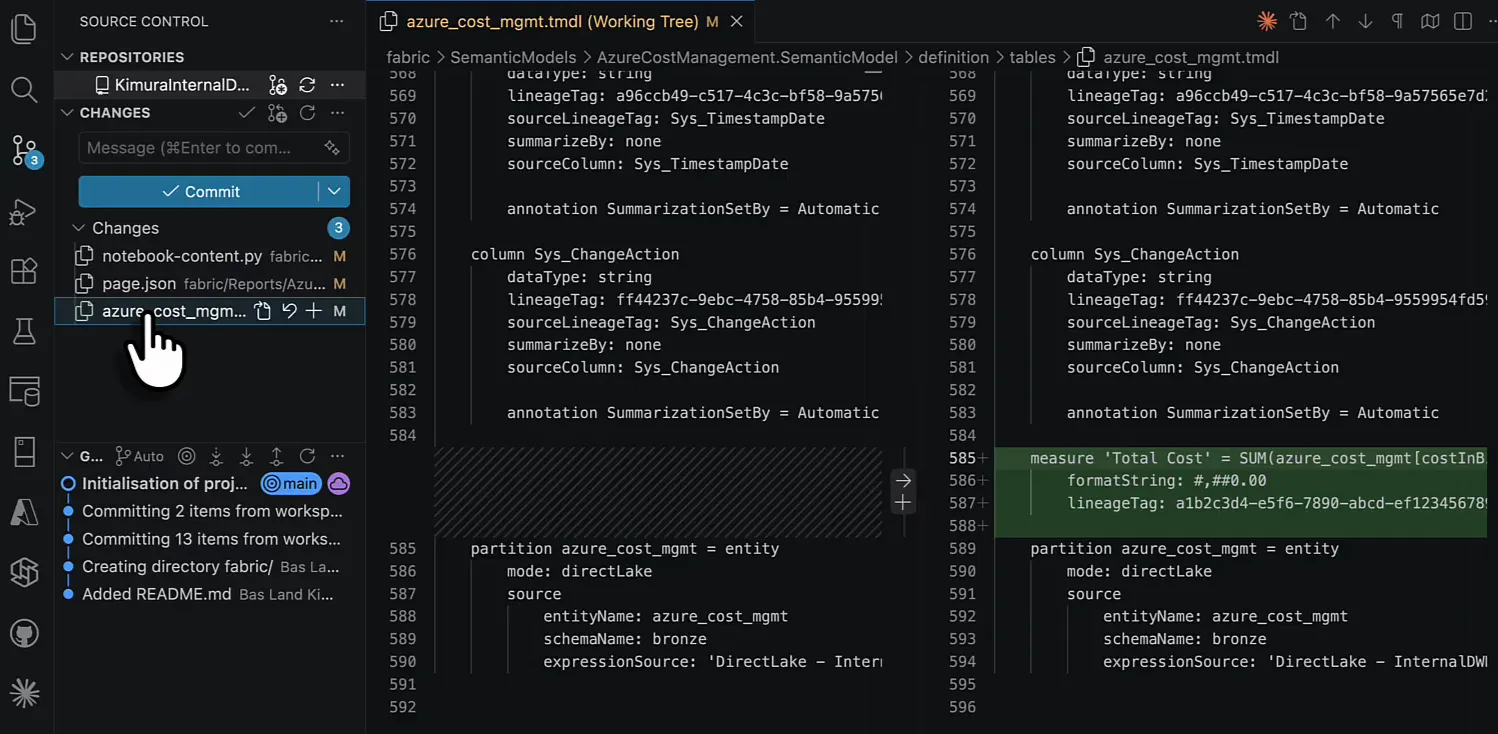
Now analyse the semantic model, and tell me which costs columns there are. I want an explicit measure in DAX that sums the cost columnClaude listed the numeric cost columns (effectivePrice, quantity, costInBillingCurrency, costInUsd, exchangeRatePricingToBilling, PayGPrice and unitPrice), picked costInBillingCurrency because that reflects what’s actually billed, and added this to azure_cost_mgmt.tmdl:
measure 'Total Cost' = SUM(azure_cost_mgmt[costInBillingCurrency])
    formatString: #,##0.00
    lineageTag: a1b2c3d4-e5f6-7890-abcd-ef1234567890
That’s a measure without writing any DAX, just by vibing it.
A matrix and a slicer in the report
The report had nothing on it yet:
Ok, now look at the Power BI report and add a matrix visual with this measure, and on the rows put the product name column (whatever the name is, I dont know).

Put a slicer with the Azure subscription ID (no names, for sake of keeping this demo video private)
I asked for subscription IDs instead of names because this is live data, and I want to keep my customers private.
Claude read the semantic model and the report files and added a slicer and a matrix. Then it warned me: Fabric validates strictly on import, and if the sync fails on a schema rejection, the visual name fields are the most likely culprit. Those need proper GUIDs, and it had used hex strings of the right length without the hyphens. My reply: If it expects proper GUIDs, then use proper GUIDs please! It changed names like b1c2d3e4f5a6b7c8d9e0f1a2 into b1c2d3e4-f5a6-b7c8-d9e0-f1a2b3c4d5e6.
Review the changes before they reach Fabric
So far nothing has changed in Fabric, or even in Azure DevOps. Only files on my hard drive changed, which is perfectly fine. The Source control tab shows three of them:
notebook-content.py, the notebook.page.json, which holds the visuals of the report page.azure_cost_mgmt.tmdl, the table definition in the semantic model.
Click a file to see the diff: the haiku cell in the notebook, the new measure in the TMDL file, and in page.json the same page settings with visuals added.
The report format is the least documented part of Power BI in Fabric, and I was really sceptical about whether that one would work.
My commit message just said it was a demo for a YouTube video. Usually I write the intended changes in there rather than the changes themselves, so whoever reads it knows what I meant to do and can check whether it was done correctly. Commit & Push sends it to Azure DevOps, where a refresh shows the notebook with its haiku and the new visual definitions under the report’s first page.
Sync the changes into Fabric
The workspace still has no haiku. Source control in Fabric shows three updates, one for each file Claude changed. Click Update all and hope the Power BI report validates. I knew the other two would work: it’s just a DAX measure and a markdown cell.
The report failed. The report workload couldn’t import it, because in page.json property ‘visuals’ has not been defined and the schema does not allow additional properties (line 8, position 12).
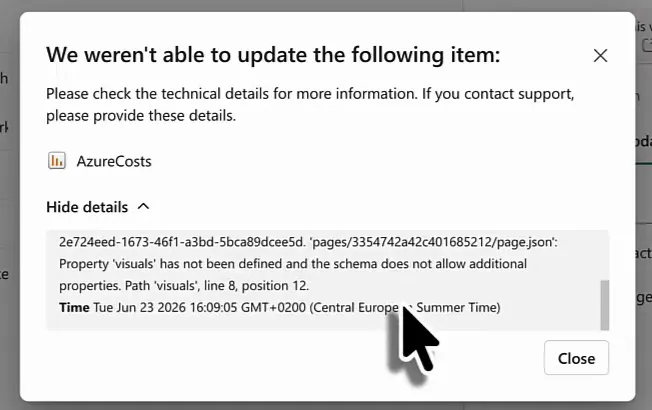
The other two arrived. The Silver Worker notebook now opens with the haiku. I don’t even know if it’s a proper haiku, but I think it’s funny that Claude came up with it. In the semantic model, Total Cost is there under measures.
Source control in the workspace is broken for now. I didn’t fix it on camera, because that means a debugging session with Claude on the PBIR format, and I’m not confident it would get there. With a lot more context, such as an existing report with its complete PBIR definitions, I think it would work.
AI makes mistakes, and so do we
This is exactly the kind of problem you run into when you start coding with Claude Code.
AI is very capable of programming, but it’s also very capable of making mistakes.
You see every change it makes, but you can’t always tell whether a change is correct. When it changes Python, a SQL query or a DAX measure, I’ll understand whether it works and why. When it changes the deeply nested structure of PBIR report visuals, I have no idea.
If I were to vibe code Power BI reports (that might be a good next video), I’d give Claude a couple of existing reports as context so it understands PBIR better. I’d also look up the documentation on Microsoft Learn: which properties PBIR has, in which order, and which rules apply. And a successful Git sync doesn’t prove the solution works, so review and test AI-generated changes in Fabric before you promote them any further.
Other than that, I’m more and more amazed by what Claude Code can do for Microsoft Fabric. Give it tasks it can run on its own, like making the same change in many notebooks, which would be a lot of work by hand. Claude does that very quickly and without breaking a sweat; I show it in bulk editing Fabric notebooks with Claude Code. Just be aware that it can make mistakes. Then again, so can we. There’s no code in the world without bugs, so be very aware of the code you push.
