
In this article 8 sections
I had to make the same small change in 26 notebooks for a customer: swap the order of two cells and change the definition of a variable in one of them. Doing that by hand in Fabric would have taken hours, and it is mind-numbing work, so I let Claude Code do it instead. In less than 10 minutes every edit was made, checked and published back to Fabric.
The trick is to stop editing the notebooks in Fabric at all. I sync the workspace to Git in Azure DevOps, open the repository in Visual Studio Code and have Claude Code edit the files there. Git then gives you a review step and an undo button for free.
The change: a hard-coded parameter
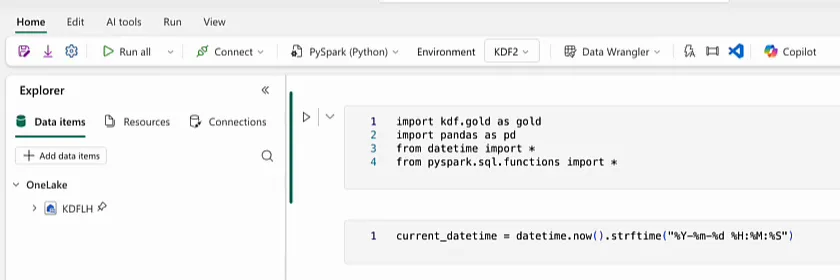
The workspace has a folder of gold mapping notebooks: a lot of dimension notebooks and a lot of fact notebooks. During development I gave each of them a parameter cell with one parameter, current_datetime. I use it to work out which records are valid in the lakehouse, and it had a fixed date and time in it:
current_datetime = "2026-05-11 09:15:18"In practice that is no problem. The pipeline that starts these notebooks overrides current_datetime with the date and time of that pipeline run. Still, I think it is nicer to have the default made variable. When I run a notebook interactively during development it should always use the current time, and when the process runs it, it injects the value it is running with.
So for every notebook the job is:
- Check that
current_datetimesits in a parameter cell. - Move the imports cell (cell number two) above the parameter cell, so the datetime functionality is available.
- Change the default to Python’s current date and time, in the same format as the hard-coded value.
Get the workspace into Git first
You need one thing before any of this works: source control on the workspace. Under Workspace settings go to Git integration and check that the workspace is connected to a Git repository and a Git folder. I had already set that up; if you haven’t, I walk through it in connecting a Fabric workspace to Git.
Then open Source control in the workspace and make sure there are no uncommitted changes. No changes in the workspace means all the code in the workspace is also in Git.
Over in Visual Studio Code, check that you are on the right branch and sync all changes from the repository to your local copy. Now everything that is in Fabric is also on your laptop. For the sake of simplicity I allowed myself to push straight to the main branch for this demo. That is not something you should do often.
In the repository, each notebook is a folder with a notebook-content.py file inside: the Python file representation of the notebook in Fabric. Cells are separated by # CELL markers, and the parameter cell gets its own # PARAMETERS CELL marker. Change that file, push it to Git, sync from Git to the workspace, and the change is in Microsoft Fabric.
The prompt
With the first notebook (Companies) open in the editor, I gave Claude Code this prompt in the panel on the right:
In the notebook that is currently open, you see there is a parameter cell. We fill 1 parameter (current_datetime) with a hardcoded value. I want you to move the parameter cell down so that the imports cell is above.
Then, I want you to change the default definition of the parameter to Python's current datetime in the same format the current default is set.

After you've done this notebook, I want you to go through all the notebooks in the folder "WorkspaceContent/Notebooks/1 - Mapping Notebooks/Dim and also /Fact. The dim and fact notebooks must be edited in the same way:
Import cell first (so that we have the datetime available)
Then parameter cell with current datetime default definition.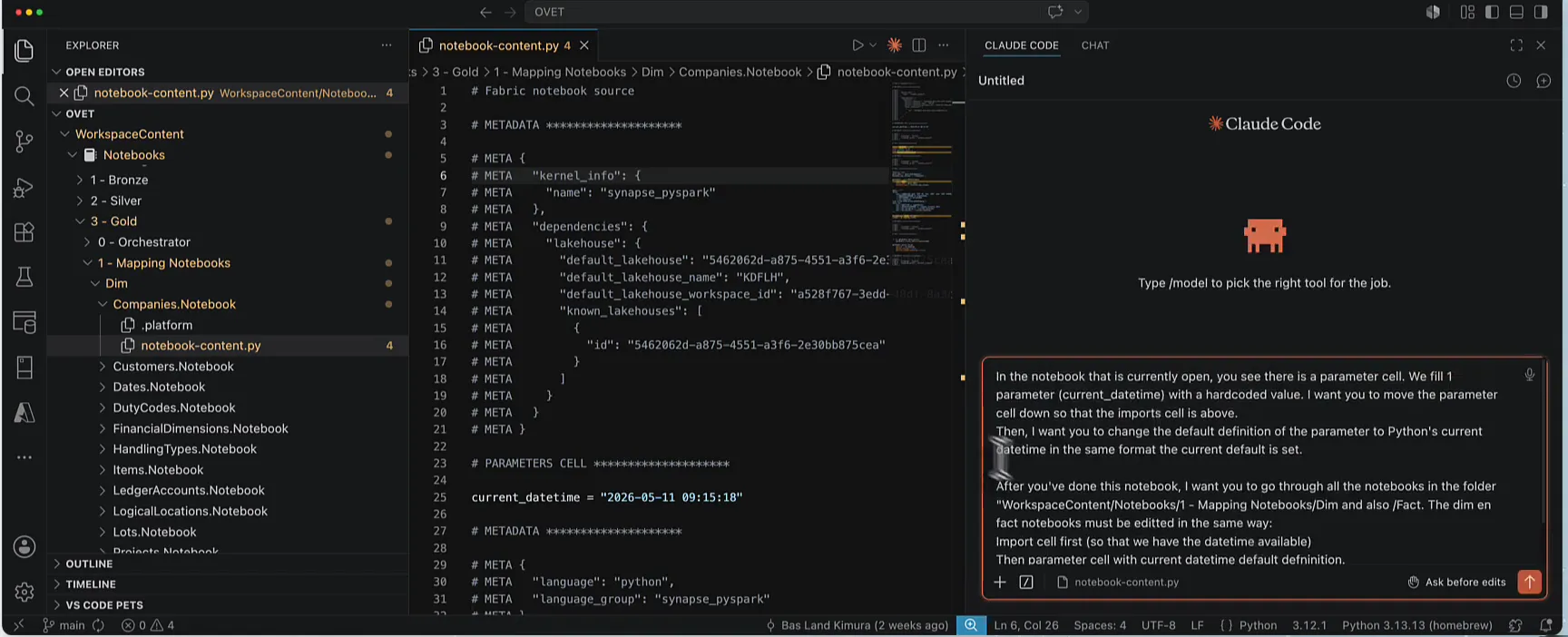
Claude starts by analysing the notebook I have open. Because the content is right there in VS Code, Claude Code can read it easily, and it understands the structure of the rest of the repository as well.
Review the first edit
Claude Code was set to ask before edits, so it showed its proposal and asked “Make this edit to notebook-content.py?”. It removes the parameter cell above the imports and adds a new one below them.
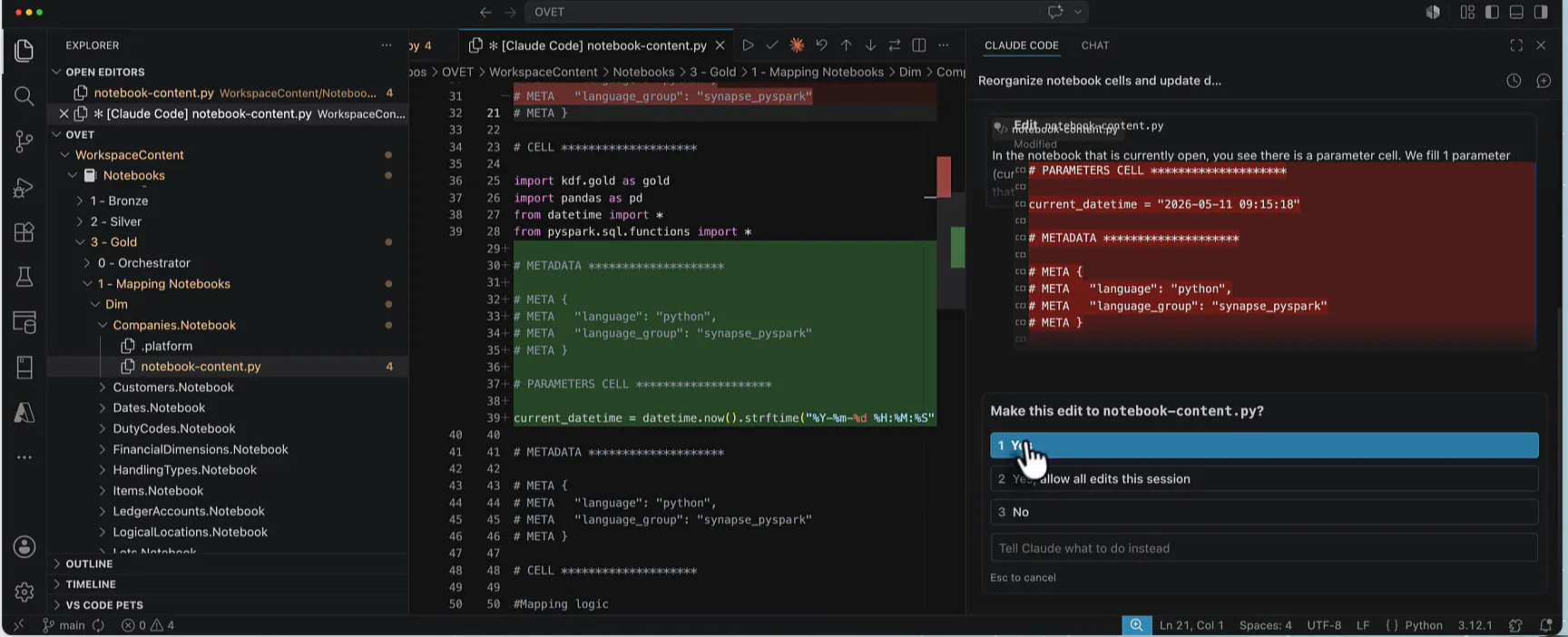
Before, the parameter cell came first:
# PARAMETERS CELL ********************

current_datetime = "2026-05-11 09:15:18"

# METADATA ********************

# META {
# META   "language": "python",
# META   "language_group": "synapse_pyspark"
# META }

# CELL ********************

import kdf.gold as gold
import pandas as pd
from datetime import *
from pyspark.sql.functions import *
After, the imports come first and the parameter cell follows with a variable default:
# CELL ********************

import kdf.gold as gold
import pandas as pd
from datetime import *
from pyspark.sql.functions import *

# METADATA ********************

# META {
# META   "language": "python",
# META   "language_group": "synapse_pyspark"
# META }

# PARAMETERS CELL ********************

current_datetime = datetime.now().strftime("%Y-%m-%d %H:%M:%S")
That is exactly what I asked for, in the same format as the old hard-coded value, which is actually cool. So yes, I let it make this edit.
Let it loose on the other notebooks
Then Claude moves on to the rest. It asked permission to run a bash command, a find for all the notebook-content.py files in the Dim and Fact mapping folders. You should read those commands before you allow them. I have done this before, and this one looked all right.
I am relaxed about letting it run, because nothing reaches Fabric until I commit. If Claude makes a mistake, I don’t commit the changes to Git. I undo them and do it again. That makes it safe to let Claude do its thing.
Most notebooks followed the pattern and changed straight away; you can see them turn yellow in the explorer as modified. Four stayed grey. Those had a different structure, so the pattern recognition did not work the way we expected, and Claude went off and read the content of each of them. One of them had the current_datetime and the imports set up differently, so Claude suggested adding the datetime import and putting the current_datetime cell right below it. That looked good, so at that point I picked Yes, allow all edits this session.
Claude then reported that all 26 notebooks were done, and that the warnings in the editor were only Fabric-specific packages that aren’t resolvable locally. Its summary:
- 21 notebooks: cells swapped as planned.
- 2 notebooks: a variant with a blank line, which it fixed. That doesn’t matter functionally.
- 1 notebook: different imports, so it added the datetime import.
- 1 notebook: imports inside the parameter cell, which it cleaned up and reordered.
- The Companies notebook I had open, done first.
All of that looked very good to me.
Commit and check the diff in Azure DevOps
Under the changes in VS Code I put in a commit message and did Commit & Push. Again: usually I do not commit to main directly. This is just for the demo.
In Azure DevOps the history shows the new commit, with 26 changed files. Click through and you get the diff per notebook.
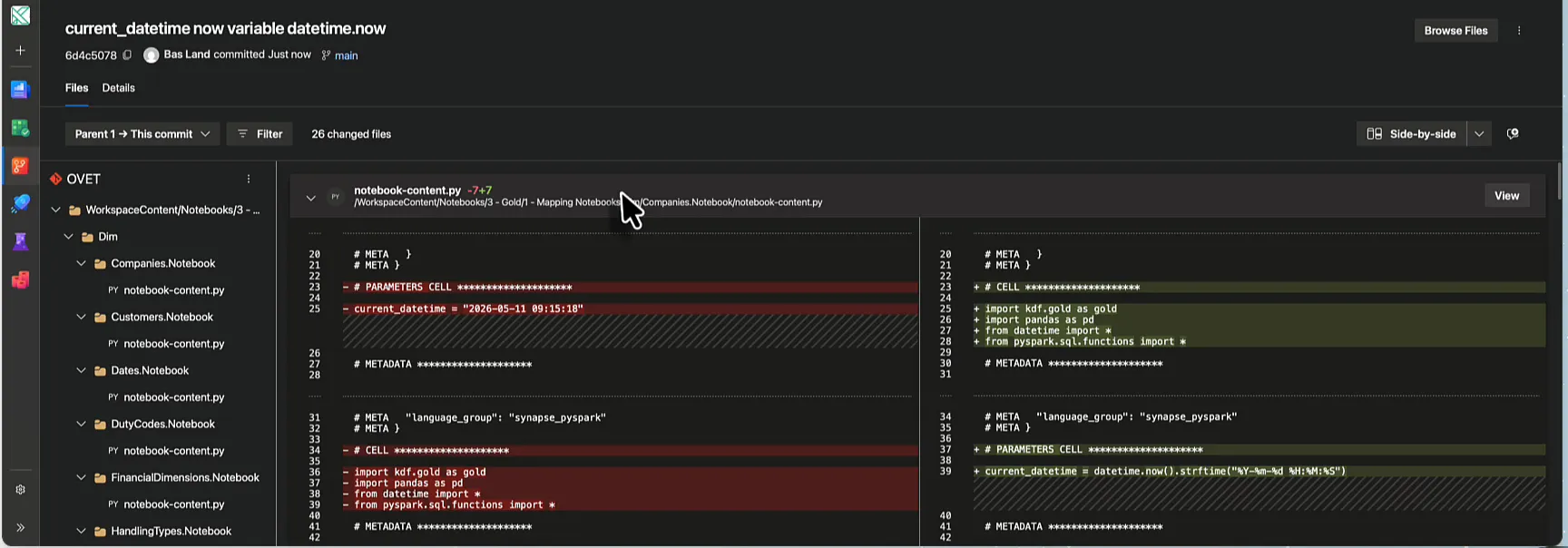
I checked a few. Where it was parameter cell, then imports, it is now imports, then parameter cell. The same goes for the fact notebooks.
Update the workspace from Git
Back in Fabric, open Source control again and let it check for updates. There are 26 updates now, one for each changed notebook.
If you don’t trust the process, Fabric can show you the changes too. Change Review shows the diff per notebook: the parameter cell disappears at the top and comes back below the import cell. Mind you, this screen is slow, and I don’t know why. A Git diff is usually very quick, but here in Fabric it is not.
Click Update all and wait. That takes a while. I grabbed myself a cup of coffee. When it is done there are no changes left, so everything is in sync.
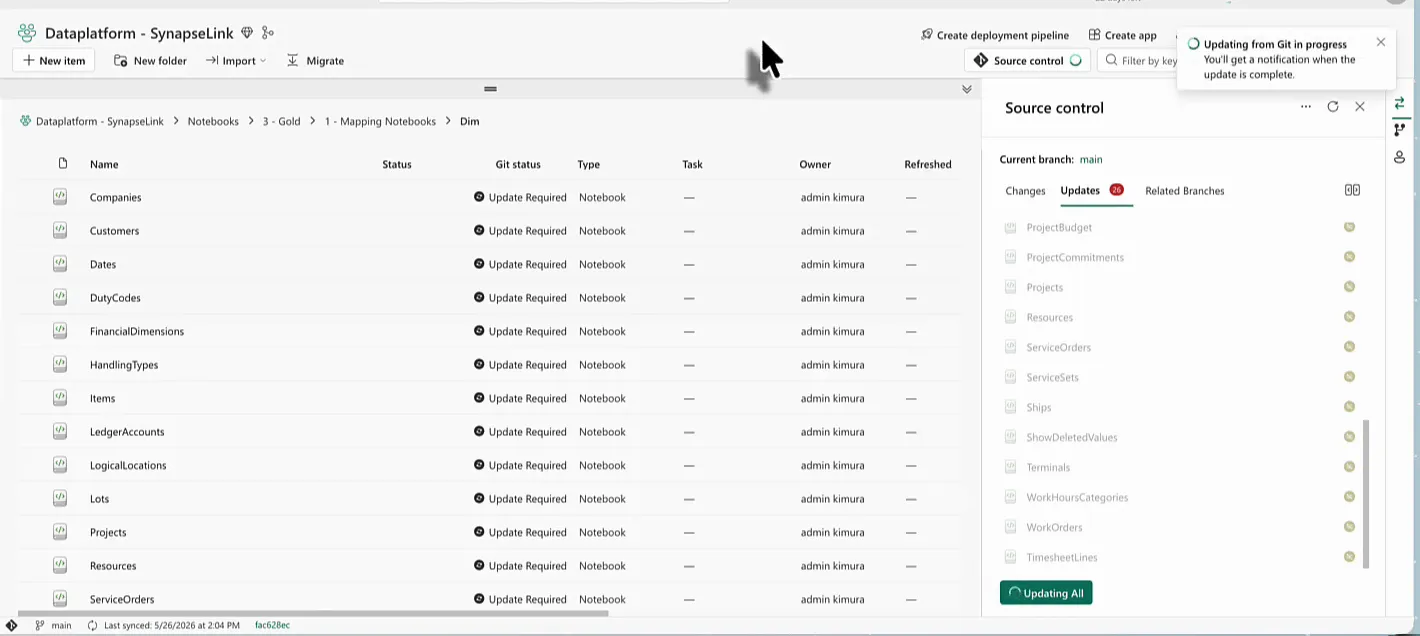
To verify, I opened a few dimension notebooks and a few fact notebooks. Each one now imports first and sets current_datetime after that.
Why I work this way
Doing this by hand means opening a notebook, clicking, swapping the cells around, pasting in the new definition and saving, 26 times over. Claude Code did it from one prompt, and my part was reviewing the result. That saves me a lot of time.
The part that makes it safe is Git. The edits happen in local files, I review them before anything is committed, I can look at the diff again in Azure DevOps and in Fabric, and nothing reaches the workspace until I update it. Easy life.
This is one of the use cases I have for Claude Code with Microsoft Fabric. There are more, and I will share them as I figure them out.
