
In this article 6 sections
If you want to work with the files in OneLake as if they were on a local file system, you need Azure Storage Explorer. Connect it to a lakehouse once and you can browse its folders, download files to your laptop and upload a whole folder of files without going through the browser.
Storage Explorer is an application for Windows and macOS. It was originally built to browse blob storage accounts in Azure Blob Storage, but it works for OneLake as well, because underneath, OneLake is a blob storage account used inside Microsoft Fabric. I run it on a MacBook (more on that setup in Microsoft Fabric with a MacBook), and the steps are roughly the same on Windows.
The folder we want to open
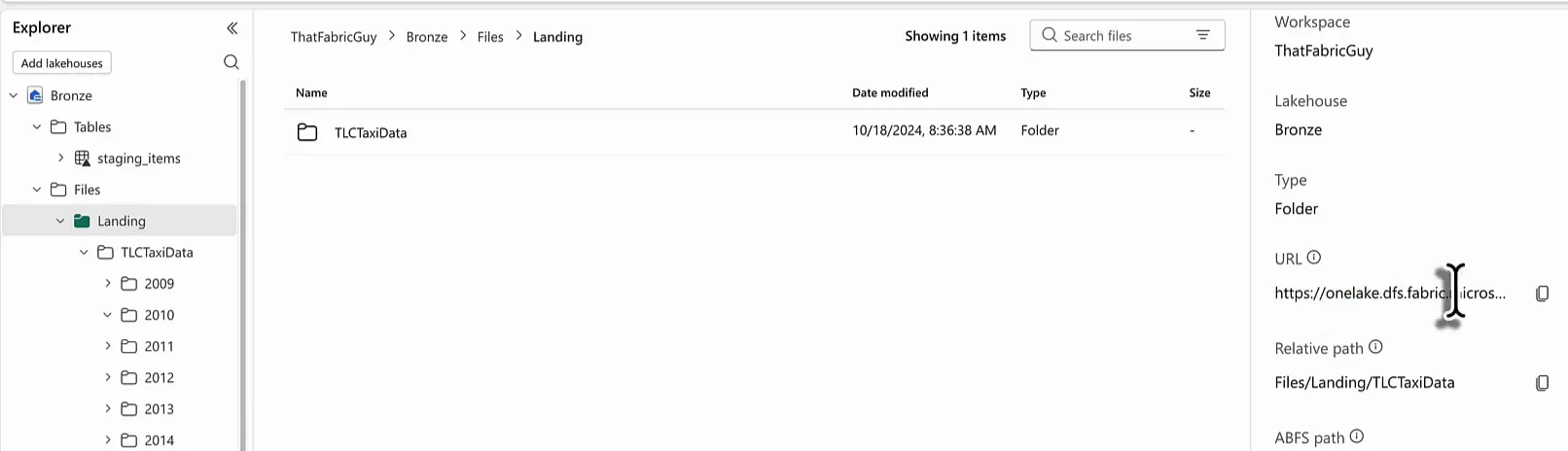
In the Fabric portal I have a workspace called ThatFabricGuy with a lakehouse called Bronze, which has a Tables and a Files section. Under Files there is a folder called Landing, and in Landing a folder called TLCTaxiData with the TLC taxi trip data: one subfolder per year, full of Parquet files.
You can click through those folders in the browser, but I want TLCTaxiData as a folder in Storage Explorer.
Find the OneLake URL of the folder
Storage Explorer asks for the URL of the folder, and you can get it from the lakehouse. In the lakehouse, select the TLCTaxiData folder and open its Properties. The URL field holds the OneLake URL of the folder; hover over it and you can see it ends in TLCTaxiData. Copy it with the button next to it.
The URL looks like this:
https://onelake.dfs.fabric.microsoft.com/ThatFabricGuy/Bronze.Lakehouse/Files/Landing/TLCTaxiDataThe first part, onelake.dfs.fabric.microsoft.com, is standard and the same for everyone. Then comes the name of the workspace, the lakehouse (Bronze.Lakehouse), and from there it is a folder structure. You can leave the folder path off and connect to the lakehouse itself. I keep it, because this is the folder I want to work in.
Connect Storage Explorer to OneLake
In Storage Explorer, the Explorer section probably already lists some blob containers. Mine has quite a few, attached during other demos. To add a new one, open the Connect to Azure Storage dialog and go through its steps.
Select the resource and sign in
Choose ADLS Gen2 container or directory as the resource, then Sign in using Azure Active Directory as the connection method. If you have already signed in to an account, that is fine and it just works. If not, you are prompted to sign in.
Pick the account and tenant
Select the account. If you have more than one, they are all listed here. Then select the tenant that contains the resource. I have access to a lot of tenants with my account, so I pick my home tenant.
Enter the connection info
Give the connection a display name and paste the URL into Blob container or directory URL. I call mine TLC_Taxi_Data, so I can easily find it in the list later.
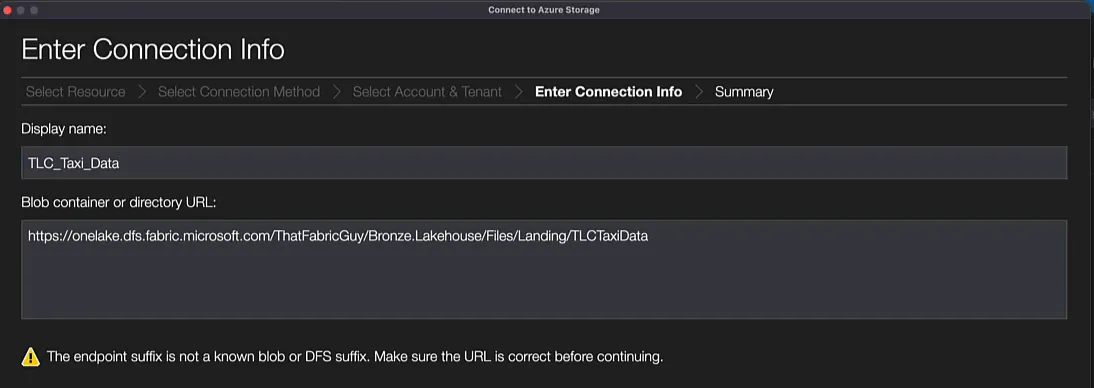
Storage Explorer shows a warning here: “The endpoint suffix is not a known blob or DFS suffix. Make sure the URL is correct before continuing.” It does not know the OneLake domain. I ignored it, clicked Next and then Connect, and the connection worked fine.
Browse up and down the hierarchy
The new connection shows up in the Explorer with every folder and file in TLCTaxiData: one folder per year, because that is how I organised this data.
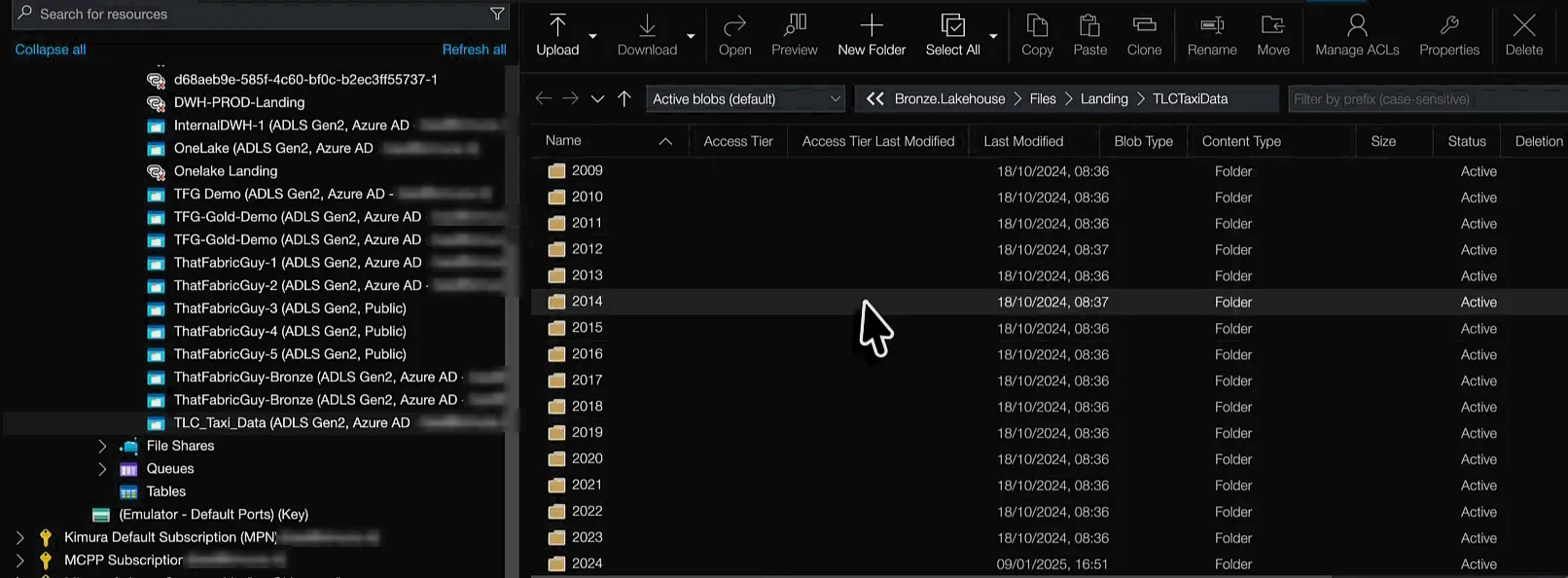
The connection opens on that subfolder, but you are not locked into it. You can navigate up into the lakehouse, where you also find the Tables folder, and up again into the workspace. At workspace level every Fabric item is a folder, with its type in the name: Bronze.Lakehouse, notebooks as .SynapseNotebook, pipelines as .Pipeline. From there I can go back down into Bronze, Files, Landing and TLCTaxiData again.
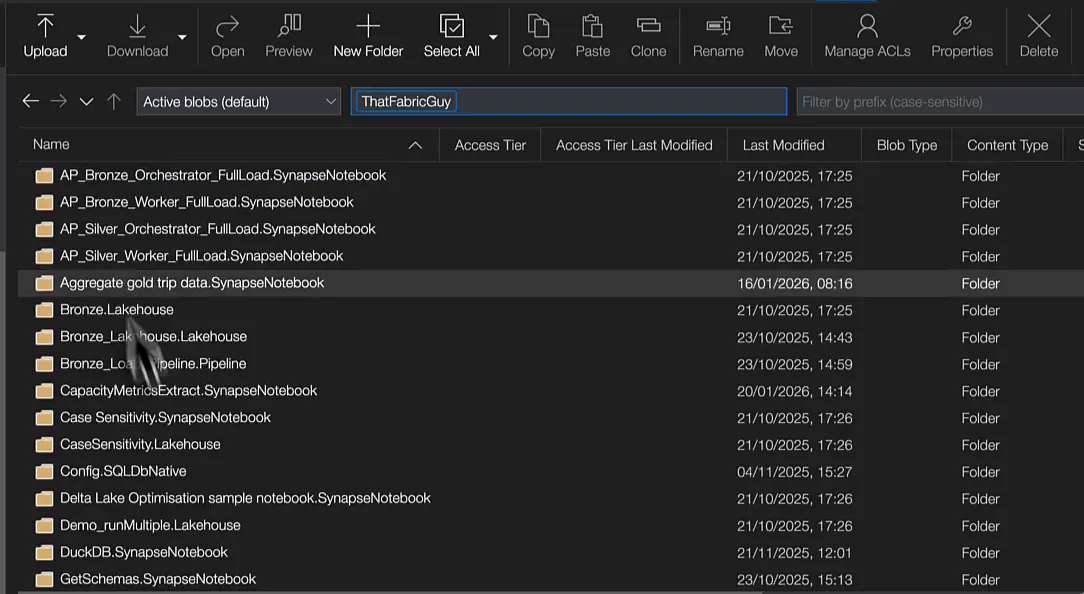
Storage Explorer is also how I look under the hood of Delta tables: in Delta tables in Microsoft Fabric explained and Anatomy of a Delta table I browse the Tables folder of a lakehouse the same way.
Download files to your laptop
Open a year folder and you get the Parquet files for that year. If you want to work with them locally, for whatever reason, select them and download them to your machine. Storage Explorer cannot preview or open Parquet files, but downloading them is no problem.
Upload files to a lakehouse
It works the other way round too. If you have a lot of files on your laptop that need to go into a lakehouse, do it through Storage Explorer. Create a new folder, put all your files in, and they are uploaded to Microsoft Fabric. That makes your life so much easier than going through the web browser and the upload wizard.
