
In this article 7 sections
I’ve been a data engineer for almost 15 years, and a ridiculous amount of that time went into typing: documentation, plans, long-form reports, hundreds and maybe thousands of pages in Word. Add emails and WhatsApp messages, and over the last couple of years, like everybody, a lot of AI prompts. These days I write a lot of it by talking, with a dictation tool called Wispr Flow, and I’m about three times faster for it. You could sell your keyboard.
Full disclosure before we start: Wispr Flow gave me an affiliate link, and it’s at the end of this post.
What Wispr Flow does
Wispr Flow is a voice dictation tool. You talk into whatever microphone is connected to your computer (I use the one on my webcam, but your AirPods work too) and it turns what you say into text. I’ve used the built-in dictation on my MacBook, and on Windows laptops before that. The difference is that Wispr’s results are actually usable.
How usable depends on the language. In English it’s very accurate, even when I talk really fast, and I’m not a native speaker. Dutch, my native language, is getting there: I speak it really fast and Wispr can’t quite keep up with me yet. In English I can rattle something off and it writes it all down, three, four, maybe five times faster than I could type it.
I’ve been a subscriber for a while. Over the summer I only used it a little, but from September I used it more and more, and now I use it almost every working day, sometimes at the weekend too. I catch myself talking to my laptop, or even to my phone, instead of typing.
Push to talk
To dictate, I hold Shift and Fn on my keyboard. I’ve also put the shortcut on one of the buttons on my mouse. It works like push to talk on a radio: hold the button, talk, let go, and the text appears wherever your cursor is.
Dictating a prompt into Claude Code
Most of what I dictate is AI prompts. A short one first: “Hey Claude, can you help me decide between the lakehouse and the warehouse in Microsoft Fabric, please?” I didn’t really need the answer. I wanted to show how fast that sentence goes in compared to typing it.
Long prompts with several parts are where it pays off. In VS Code I opened the repository of my internal data warehouse, which is connected to Fabric: a lakehouse, an environment, notebooks, pipelines and semantic models. (If you want that setup yourself, I walk through it in using Claude Code for Microsoft Fabric development.) The README in that repository is still a template that ended up there at some point, which is a bit annoying. So I opened Claude Code, held down the shortcut and told Claude what I wanted. This is what Wispr Flow put in the prompt box:
hey Claude, can you please analyze this repository for me and rewrite this README file? It's now just a demo file that's uploaded there for whatever reason, and I don't really know.

I want the README file here to show the basic overview of what we're doing with this repository, with this fabric environment, then dive into how the ETL flow is working. I think there are two ETL flows, even, so specify both of them.

Then dive into separate chapters where you can show what each layer of the modular architecture in this repository stands for and what its scopes and limitations are. Also dive into each of the gold tables and tell me, or write into the documentation, what type of information can be found here, so that the user that is working with this (another data engineer in my company) can actually start working with it.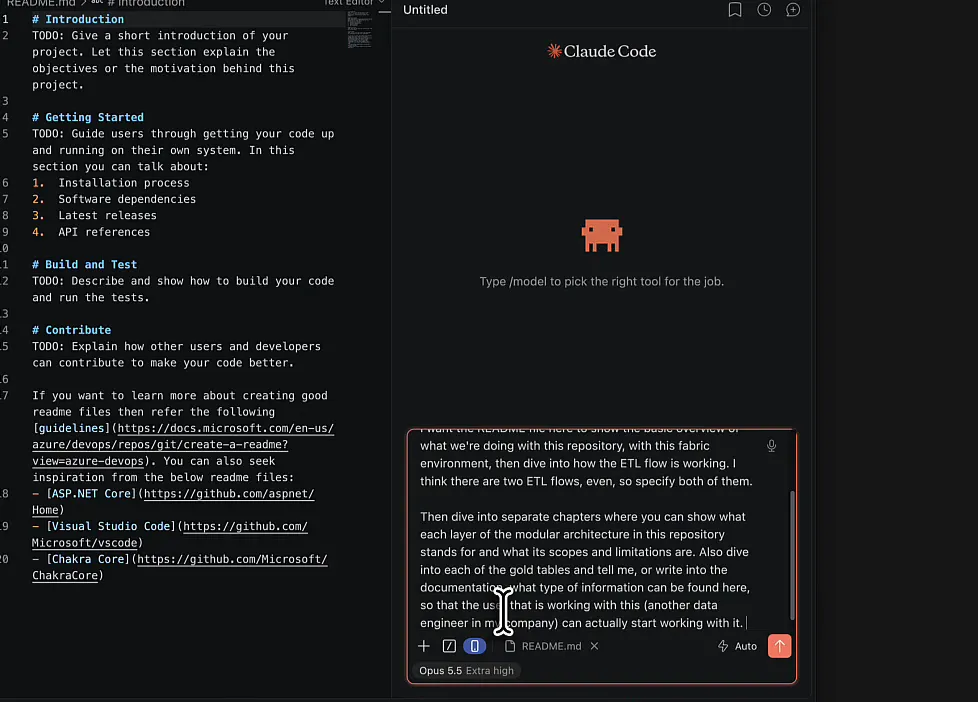
That wasn’t super fast. I hesitated and corrected myself along the way, and it was still a lot quicker than typing the same thing. The text in the prompt box comes with punctuation, paragraphs and even brackets around my aside. Reading it back, the only thing I’d change is “tell me, or write into the documentation”: I meant just write it into the documentation.
One word did go wrong, and I missed it when I read the prompt back: I said medallion architecture and Flow wrote “modular architecture”.
You don’t save time waiting for the AI
You save a lot of time writing your prompts and your documentation, and none at all waiting for the AI to respond. Claude still takes as long as it takes.
What changes is that you’re hands off sooner. I put the AI to work and go do a couple of emails while it runs. Typing a long prompt means typing and revising your typing at the same time, and dictation takes that part away. For me that adds up to a lot of time.
The numbers
The Insights page in Wispr Flow keeps score. When I recorded the video I had dictated almost 87,000 words in total, at 153 words per minute. My streak was one day, because I didn’t work on the Sunday before.
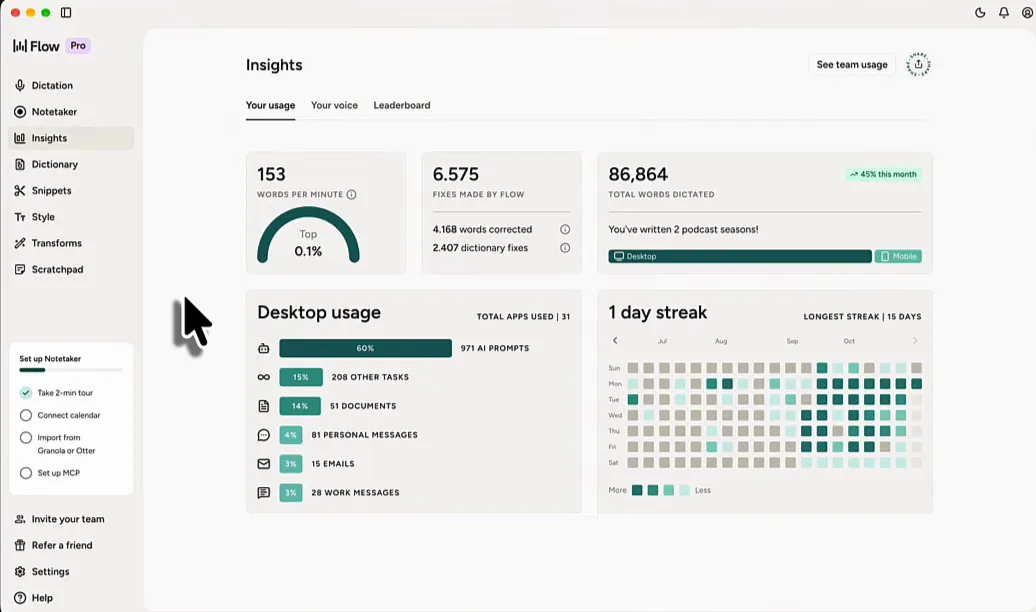
That 153 moves around a lot, between 145 and 175, and it’s usually somewhere between 155 and 160, so that day I was on the low end. It drops when I dictate long messages and think while I speak. When I fire off short bursts and short sentences, I can get it up into the 170s or 180s. The desktop usage breakdown on the same page shows what it’s mostly for: 60% of what I dictate goes into AI prompts.
If those numbers don’t mean much to you: most people type at maybe 30 or 40 words per minute. I couldn’t even type that fast without making mistakes, tiring out my fingers and working my way towards a work-related injury in my hands.
The Dictation page also keeps a history of what you’ve dictated, so the README prompt from earlier was right there at the top of today’s list.
Notetaker and scratchpad
Besides dictation, Wispr Flow has two more features.
The Notetaker connects to your calendar. Add Wispr to your Microsoft Teams or Google Calendar meetings and it joins them automatically and takes notes for you. You’ve probably seen other AI agents do that already, but it’s cool to see the Wispr team use their speech-to-text model for meeting transcription too. I don’t use it myself: when I recorded this, Dutch wasn’t an officially supported language, and most of my meetings are in Dutch because I work for a Dutch company with Dutch clients.
The Scratchpad is like the notes app on your phone. Create a new note, hold the shortcut and talk. I can keep talking really fast for quite a long time, and my voice doesn’t get tired the way my fingers do.
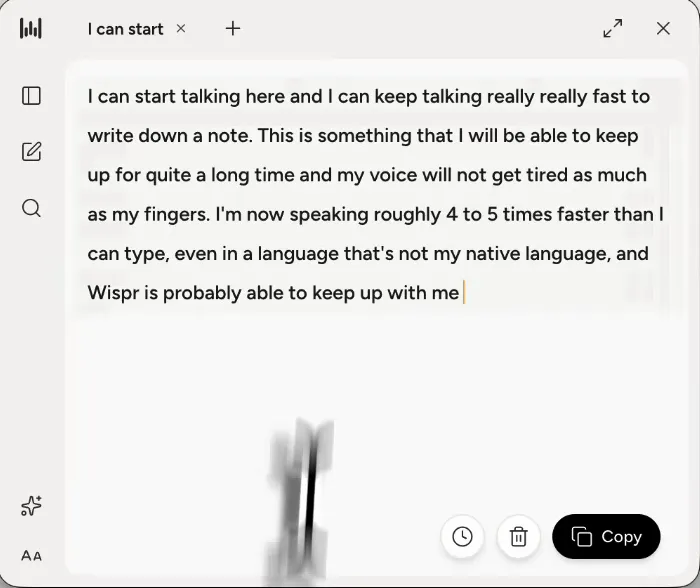
Your notes stay there for later. I don’t use the scratchpad much. I see people doing it, but it’s not my cup of tea.
What dictation does for you
Turning your voice into text won’t make your AI prompts any better. The same goes for your documentation and your long-form writing. You do get much more productive at producing all of it.
As a professional in data engineering, you are a content creator.
Maybe you’re not making videos like me, but you might be writing LinkedIn posts, and you’ll certainly be writing professional documents, PowerPoints, Word files and PDFs. You’re writing things all day, and dictating makes you much faster at it. It also makes talking to your AI agents much easier, and that’s where most of my words go now.
Trying Wispr Flow
I’ve used Wispr Flow for months and can barely function without it anymore, because typing now feels slow and archaic. You can try Wispr Flow for free through my referral link. It’s an affiliate link, so I may earn a commission if you sign up through it. That costs you nothing extra and helps me keep making these videos every week.
