
In this article 6 sections
Microsoft just dropped the price of OneLake storage, sort of. The storage you have been paying for all along still costs the same, but with workspace lifecycle management Fabric can now move old files to cool and cold storage, which cost a fraction of it. If your lakehouses hold a lot of old data, that can save you real money.
The use case I have in mind is the landing zone. In the Files section of my lakehouse I keep an archive of every extract I have ever loaded, and after the first load most of those files are never touched again, unless we need to reload the platform for some reason. Until now they sat in hot storage at the full rate anyway.
Hot storage is what you have been paying for
Ever since Microsoft Fabric and OneLake came out, OneLake storage has been billed at the same rate as the hot tier of Azure Data Lake Storage Gen2 or a blob storage account. That works out to roughly 2.2 to 2.5 cents per gigabyte per month, depending on your region and currency.
On any data lake there comes a point where you want to lower that bill by moving data you rarely access to a slower but cheaper tier, like moving from SSD to HDD. As of now, OneLake can do that too. The regular storage you are used to has been renamed to hot storage, and next to it there are two new tiers: cool and cold.
Where to find lifecycle management
Lifecycle management is set per workspace. Open Workspace settings, go to OneLake and pick Lifecycle management. It is a new menu and still in preview, but it already works.
For the demo I used a workspace that ingests data from Synapse Link in ADLS. What is in it does not really matter. A lifecycle rule moves or deletes files that match conditions you set. The one I think matters most moves older data in the lake into cool or cold storage.
Creating a rule for the Files section
Click Add to create a new rule and give it a name. I called mine ArchiveOldData.
Scope: only the files
For the scope you choose between the entire workspace, a filter by path, or diagnostic events. I use Filter by path, because I do not want everything to cool down. The Delta tables in my gold layer need to be accessible at any time, and I am perfectly fine keeping those in hot storage. What I want to move to colder storage as it ages is the raw file storage: the Parquet files, JSONs and CSVs that come into my landing zone.
The path starts with the name of the lakehouse. Mine is called KDFLH, so the path is KDFLH.Lakehouse/Files. That puts the entire Files section of the lakehouse under the rule and leaves the Tables section alone.
Actions: cool after 14 days, cold after 30
Next come the actions. An action looks at the created, modified or access date of a file, takes a number of days, and says what happens to the file. A rule can hold one action of each type, so one move to cool and one move to cold.
Because this is a landing zone, I go by the created date. I just want to archive all the older extracts we have done out of the source systems, so I added two actions:
- created more than 14 days ago: move to cool
- created more than 30 days ago: move to cold
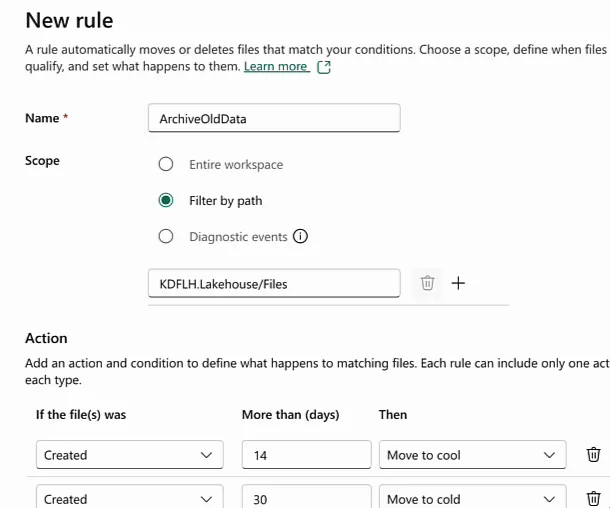
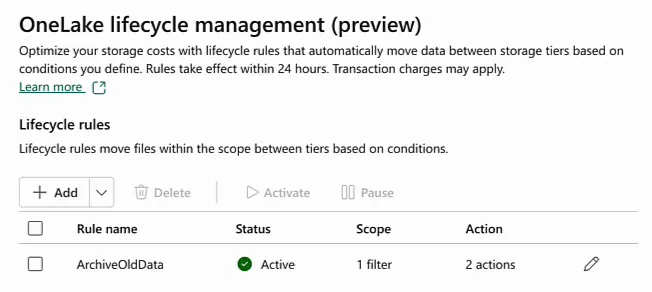
Save it, and the rule shows up in the list as active. From then on Fabric moves files older than 14 or 30 days to the cheaper tier by itself. The settings page adds that rules take effect within 24 hours and that transaction charges may apply.
What the storage tiers cost
The storage table on the Microsoft Fabric pricing page now lists the three tiers. Here they are for Central US in US dollars, and for my home region West Europe in euros, per gigabyte per month:
| Tier | Central US (USD) | West Europe (EUR) |
|---|---|---|
| Hot | $0.023 | €0.0206 |
| Cool | $0.0125 | €0.0112 |
| Cold | $0.0050 | €0.0043 |
In West Europe, cool storage costs about half of hot and cold about a fifth. For every terabyte that is roughly €20 a month in hot against just over €4 in cold. If you have large archives, loads and loads of old and stale data that you keep for auditing or for the occasional reload but no longer read every day, this is really worth it. For how storage fits into the rest of the bill, see Microsoft Fabric Costs Explained.
The trade-off
The downside is that reading from cool and cold storage is slower and more expensive than reading from hot storage. Microsoft’s page on OneLake storage tiers spells out how the tier affects what you pay. The storage charge itself, per GB per month, is highest for hot and lowest for cold. Transaction charges go the other way: reading, writing or listing consumes the fewest CUs on hot and the most on cold. Cool and cold also add a per-GB data retrieval fee, which consumes CUs based on the amount of data you read. Then there is the early deletion penalty. Cool storage has a minimum retention period of 30 days and cold storage 90 days, and if you move or delete data before that, you are billed for the rest of the period.
For a landing zone that is a trade-off I am willing to make. Those files are loaded once and then left alone, so the higher access cost hardly ever comes into play.
How many days to pick
I think we should be enabling storage tiers in lifecycle management on all of our workspaces.
How many days you wait before moving data to cool and then to cold depends on your use case. For most of my clients I will pick 7 days for cool, and 14 or maybe 30 days for cold. We usually load daily or several times a day, so an extract from last week is no longer being loaded into the data warehouse tables anyway.
Your mileage may vary, so pick your own archiving strategy. Either way, lifecycle rules are a very handy tool to save a bit on OneLake storage costs without touching your Delta tables.
