In this article 2 sections
Perhaps I’m somewhat late to the party, however, last Saturday I found something that really helps me as a data engineer working with Microsoft Fabric. Because the most annoying thing ever is having a Spark session in your notebook, going for a lunch walk, then coming back to a timed out session having to start it again (and wait for it to boot!). So how do we keep Spark sessions alive in Microsoft Fabric?
Spark Sessions in Microsoft Fabric
Microsoft Fabric Spark sessions are the foundation for running distributed data engineering workloads in Fabric using Apache Spark. That is a long sentence!
When you run a notebook, job, or other Spark workload in Fabric, a Spark session is automatically created to manage and execute your code. These sessions operate within a managed environment, where compute is provisioned on demand.
Fabric abstracts away the underlying infrastructure, so we don’t have to worry about managing the Spark clusters. Sessions have limits on runtime and resources, and are timed out after a set amount of time (20 minutes by default) in order to prevent hogging resources.
Timeout Settings
The most annoying thing ever is getting a phone call or going for lunch, only to return to your notebook that just timed out. Now I might be very late to the party, but I found just a couple of days ago how you can change the timeout settings in order to keep your sessions alive for much longer.
So, without further ado, here’s what you can do. There are two ways to set the timeout for your Spark sessions. One is in the Workspace Settings, the other is in the notebook’s session itself.
Obviously, the Workspace Settings will work on all sessions within that workspace, while the session-specific setting will only be applied to that single session.
Workspace Settings
If you want all your sessions to behave in the same way with regards to timeouts, then Workspace settings are your friend. If you have sufficient access rights, you can go to the Workspace Settings -> Data Engineering -> Spark settings -> Jobs -> Set Spark session timeout like in the screenshot below.
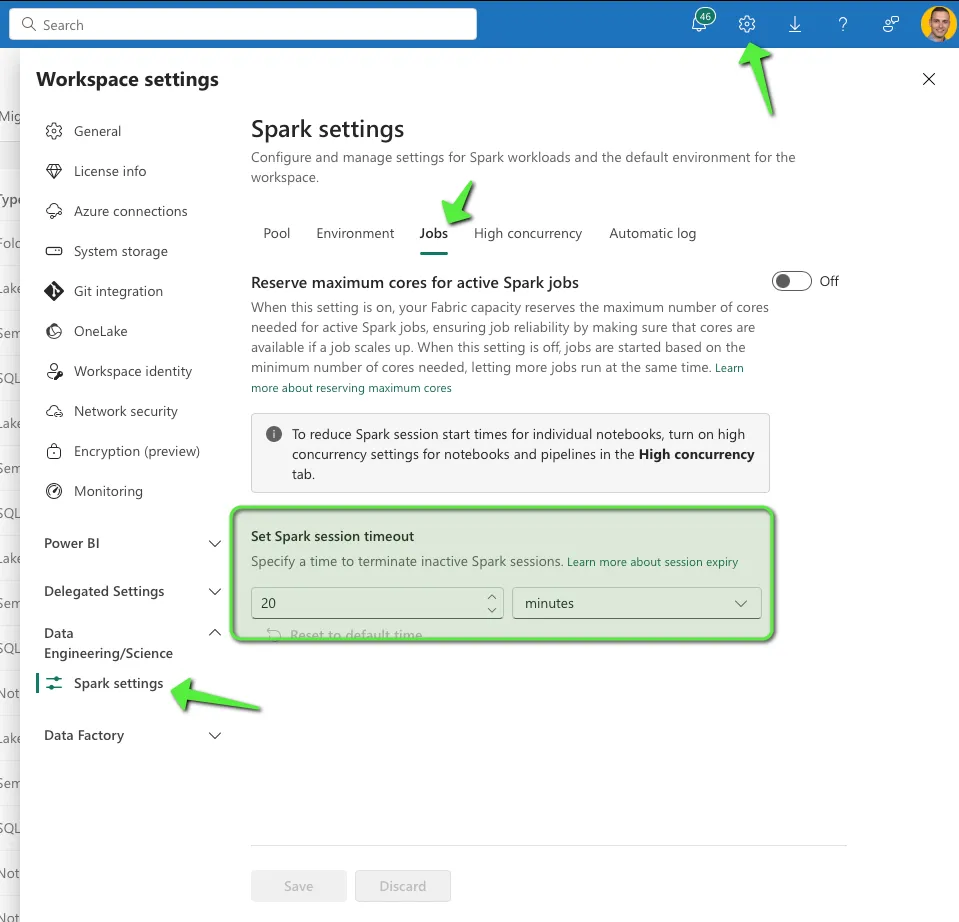
Session Timeout Settings
If you want to overrule this default setting for a specific session in your notebook, you have to have the notebook open and then go to the active session -> reset (not the most untuitive name for this setting). See the screenshot below:
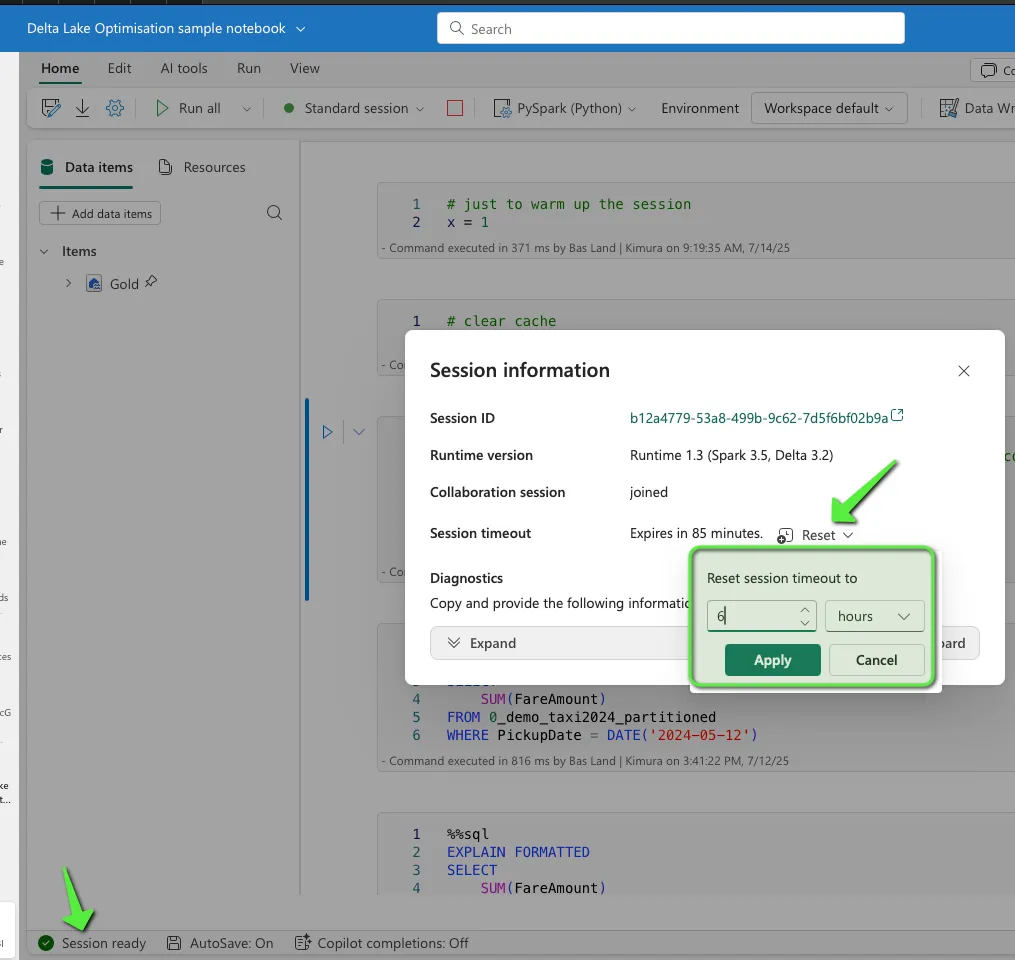
Maybe you already knew about this, maybe not, but at least now you do! Happy data engineering!